 Home

 Creators
 Search
 Recent
 Missing
 Random
 Posts
 DMs
 Tags
 Random
 Importer
 Import
 FAQ
 Account
 Register
 Login
 Favorites
 Keys
 Logout
 Telegram

What's new in Joplin 2.14 (Patreon)
Content
OCR
Optical Character Recognition (OCR) in Joplin enables the transformation of text-containing images into machine-readable text formats. From this version you can enable OCR in the Configuration screen under the "General" section. Once activated, Joplin scans images and PDFs, extracting text data for searchability.
While OCR search is available on both desktop and mobile apps, document scanning is limited to the desktop due to resource demands. For more information head to the OCR official documentation!
Bundled plugins
Joplin will now bundle high quality plugins that we feel will benefit most users. With this version we include the great Backup plugin by JackGruber. This will provide another layer of safety when using Joplin as by default it will automatically backup your notes in a "JoplinBackup" folder in your home directory.
Note that, just like any other plugin, you can change the plugin configuration or even disable it from the settings.
ENEX importer
As usual in recent version, there are plenty of improvements to the Joplin ENEX importer. Besides the various fixes and enhancement to support this format, we've added a few useful features:
Restore note links after importing an ENEX file
Evernote Export files do not include the necessary information to reliably restore the links between notes, so for a long time this feature was not supported by the importer.
Now however Joplin will try to guess what note is linked to what other note based on the note title, which in many cases will give the expected result. But not always - when that happens, and Joplin cannot detect the link target, the application leaves the original Evernote link. That way you can manually restore it yourself or at least find back what the note was linked to.
Import a directory of ENEX files
It is notoriously difficult to export data from Evernote because, among other issues, you can only export one notebook at a time, which is an obvious problems when you have dozens of notebooks. Unfortunately we cannot improve this part of the process since this up to Evernote, however we now make it easier to import all these notebook files by adding support for importing a folder of ENEX files. To use this feature, go to File > Import, and select one of the "ENEX (Directory)" options.
This will process all the ENEX files in that directory and create a notebook in Joplin for each of them.
Beta Markdown editor
This version features further improvements to the new Markdown editor based on CodeMirror 6. The goal eventually is to be able to use the same editor on both the desktop and mobile application (which already uses CodeMirror 6), which will allow a more consistent user experience across devices.
Plugin support has also been improved in this version - plugin authors can now write native CodeMirror 6 extensions using the plugin API. For more information check the documentation on how to create a Markdown plugin!
Another benefit of this new editor is that, in a future version, it will allow us to support plugins on the mobile application since a plugin written for the desktop app will work on mobile too. There are several other advantages that Henry listed in this forum post.
Rich text editor improvements
We continue making improvements to the Rich Text Editor (RTE) in particular to improve interoperability with other applications, such as LibreOffice, Office or web browsers, as well as better handling of copy and paste.
Another notable addition is support for setting colours, which was a frequently asked feature. To use the feature, select it from the "..." button in the toolbar. Note that once applied the colours will work in the Markdown editor too!
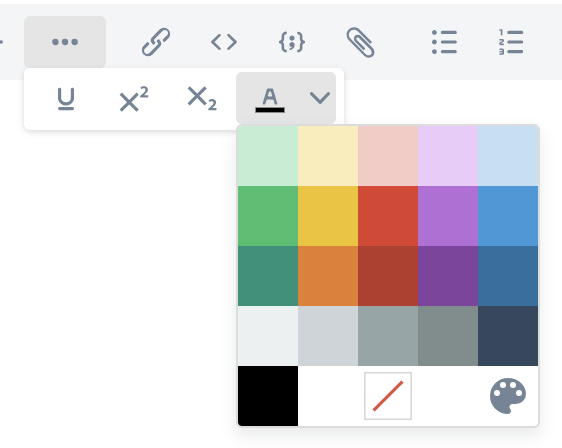
See below for the full list of RTE changes:
- Fixed: Rich text editor: Fix context menu not shown in some cases
- Improved: Speed up pasting text and images in Rich Text Editor
- Fixed: Fix drag-and-drop of images and text in the rich text editor
- Fixed: Fix images with SVG data URLs corrupted in the rich text editor
- Fixed: Pasting rich text in the RTE sometimes result in invalid markup
- Fixed: Rich text editor: Fix newline behavior in new notes
- Improved: Add support for changing text colors in rich text editor
- Fixed: Fix HTML resource links lost when editing notes in the rich text editor
- Fixed: Fix code blocks with blank lines break tables in the rich text editor
- Fixed: Copied and pasted text from Firefox to RTE does not include images
- Fixed: Pasting rich text in the RTE sometimes result in invalid markup
- Fixed: Fixed copying and pasting an image from Chrome in RTE
Full changelog
This is just an overview of the main features. The full changelog is available there:
