Home
Home

 Creators
 Search
 Recent
 Random
 Posts
Posts
 DMs
DMs
 Tags
Tags
 Random
 Importer
 Import
 FAQ
FAQ
 Account
 Register
 Login
Login
 Favorites
 Keys
Keys
 Logout
 Telegram

Monthly Discord Server Reminder (Patreon)
Content
How to connect your Patreon Account to your Discord Account
Click on Settings from the left side menu
Click on More and then Connected Apps from the menu bar
Click on Discord and then click the Connect button
Enter the email address or phone number you use to log in with Discord and your password and click the Login button
Click the Authorize button
You've successfully linked Discord to Patreon! You may need to refresh the page.
Joining and Leaving a creator's Discord server
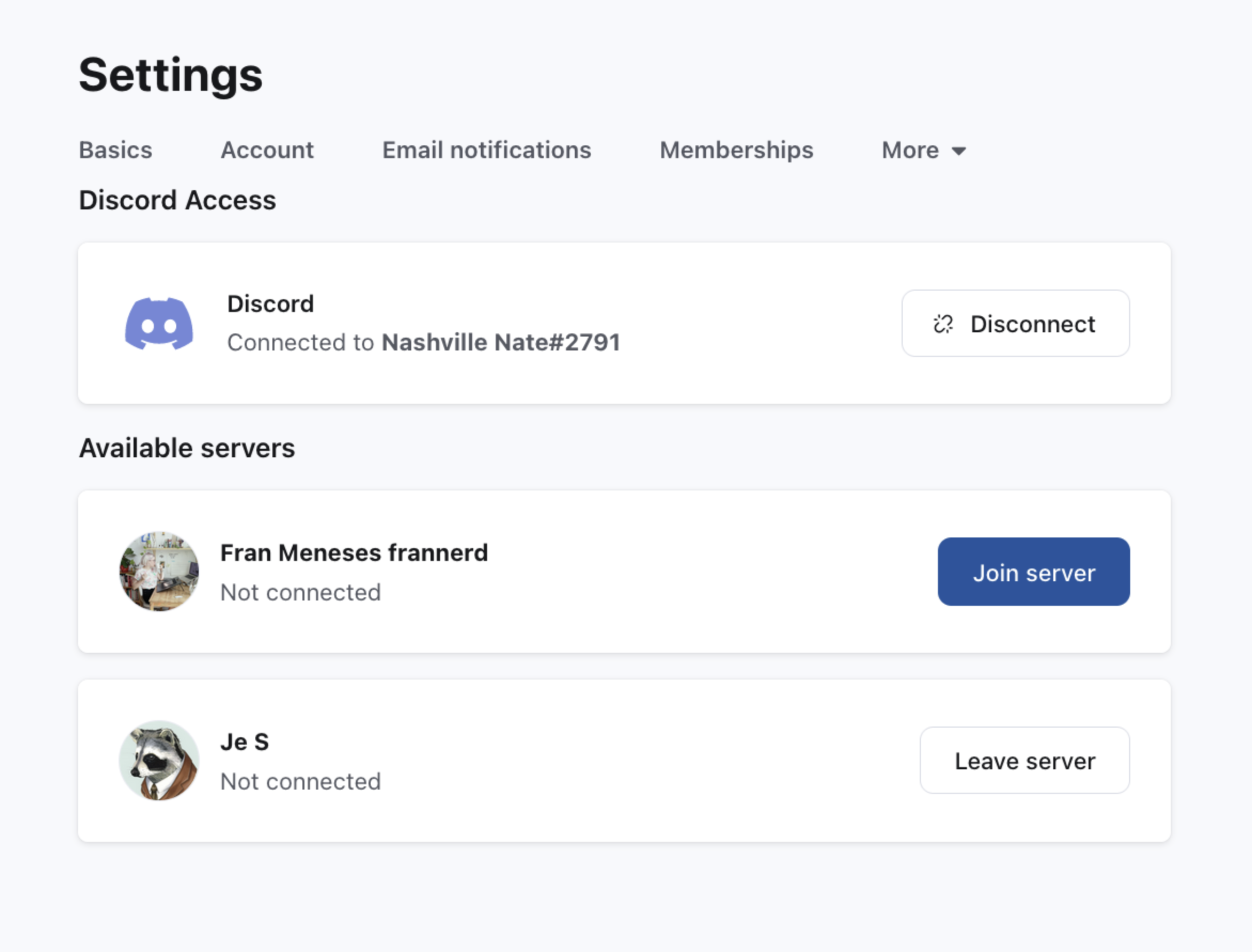
Once you've connected your Discord and Patreon accounts, any servers you're eligible to join will appear on the Discord Apps settings page. Click the Join server button to get your role. If you were automatically added to the server and wish to leave, follow the instructions below to Leave the server.
Click on Settings from the left side menu
Click on More and then Connected Apps from the menu bar
Click on Discord and then click the Disconnect button OR the Leave server button next to SnaccPop Studios.
If you need further assistance, here is the direct Patreon link with an FAQ at the bottom of the page.
Files