Home
Home

 Creators
 Search
 Recent
 Random
 Posts
Posts
 DMs
DMs
 Tags
Tags
 Random
 Importer
 Import
 FAQ
FAQ
 Account
 Register
 Login
Login
 Favorites
 Keys
Keys
 Logout
 Telegram

Death Stranding - Reshade Preset v1.0 - Natural . Cinematic (RT & Non-RT) (Patreon)
Downloads
Content
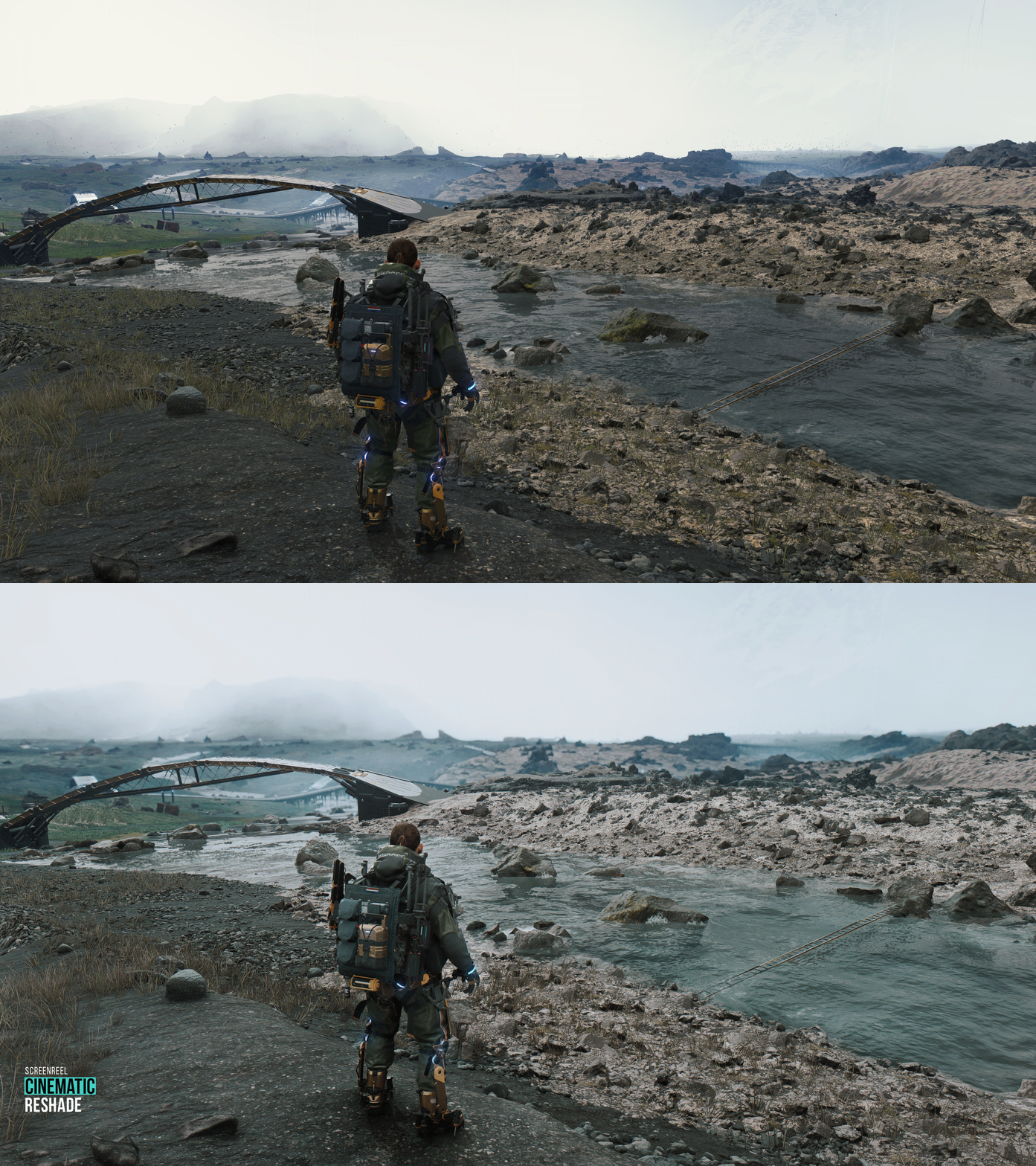
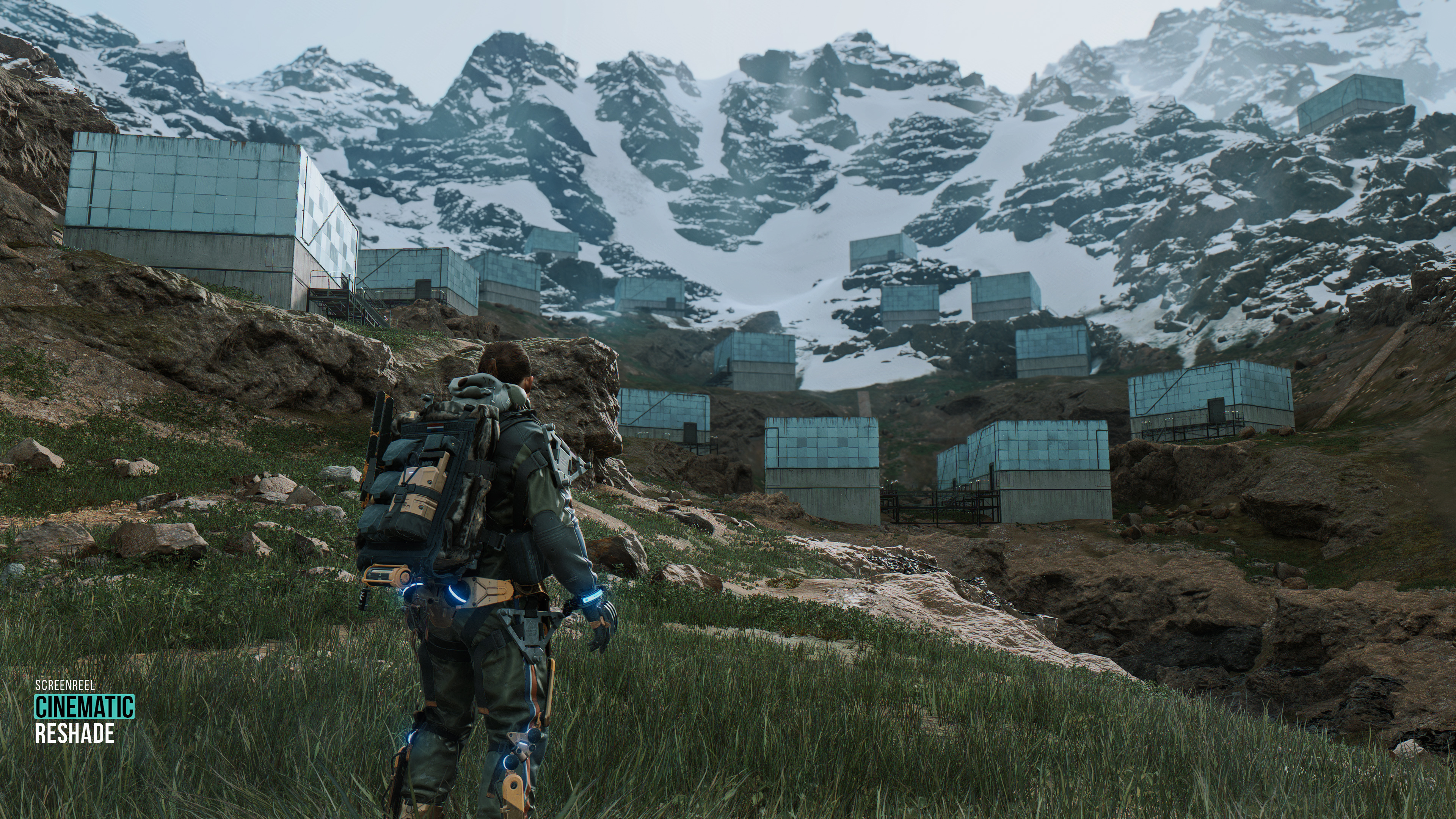
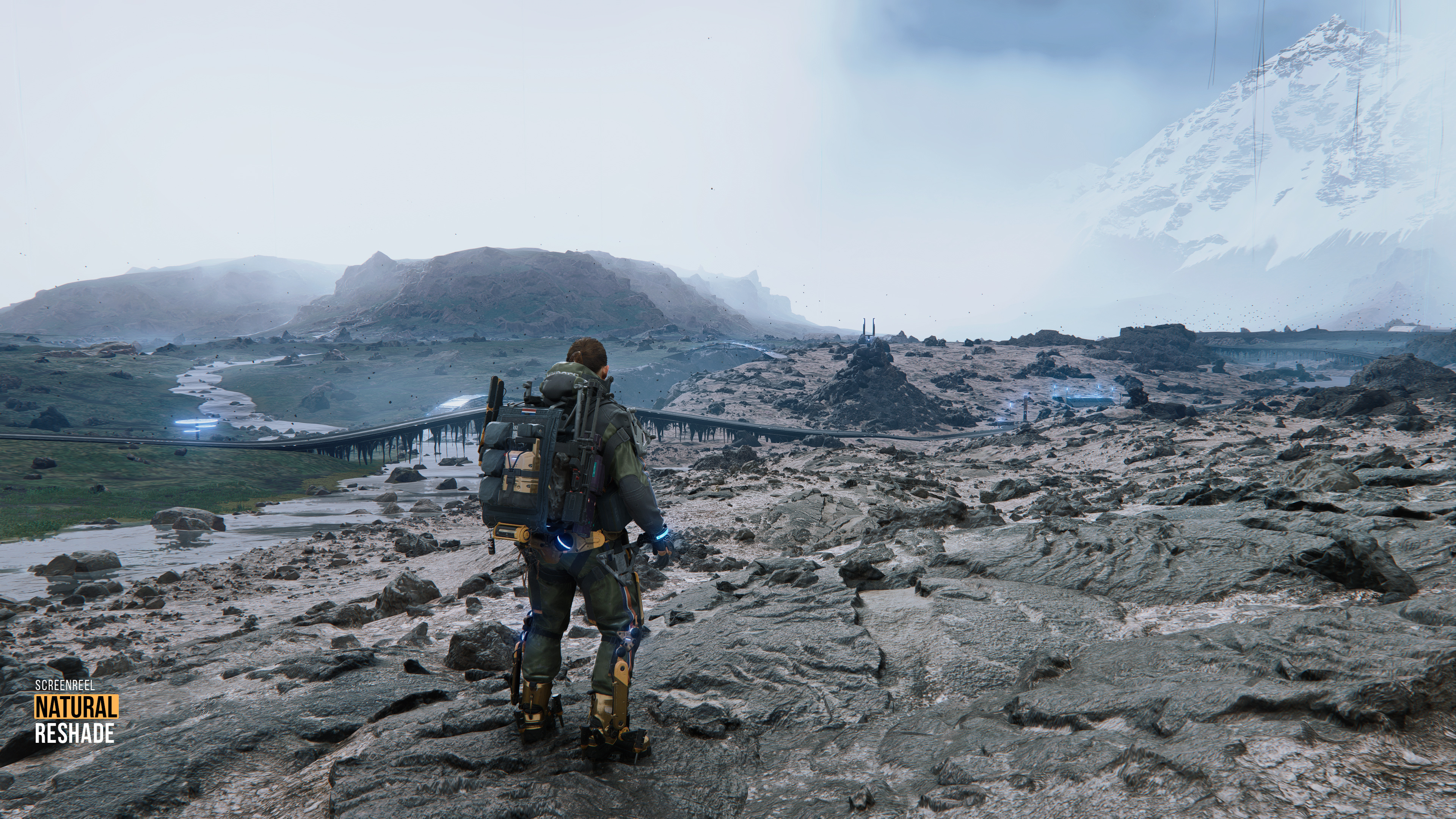
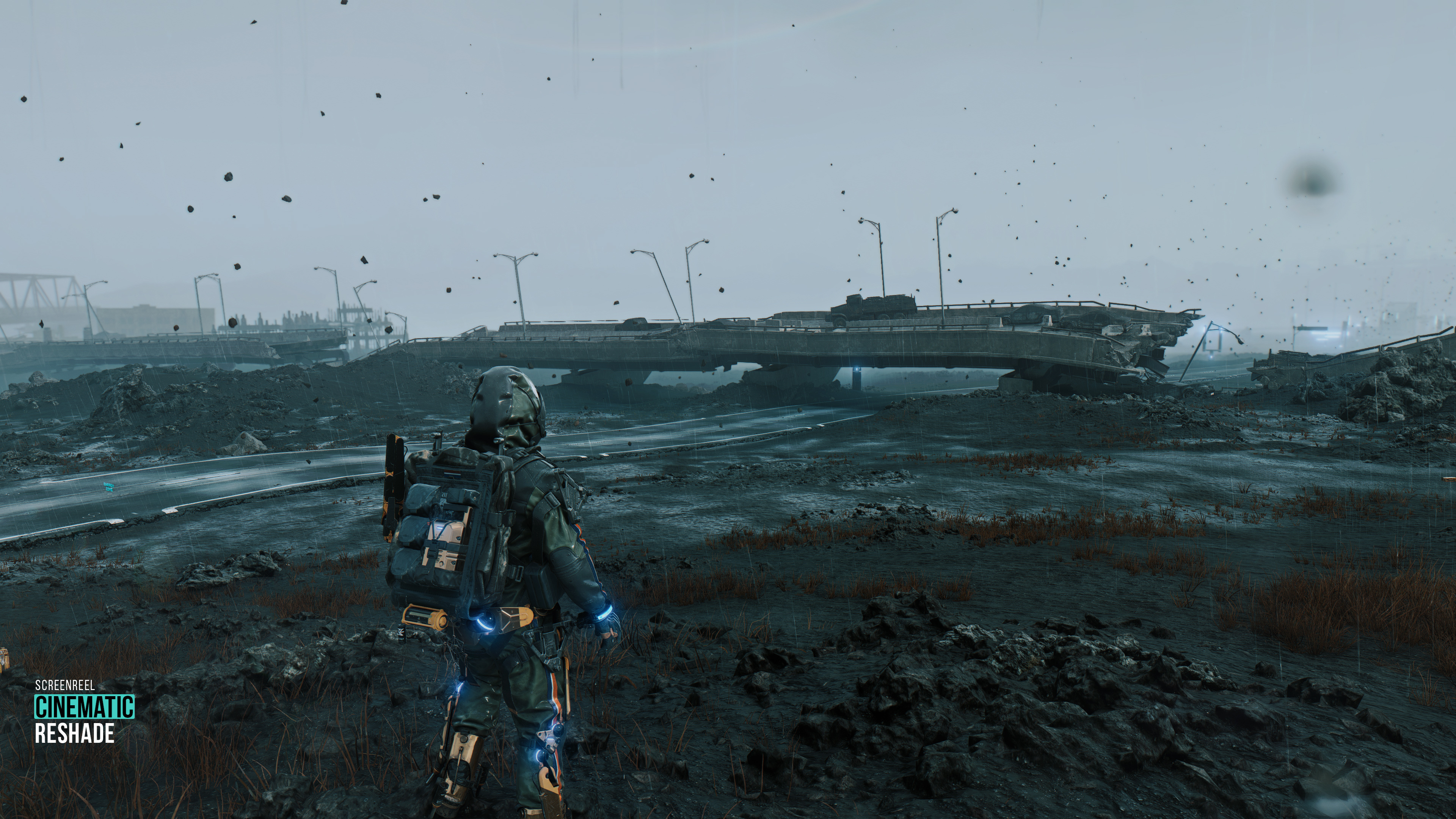
Death Stranding presets: Natural and Cinematic. Each one of them has Raytracing (RT) and Non-Raytracing (Non-RT) versions. Presets can be used for the Death Stranding and the Death Stranding Director's Cut Edition.
Preset Showcase: https://youtu.be/-ZRkGSo_rU4
Quick guide: --------------------------------------------------------------------
01. Download Reshade: https://reshade.me/ and run downloaded file
02. Select the game in the list (ds.exe)
03. Choose the proper rendering API (For this game select DirectX 10/11/12)
04. Select and download all effect (shader) packages
05. For Presets Non-RT you can skip this step. But for Presets RT you should get mcflypg's RTGI shader (5$ tier): https://www.patreon.com/mcflypg/
06. Download my Reshade Preset(s) archive(s), extract it and put extracted files (.ini file and the reshade-shaders folder) into the game folder where the .exe file is located (Overwrite if asks)
07. Check in-game Reshade interface. You should see these shaders below as active in this order:
[ If the shader has the (Opt.) sign next to it, that shader is optional for a specific preset. You can disable them from Reshade GUI. These, however, are well-balanced and I recommend keeping them enabled ]
For Death Stranding_Preset RT Natural_v1.0:
qUINT_opticalflow@qUINT_of.fx,
RTGlobalIllumination@qUINT_rtgi.fx,
LUT@LUT.fx,
AdaptiveTonemapper@AdaptiveTonemapper.fx,
AmbientLight@AmbientLight.fx,
FlexibleCA@FlexibleCA.fx, (Opt.) - Chromatic aberration
Clarity@Clarity.fx,
AMD FidelityFX ContrastAdaptiveSharpening@CAS.fx,
ArtisticVignette@ArtisticVignette.fx
For Death Stranding_Preset RT Cinematicv1.0:
qUINT_opticalflow@qUINT_of.fx,
RTGlobalIllumination@qUINT_rtgi.fx,
LUT@LUT.fx,
AdaptiveTonemapper@AdaptiveTonemapper.fx,
MatsoDOF@DOF.fx, (Opt.) - Depth of field
AmbientLight@AmbientLight.fx,
FlexibleCA@FlexibleCA.fx, (Opt.) - Chromatic aberration
Clarity@Clarity.fx,
AMD FidelityFX ContrastAdaptiveSharpening@CAS.fx,
ArtisticVignette@ArtisticVignette.fx
-----------------------------------------------
For Death Stranding_Preset Non-RT Natural_v1.0:
iMMERSE Launchpad [MartysMods_Launchpad.fx],
iMMERSE MXAO [MartysMods_MXAO.fx],
LUT@LUT.fx,
AdaptiveTonemapper@AdaptiveTonemapper.fx,
AmbientLight@AmbientLight.fx,
FlexibleCA@FlexibleCA.fx, (Opt.) - Chromatic aberration
Clarity@Clarity.fx,
AMD FidelityFX ContrastAdaptiveSharpening@CAS.fx
For Death Stranding_Preset Non-RT Cinematicv1.0:
iMMERSE Launchpad [MartysMods_Launchpad.fx],
iMMERSE MXAO [MartysMods_MXAO.fx],
LUT@LUT.fx,
AdaptiveTonemapper@AdaptiveTonemapper.fx,
MatsoDOF@DOF.fx, (Opt.) - Depth of field
AmbientLight@AmbientLight.fx,
FlexibleCA@FlexibleCA.fx, (Opt.) - Chromatic aberration
Clarity@Clarity.fx,
AMD FidelityFX ContrastAdaptiveSharpening@CAS.fx
Note: I often use two methods of sharpening in my presets. One is for textures/surfaces. The second is for objects' edges. If you're playing at 1440p or 1080p and the image looks oversharpened, try turning off one of these sharpening shaders: Clarity, AMD FidelityFX CAS, AdaptiveSharpen or LumaSharpen.
Note: Some shaders may give a very subtle effect in some areas. However, they have a significant impact on other environments. So I recommend you don't turn off any shaders if you want the preset to work as it should. I'll always let you know when there are optional shaders in my presets.
-----------------------------------------------
If you need more guidance you can watch step-by-step video tutorials on how to install Reshade and set up the in-game overlay, Also how to install RTGI shader (For RT presets) and configure Depth Buffer properly here:
Reshade Installation and Setup Guide
. . .
Important: Presets were tweaked and tested in SDR (Non-HDR) game/monitor mode. It may not look decent in HDR mode. To deactivate HDR mode, go to in-game Display/Graphics settings. Also disable HDR for your Monitor, or set HDR levels to low. You can also try to tweak presets using extra shaders like: LevelsPlus, PD80_03_Levels or curves by yourself for HDR TV.
I plan to release HDR presets separately in the future if the project runs well with your support.
The same image looks different on different screens. You might need some tweaking for your monitor's brightness/contrast/saturation if Reshade differs from the showcase.
-----------------------------------------------
If you have a question write down or DM me.
Enjoy the game! :)
Files