Home
Home

 Creators
 Search
 Recent
 Random
 Posts
Posts
 DMs
DMs
 Tags
Tags
 Random
 Importer
 Import
 FAQ
FAQ
 Account
 Register
 Login
Login
 Favorites
 Keys
Keys
 Logout
 Telegram

The Witcher 3: Wild Hunt Next-Gen (Benis Lighting NG) | Non-RT Reshade Preset Pack v1.0 - Enhanced . Globallight . Realistic . Fantasy . Cinematic (Patreon)
Downloads
Content
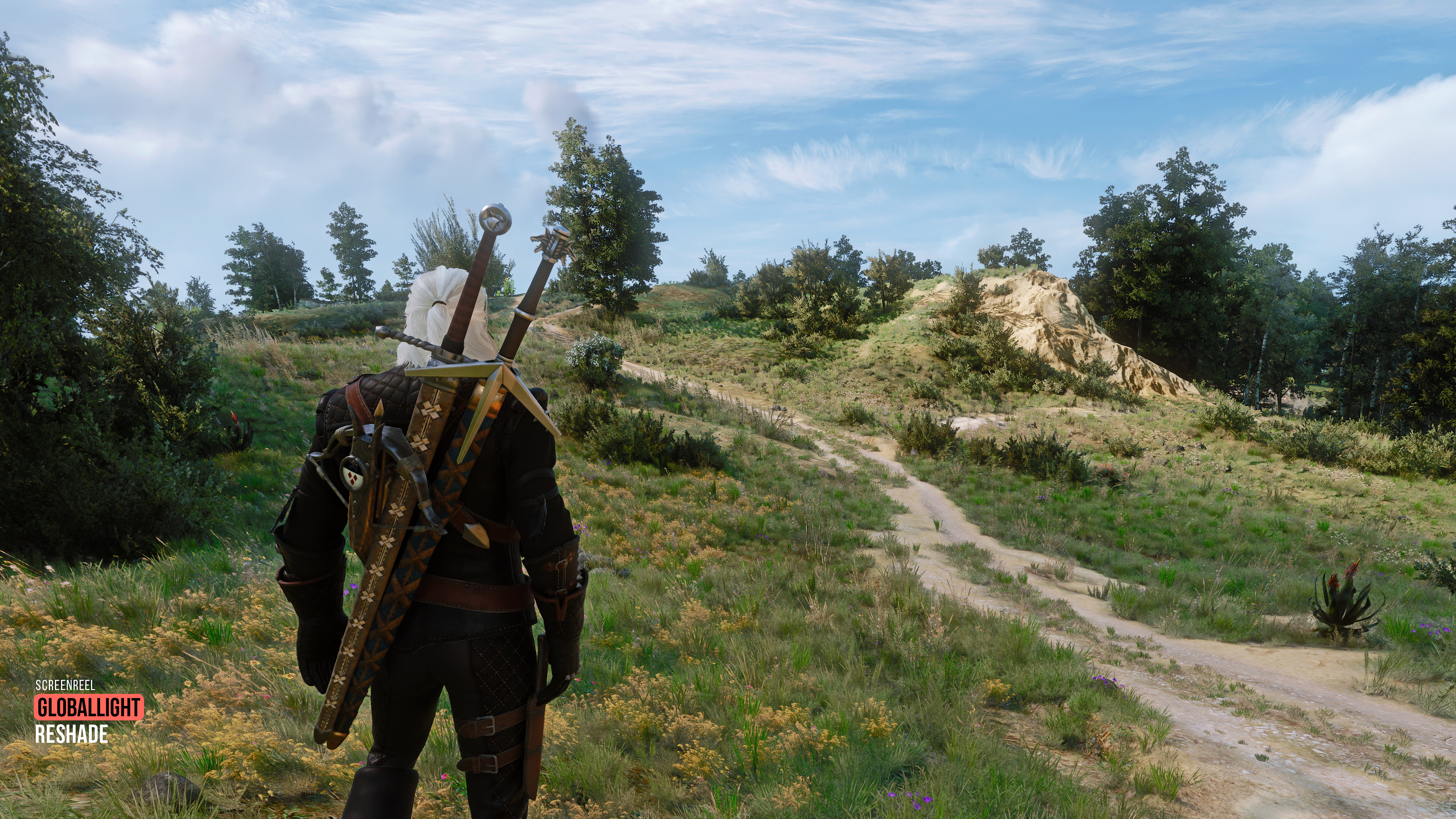
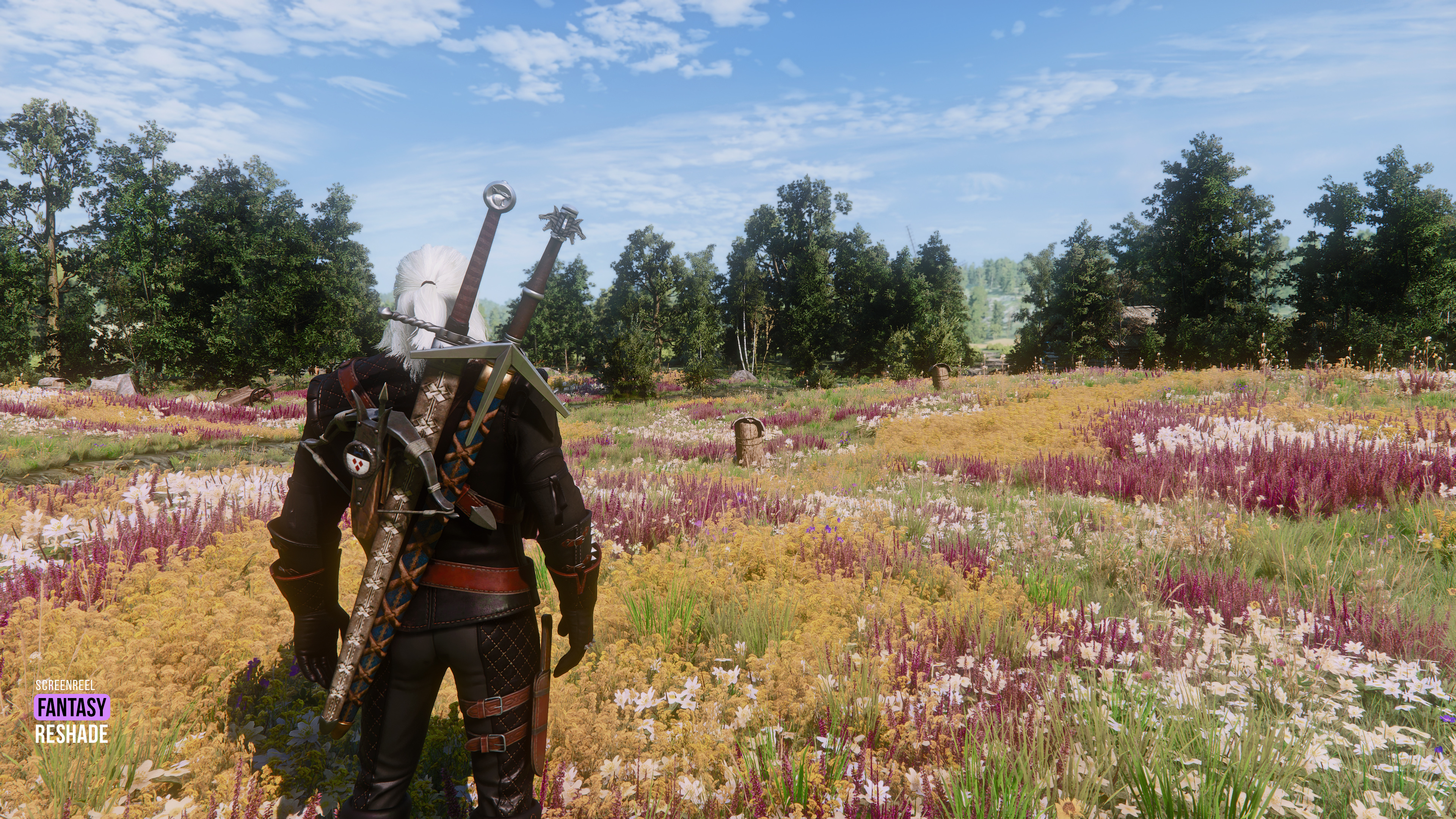
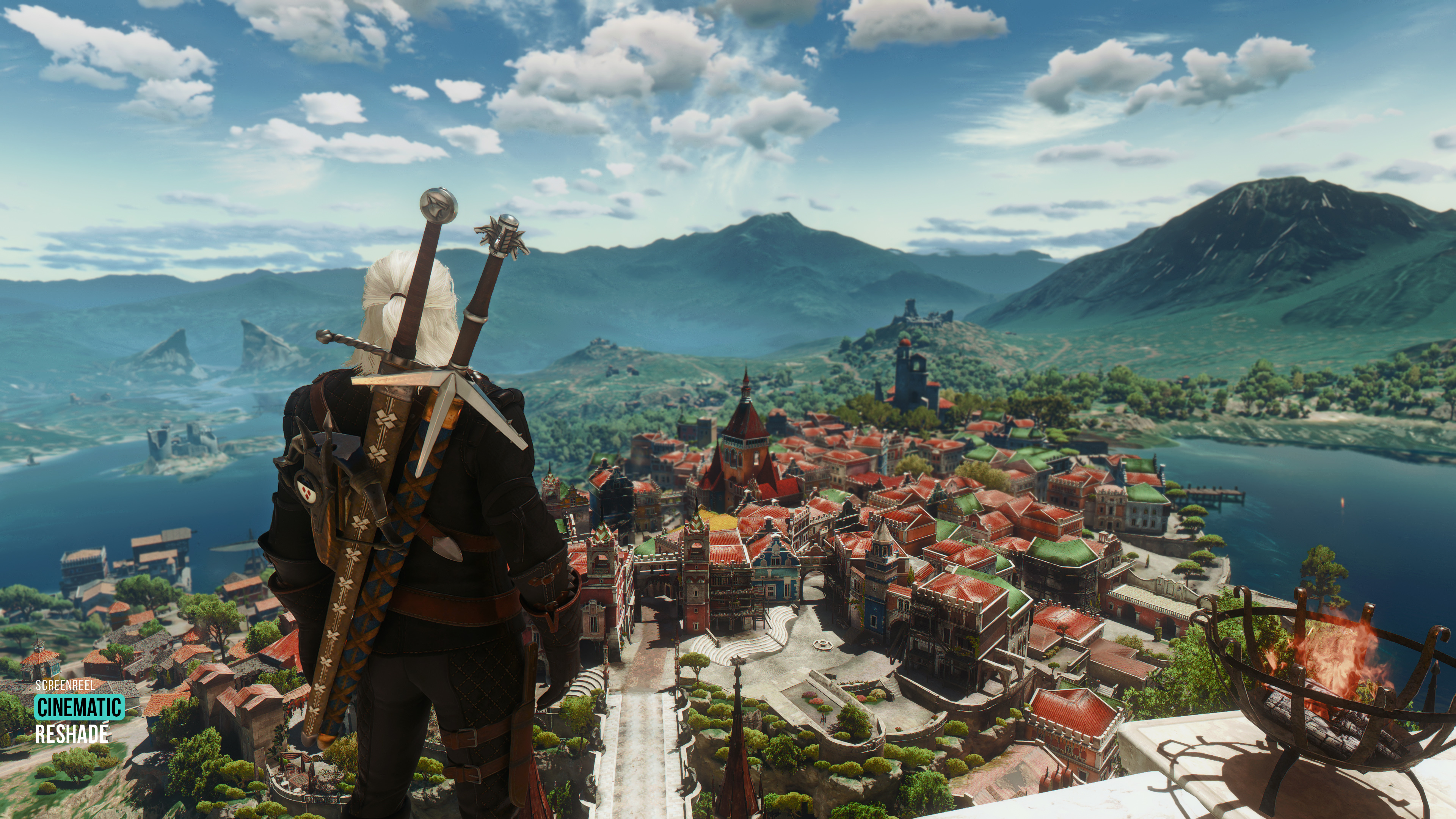
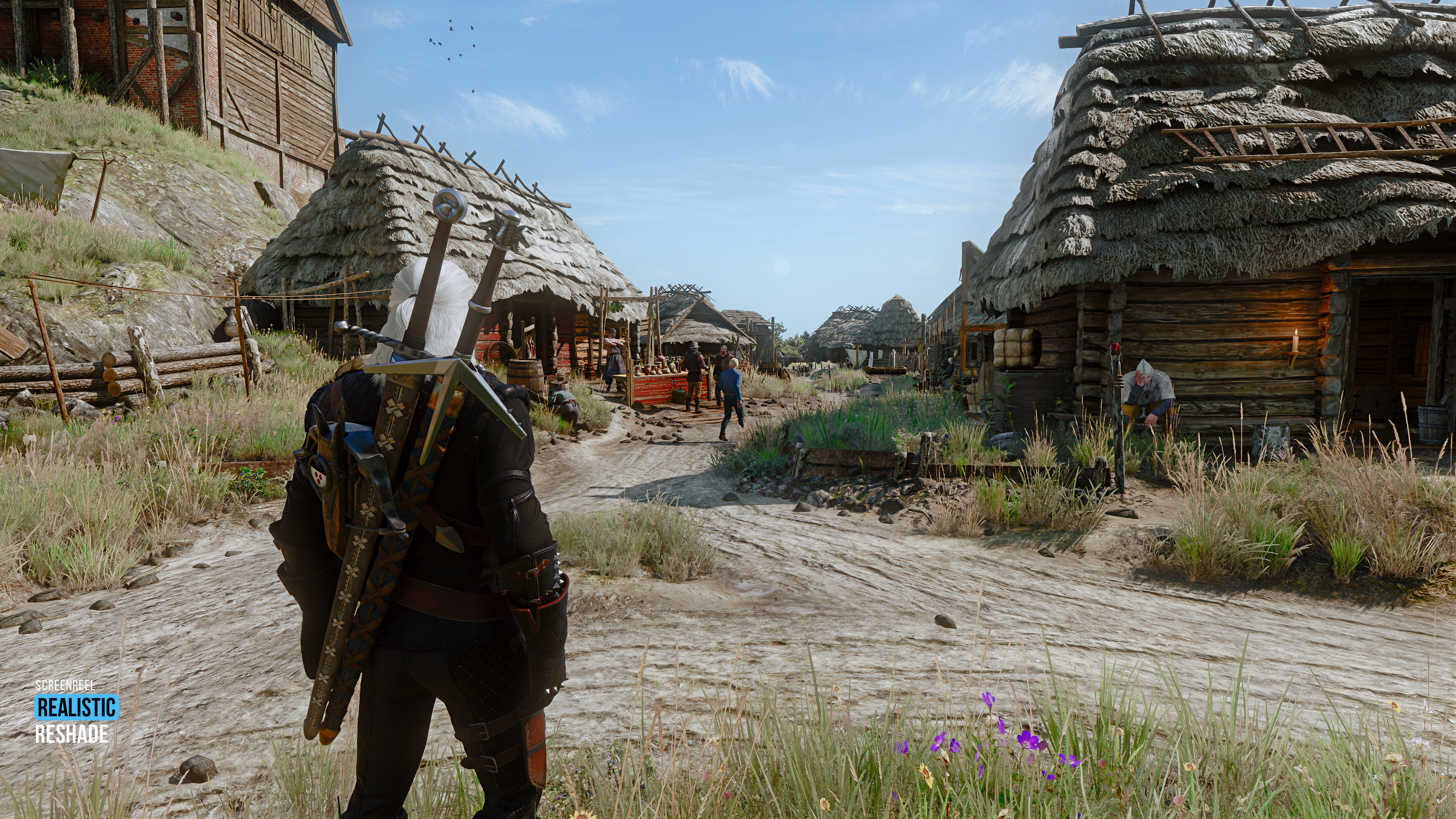
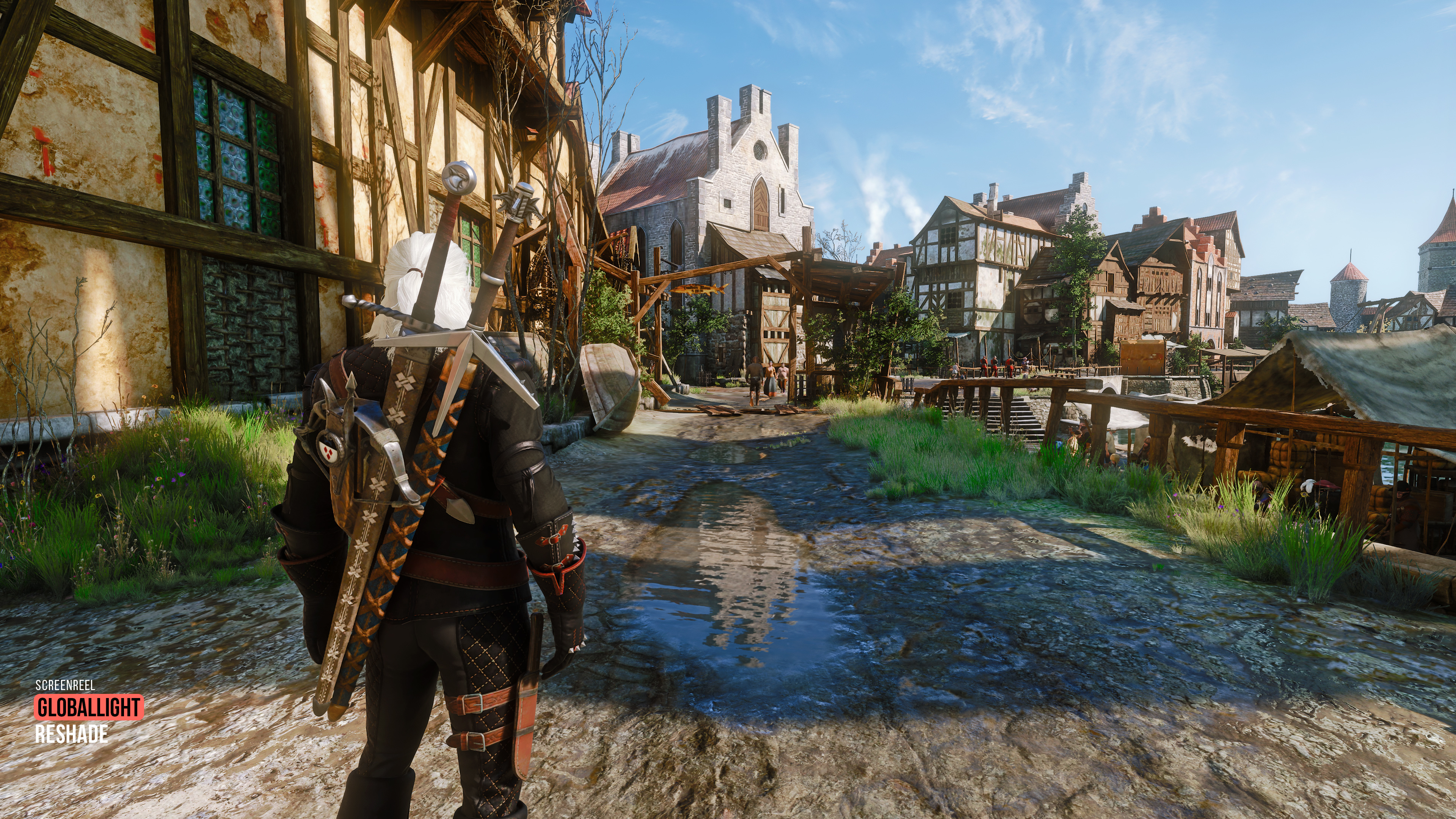
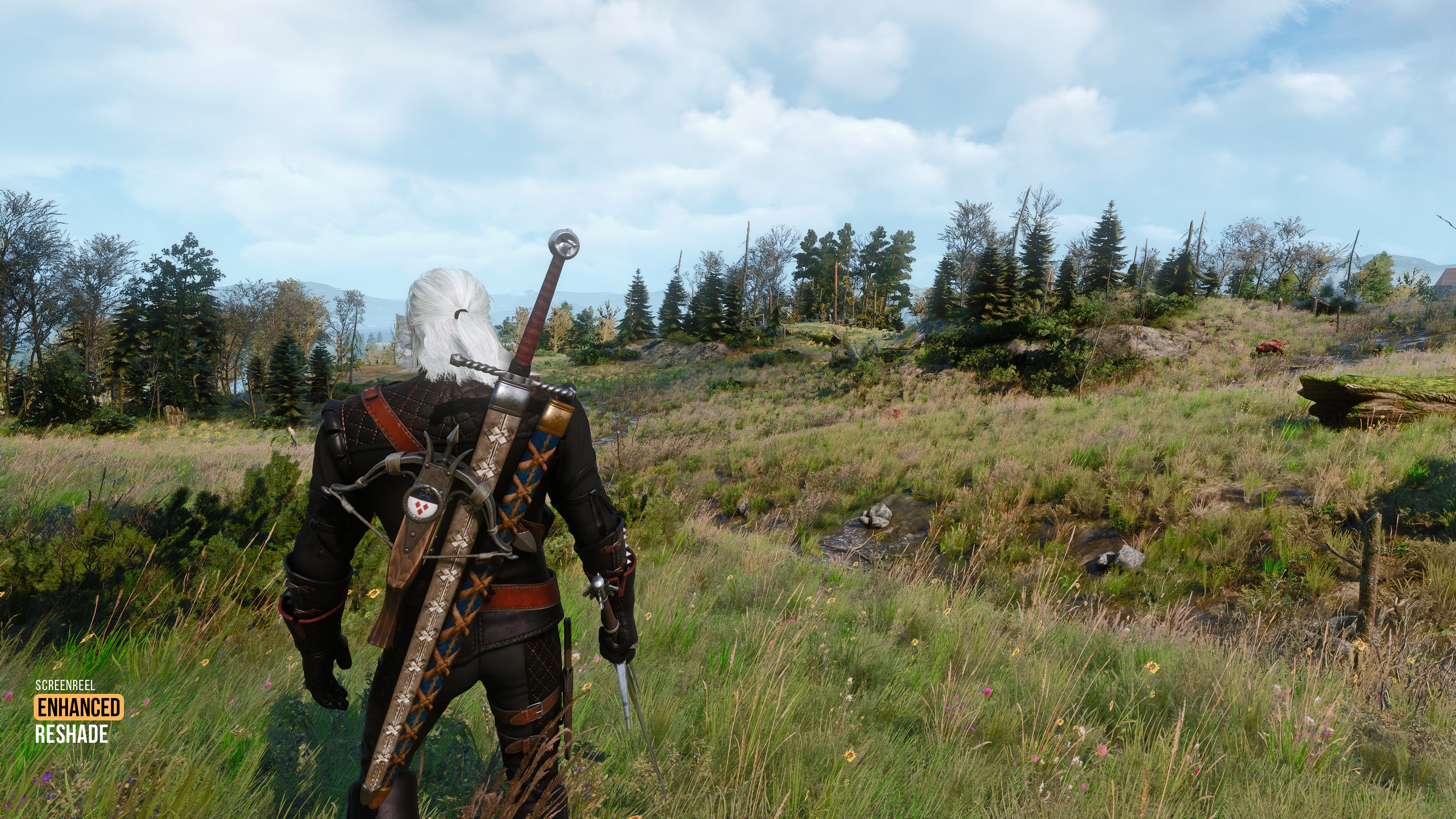
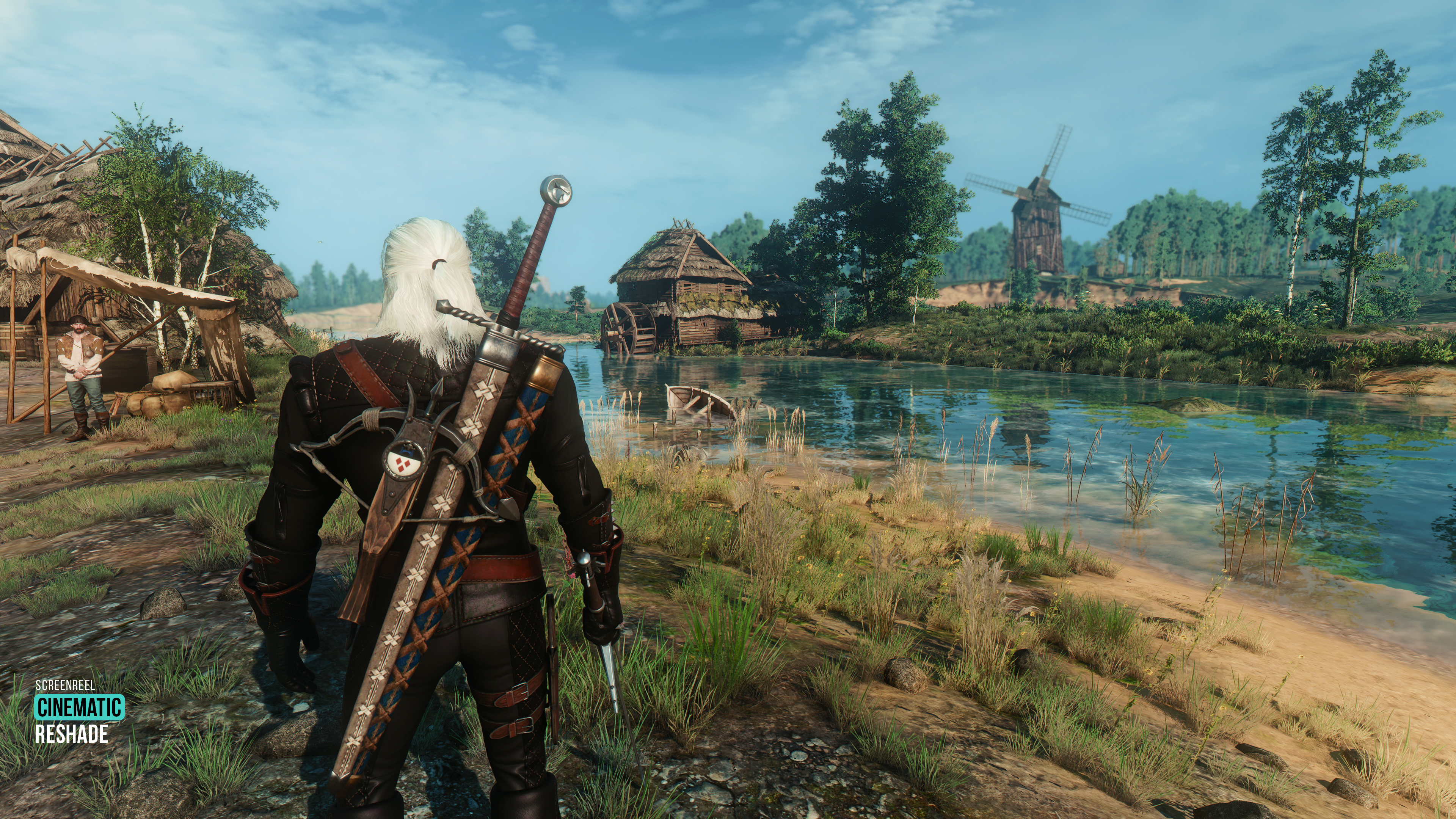
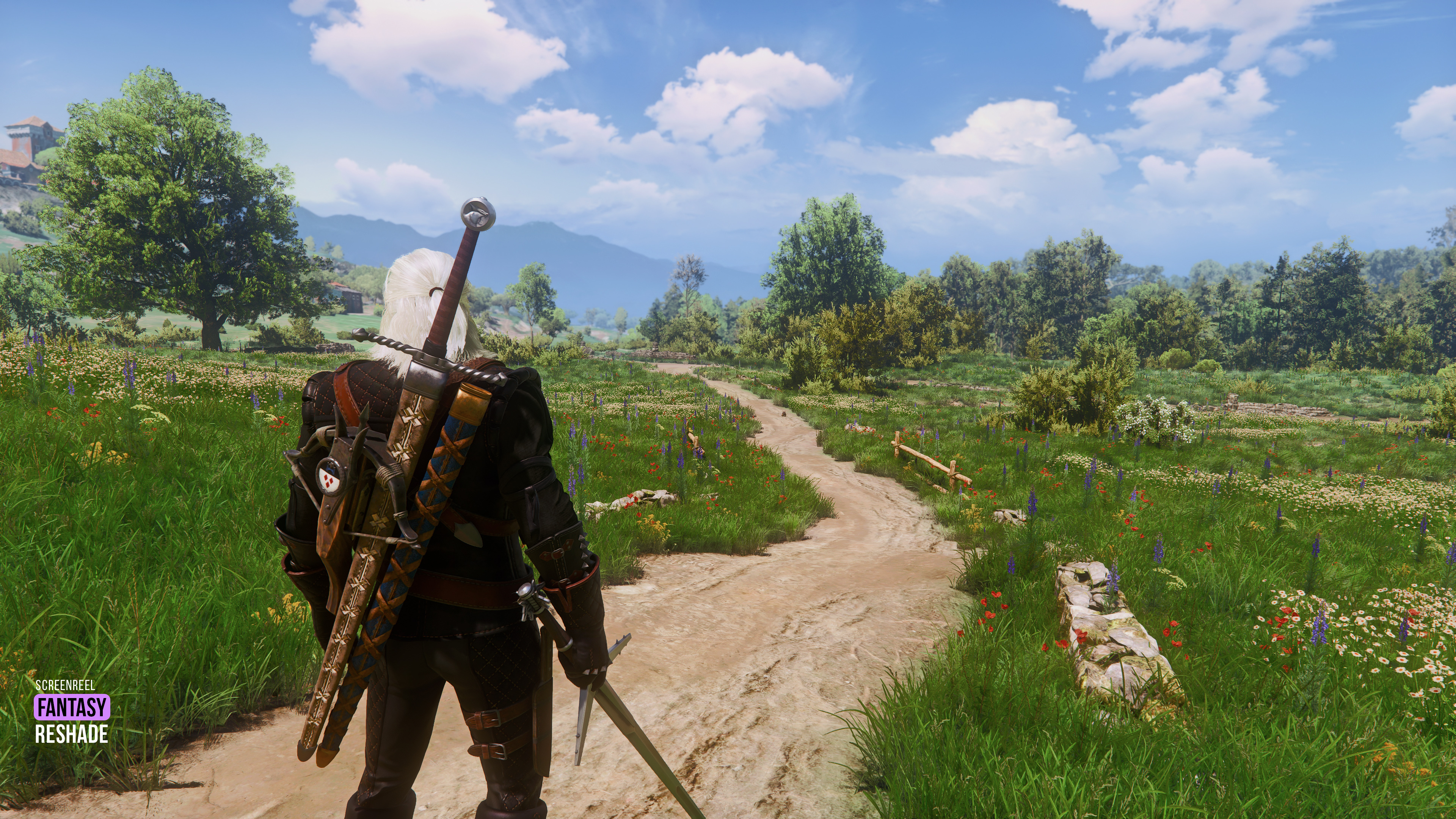
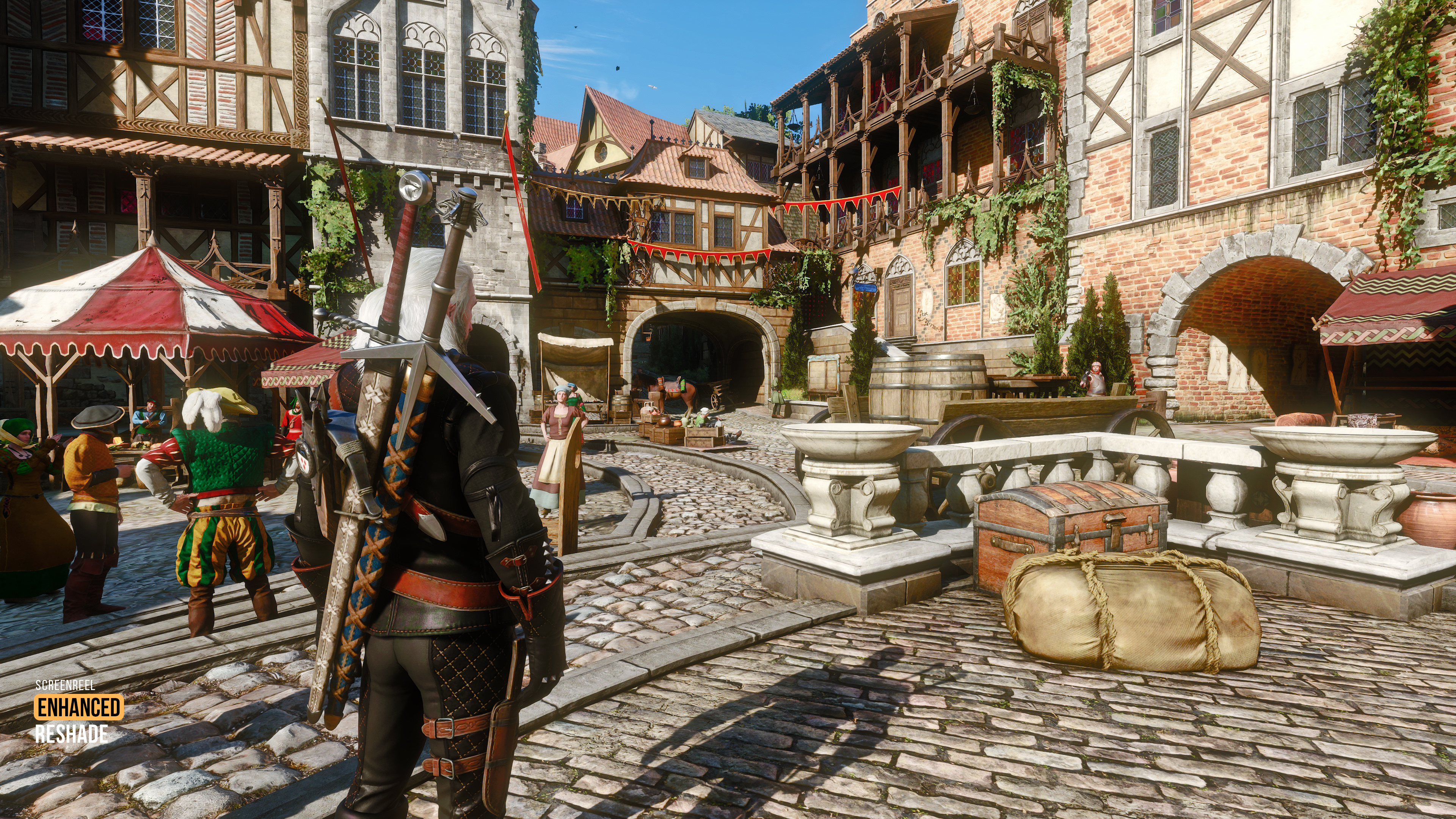
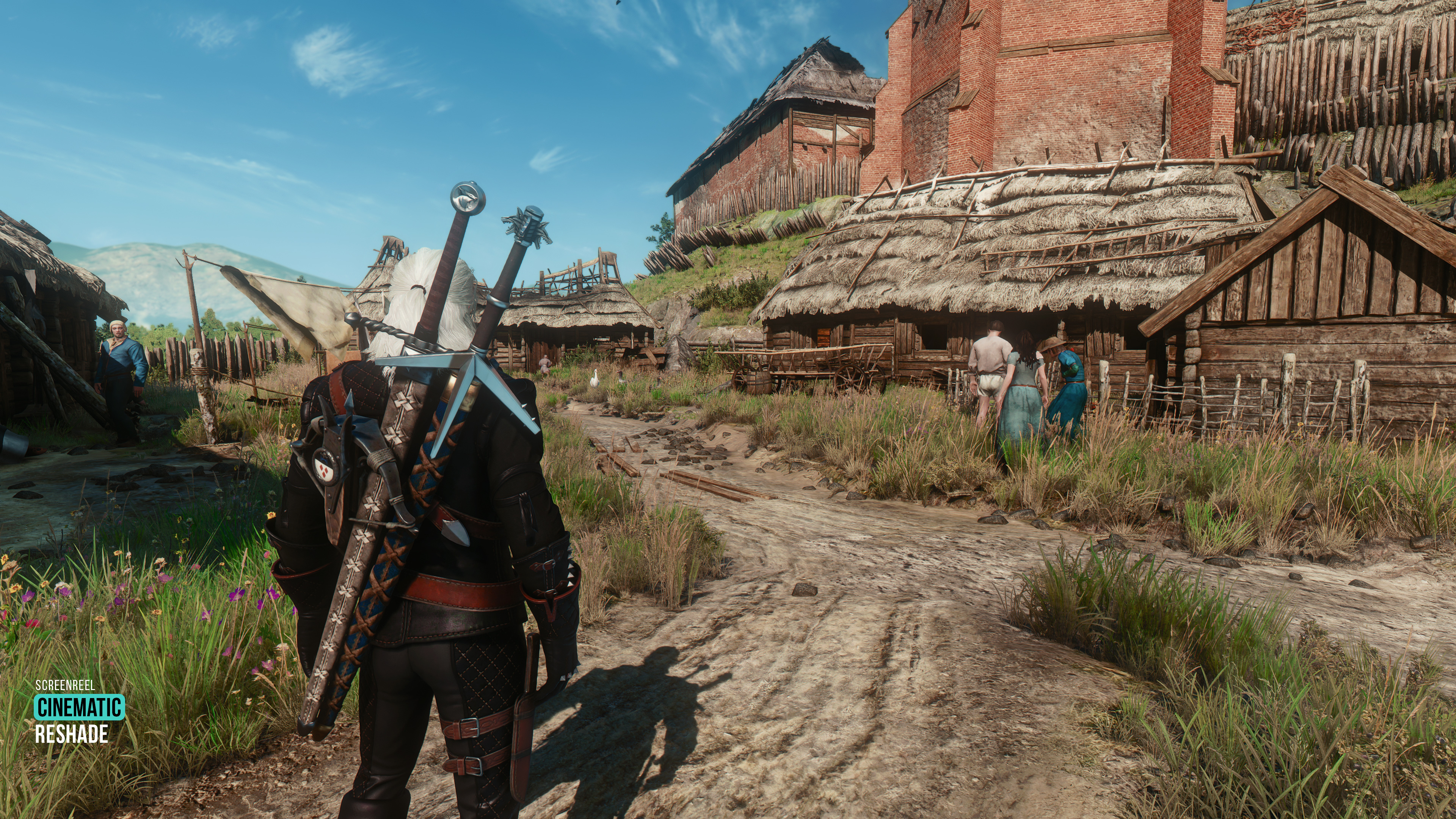
The Witcher 3: Wild Hunt Next-Gen (with Benis Lighting Mod NG) Non-RT Presets: Enhanced . Globallight . Realistic . Fantasy . Cinematic | These presets do not contain any of SSRTGI/RT shaders.
🟣 Read the "README!" file in the downloaded archive. It may contain necessary information about presets and game settings for a decent picture.
Preset Showcase: https://youtu.be/1sGdbLH_F4g
-----------------------------------------------------------------------------------
🟣 IMPORTANT:
Presets were made for The Witcher 3: Wild Hunt Next-Gen (DX12) with Benis Lighting Mod NG.
In-game Ray Tracing should be enabled!
Witcher 3 NG Benis Lighting Mod download link
Go to the link, download and install this version of the mod: HybridBBC DX12.
-----------------------------------------------------------------------------------
Quick guide: (How to install Reshade/Preset):
01. Download Reshade: https://reshade.me/ and run downloaded file
02. Select the game in the list witcher3.exe (x64_dx12)
03. Choose the proper rendering API (For this game select DirectX 10/11/12)
04. Select and download all effect (shader) packages
05. Download my Reshade Preset(s) archive(s), extract it and put extracted files (.ini files and the reshade-shaders folder) into the game folder where the .exe file is located (Overwrite if asks)
06. Check in-game Reshade interface. You should see these shaders below as active in this order:
🟣 If the shader has the ✔️(Opt.) sign next to it, that shader is optional for a specific preset. You can disable that from Reshade GUI. However, these optional effects enhance immersion.
For Witcher 3 (Benis LM)_Preset Non-RT Enhanced_v1.0:
LUT@LUT.fx,
prod80_01B_RT_Correct_Color@PD80_01B_RT_Correct_Color.fx,
AdaptiveTonemapper@AdaptiveTonemapper.fx,
prod80_02_Bloom@PD80_02_Bloom.fx,
Clarity@Clarity.fx,
AMD FidelityFX ContrastAdaptiveSharpening@CAS.fx
For Witcher 3 (Benis LM)_Preset Non-RT Globallight_v1.0:
LUT@LUT.fx,
Deband@Deband.fx,
AdaptiveTonemapper@AdaptiveTonemapper.fx,
prod80_01B_RT_Correct_Color@PD80_01B_RT_Correct_Color.fx,
prod80_02_Bloom@PD80_02_Bloom.fx,
Unsharp@Unsharp.fx,
Clarity@Clarity.fx,
AMD FidelityFX ContrastAdaptiveSharpening@CAS.fx
For Witcher 3 (Benis LM)_Preset Non-RT Realistic_v1.0:
AdaptiveTonemapper@AdaptiveTonemapper.fx,
PPFXBloom@PPFX_Bloom.fx,
LUT@LUT.fx,
VHS_RA@VHS_RA.fx,
GaussianBlurCS@GaussianBlurCS.fx,
AMD FidelityFX ContrastAdaptiveSharpening@CAS.fx,
Unsharp@Unsharp.fx
For Witcher 3 (Benis LM)_Preset Non-RT Fantasy_v1.0:
LUT@LUT.fx,
Deband@Deband.fx,
prod80_01B_RT_Correct_Color@PD80_01B_RT_Correct_Color.fx,
Blooming_HDR@BloomingHDR.fx,
AmbientLight@AmbientLight.fx,
prod80_02_Bloom@PD80_02_Bloom.fx,
FlexibleCA@FlexibleCA.fx, - - - - - - - - - - - - - ✔️(Opt.) - Chromatic aberration
MatsoDOF@DOF.fx, - - - - - - - - - - - - - - - - - - ✔️(Opt.) - Manual depth of field
Clarity@Clarity.fx,
AMD FidelityFX ContrastAdaptiveSharpening@CAS.fx
For Witcher 3 (Benis LM)_Preset Non-RT Cinematic_v1.0:
LUT@LUT.fx,
Blooming_HDR@BloomingHDR.fx,
AmbientLight@AmbientLight.fx,
prod80_04_ColorGradient@PD80_04_Color_Gradients.fx,
FlexibleCA@FlexibleCA.fx, - - - - - - - - - - - - - ✔️(Opt.) - Chromatic aberration
ADOF@qUINT_dof.fx, - - - - - - - - - - - - - - - - ✔️(Opt.) - Manual depth of field
Deband@Deband.fx,
Clarity@Clarity.fx,
AMD FidelityFX ContrastAdaptiveSharpening@CAS.fx
🟣 Note: I often use two methods of sharpening in my presets. One is for textures/surfaces, the second is for objects' edges (tuned for 4k gaming). But If you're playing at 1440p or 1080p and the image looks oversharpened, try turning off sharpening shaders like: AMD FidelityFX CAS, Clarity, LumaSharpen, AdaptiveSharpen or DELC_Sharpen.
🟣 Note: Some shaders may give a very subtle effect in some areas. However, they have a significant impact on other environments. So I recommend you don't turn off any shaders if you want the preset to work as it should. I'll always let you know when there are optional shaders in my presets.
-----------------------------------------------
If you need more guidance you can watch step-by-step video tutorials on how to install Reshade and set up the in-game overlay, Also how to install RTGI shader (For RT presets) and configure Depth Buffer properly here:
Reshade Installation and Setup Guide
. . .
🟣 Note: Presets were tweaked and tested in SDR (Non-HDR) game/monitor mode. They may not look decent in HDR mode. You can try to tweak presets using extra shaders like: LevelsPlus, PD80_03_Levels or curves by yourself for HDR TV.
The same image looks different on different screens. You might need some tweaking for your monitor's brightness/contrast/saturation if Reshade differs from the showcase.
-----------------------------------------------
If you have a question write down or DM me.
Enjoy the game! :)
Files