Home
Home

 Creators
 Search
 Recent
 Random
 Posts
Posts
 DMs
DMs
 Tags
Tags
 Random
 Importer
 Import
 FAQ
FAQ
 Account
 Register
 Login
Login
 Favorites
 Keys
Keys
 Logout
 Telegram

RPD male pack models release (Patreon)
Content
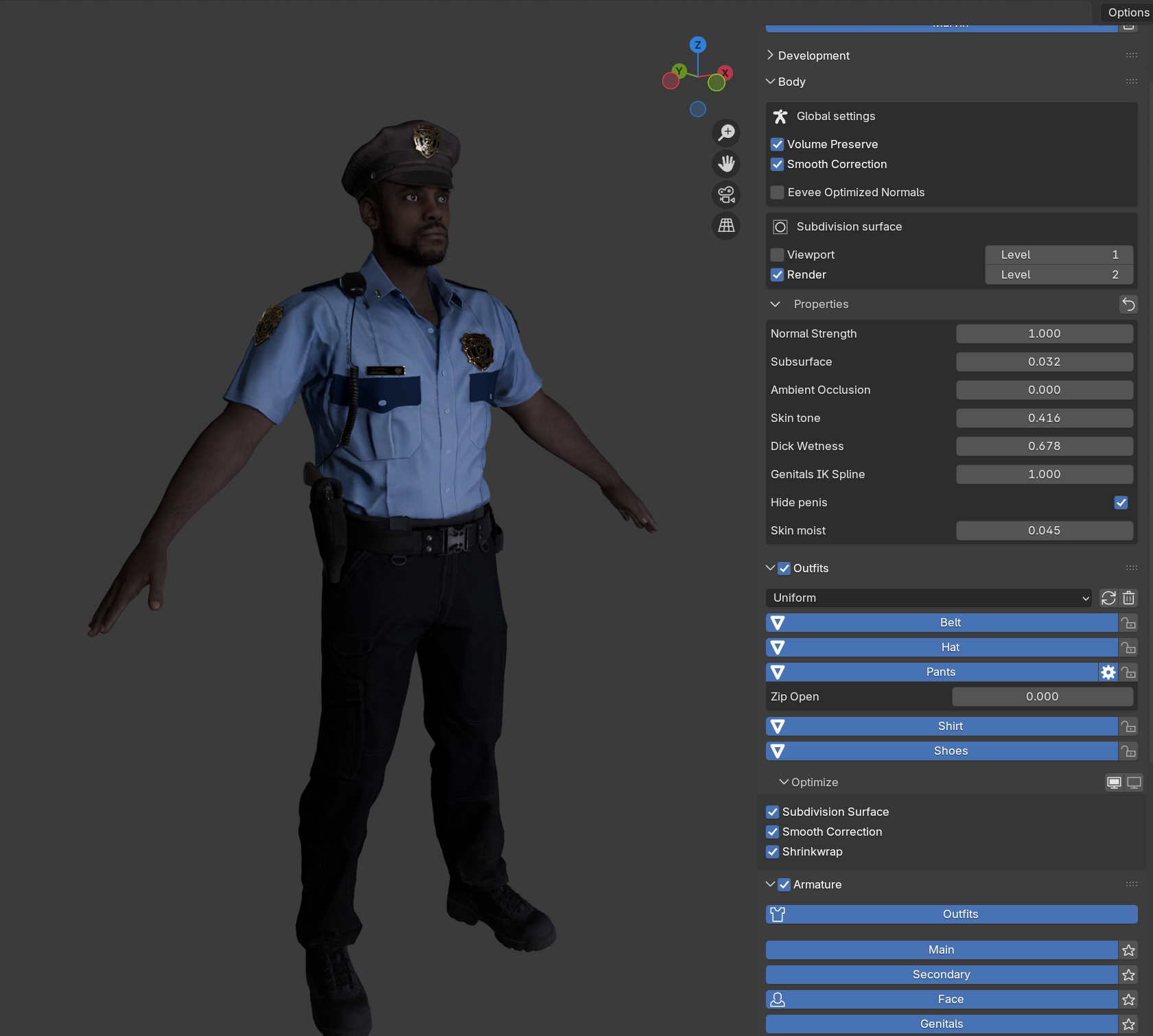
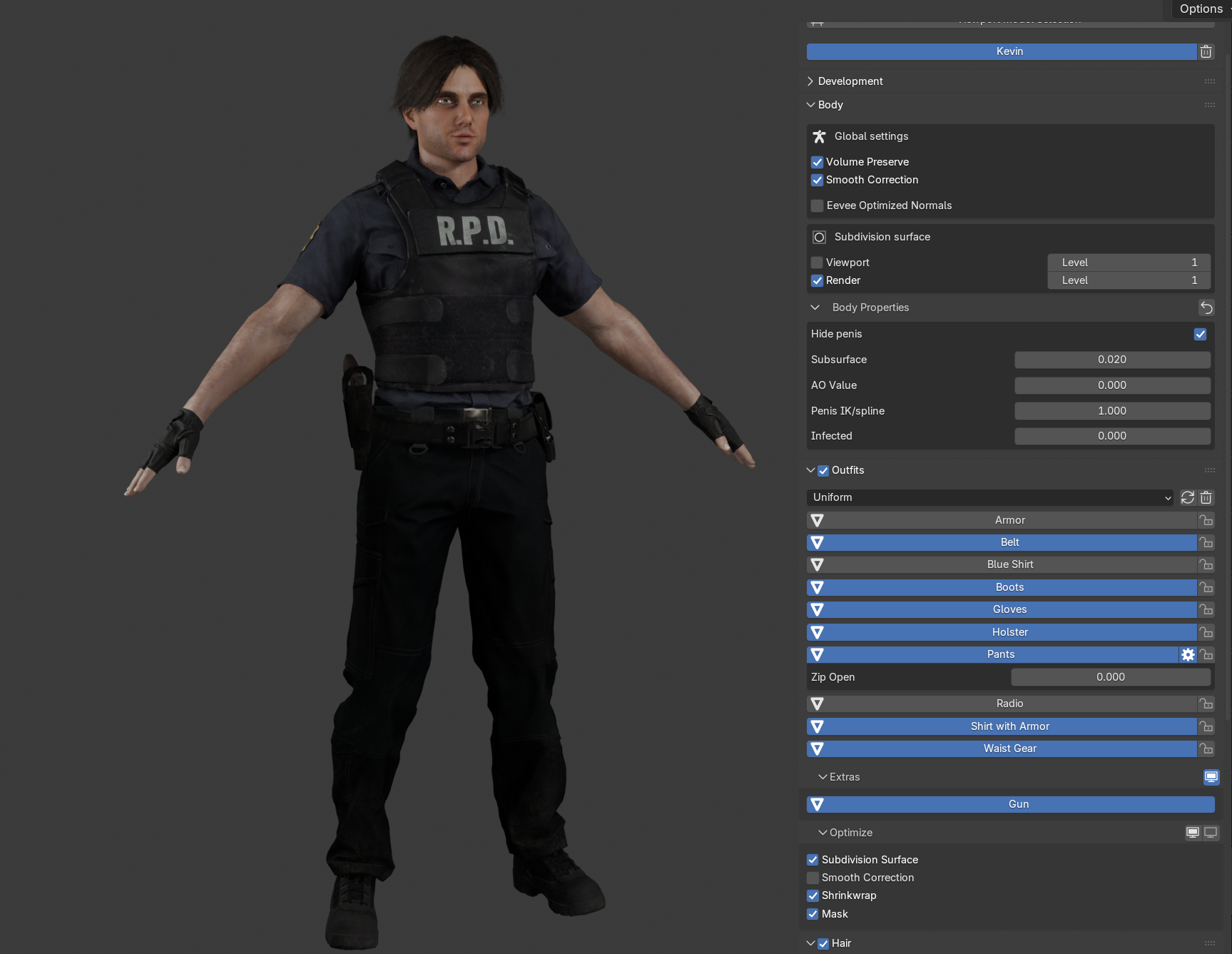
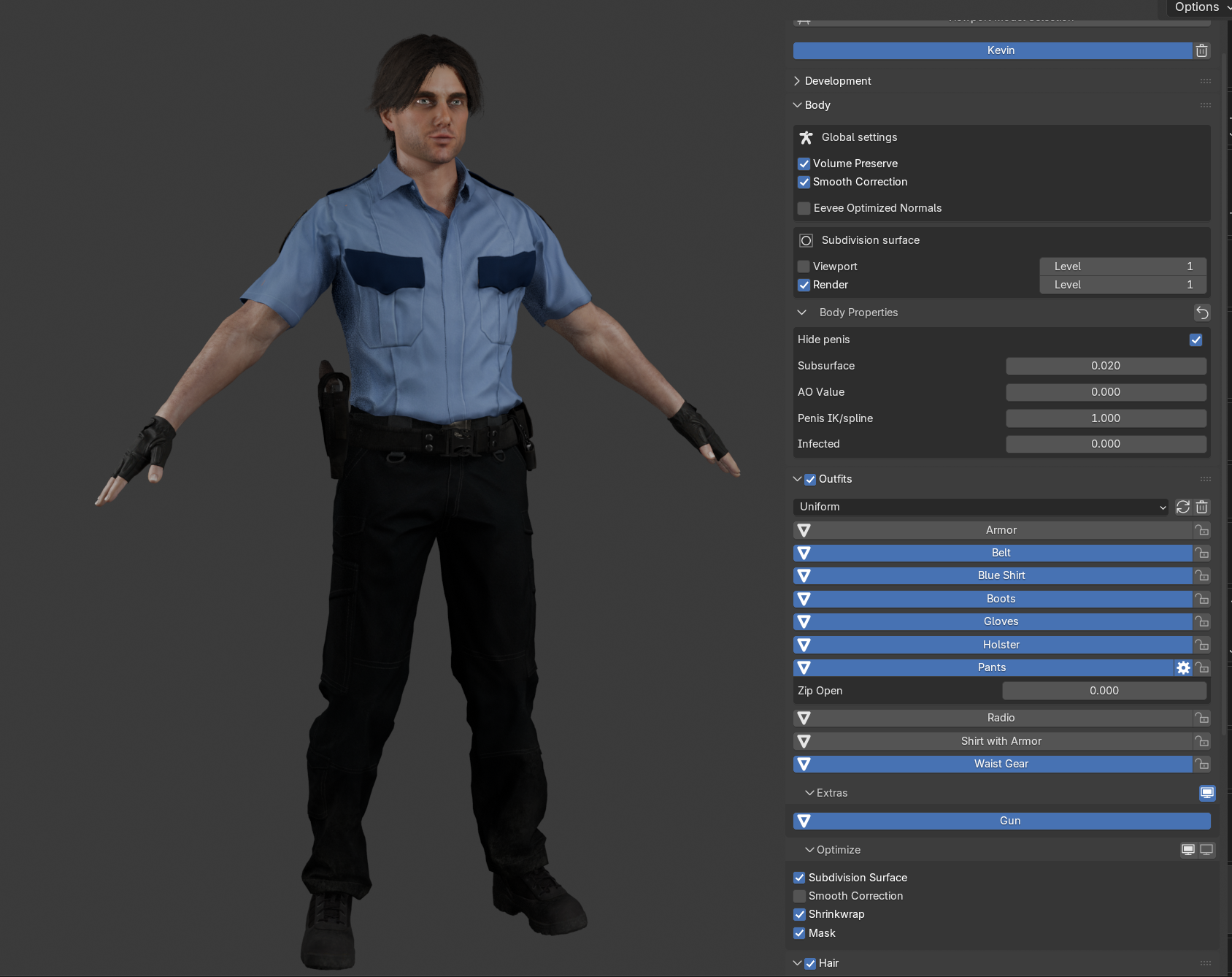
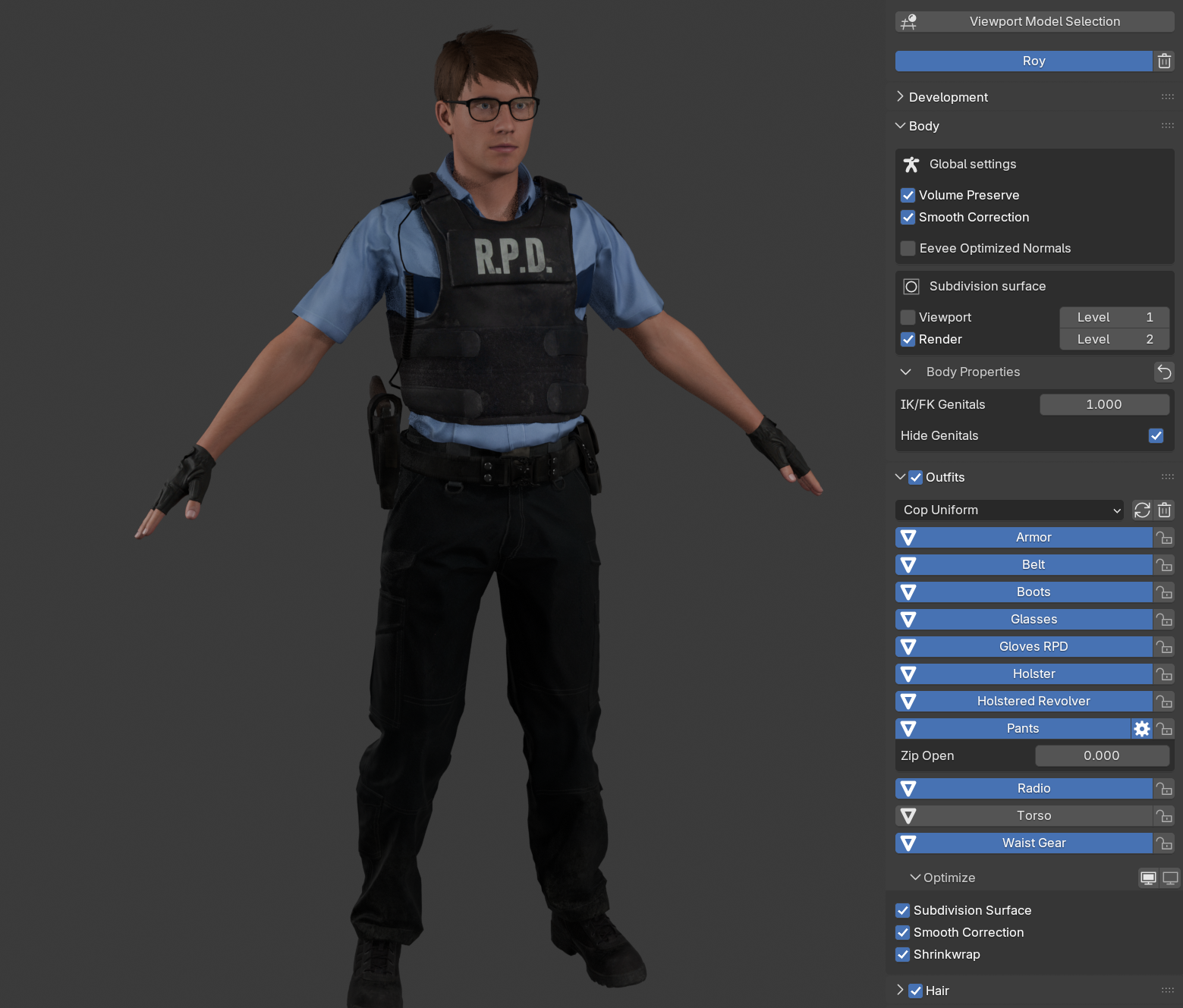
These are some male characters I did during the past few months on a whim, quick and only one outfit each (Racoon police uniform).
Models Included
Marvin Branagh - Resident Evil 2 Remake (clean no damage only)
Kevin Rayman - Custom version made by me, inspired on his design in Resident Evil Outbreak
Roy - an NPC character from the unreleased beta version of the original RE2, nicknamed Resident Evil 1.5 by fans.
BEFORE USING PLEASE READ THESE FAQ
BLENDER VERSION REQUIRED TO USE THIS MODEL:
This model is compatible with Blender 4.5.5 and newer versions, loading it in any of the previous version MAY NOT WORK.
DO NOT LOAD THIS MODEL IN BLENDER v4.4 / v3.6.5 OR OLDER, AND DO NOT SAVE IT USING BLENDER 3.6.5 OR OLDER, OR YOU'LL DAMAGE THE MODEL.
THIS MODEL REQUIRES
Rig-tools Add-on
A free version of the Auto-rig Pro tools shared by the devs to for animators and people who wish to pose using this rig. In order for the rig to work properly you MUST install this add-on (If you have the full version of Auto Rig pro, or the latest version of rig tools before using this model you no longer require to install it unless the description specifies to do so because of some require update). Install rig-tools like any add-on go to preferences, add-ons, click on install and select the zip file containing the add-on, don't forget to press the check box to activate it. Again, If you already own the full version of ARP you don't need to install this.
MUSTARD UI Add-on
Mustard's UI now functions as an Add-on. You will only require to install it only once
install Add-ons?:
MUSTARDUI (BLENDER 4.2 and newer): Go to preferences> get extensions: search "mustardui" and install it.
Note: IF the UI shows a "Update UI" box/message, update it to get all the proper features right.
manual installation:
Download on:
https://github.com/Mustard2/MustardUI/releases
HOW TO MANUALLY INSTALL ADD-ONS IN BLENDER Follow instructions here:
https://docs.blender.org/manual/en/latest/editors/preferences/addons.html#installing-add-ons
INSTRUCTIONS AND TROUBLESHOOTING:
Transition between outfits and hair stytles using the UI
Body shapes are linked between outfits and body with the UI
Makeup, skin properties linked to the UI
The simplify tool allows you to preview animations with better FPS (turn off for final render)
WHY YOU MUST USE THE UI MENU?:
Use the UI (user interface) Menu to hide and show outfit parts, don't do it manually unless you want to waste your time. The script automatically deactivates the armature modifiers of the meshes that are hidden using the menu outfits list. Meaning that if you manually show a previously hidden mesh in the viewport without using the menu the armature modifier will remain deactivated and the clothes won't move along the rig. Just use the menu (this is done to save memory while posing). IF you have any problems with the UI menu, check out Mustard's FAQ page and wiki (https://github.com/Mustard2/MustardUI/wiki/Users-FAQs)
TO VIEW THE UI MENU:
Since the UI is no longer a script but a full Add-on, once you installed the add-on, just press "N" in the 3D viewport and look for the "MustardUI" tab on the right of your 3d viewport.
IF THE UI MENU IS MISSING AFTER APPENDING THE MODEL:
(As per in the MustardUI FAQ page):Go to the 3d Viewport layout or any other workspace with the 3D viewport, click in the model's Armature/rig and the menu will be visible for you by pressing "N" to display the site tool bar where the UI should be an option.
MULTIPLE UI MENUS PER MODEL:
(As per in the MustardUI FAQ page): after appending a model with the mustardUI menu, If you want to have a permanent view of the UI menu for a character even when you're not clicking in the rig, select the armature, go just click on the "viewport model selection" button. If you have two models with the UI then an option to select which character's menu will show up at the top of the UI.
GET FASTER PERFORMANCE AND FPS IN VIEWPORT:
Use the "Simplify" Optimization tool in the UI Menu to speed up your animation FPS in the viewport, it just turns off most features that makes the models lag in the viewport, all at once, instead of having to manually do it mesh by mesh. REMEMBER TURN SIMPLIFY OFF BEFORE RENDERING, and make sure all the global properties for outfits and body are turned ON before rendering.(all can be done using the UI menu).
HOW TO USE THE RIG:
This model uses an auto-rig pro rig. If you have questions about how to utilize the ARP rig and check out the Rig's creators FAQ for detailed explanations and to have some visual examples: http://www.lucky3d.fr/auto-rig-pro/doc/rig_behaviour_doc.html#rig-usage
WHERE ARE THE IK/FK OPTIONS AT:
After clicking on the hand and head bone controls (in pose mode obviously), go to the "tool" tab in the outliner or in the "tool" side menu in the 3d viewport. There you can access to options like IK to FK, for the head, select the head bone and check the "Head follow" for the neck and torso posing. Also there are options for stretching limbs and pinning rotation for the knees and elbows etc. NOTE: (you MUST have the rig-tools OR the full version of ARP add-on installed for these options to be visible)
EXTRA FEATURES:
The cross icon on top of the hand is for opening/closing posing for the fingers. To male models have two settings for the genitas, one is an IK spline version and a regular "copy rotation" version you can control through a master bone control or the individual bones, this works with a slider in the UI menu. The genitals bone layers accessible throught he UI Menu. To open the mouth, select the jaw bone and move it down or up (don't rotate it on the X axis, just pose it down in it's Z axis). Activate the "Advanced" Bone Armature Layer to see more bone options for the Torso and limbs.
BEFORE SCULPTING:
As a general rule, turn off the all the modifiers (do not remove them) in the mesh you wish to work with, especially if they have the "FX" and "corrective smooth" modifiers activated for the viewport.
MISSING TEXTURES? How to properly load the model:
Save the blend file in the same folder you chose to extract the "textures.7z" file. THEN open blend file after you extracted the textures, if you still managed to get missing textures, go to "File>External Data>Find Missing Files", then select the textures folder, and save. Use 7zip to extract the textures to avoid any issues. (windows default extractor is trash and will give you problems) If you got missing textures (pink) check out this tutorial: https://www.youtube.com/watch?v=rWrj3jud0w8 If you still got missing textures it's most likely your zip file containing the textures got damaged during the download process and some texture files were damaged, try downloading again.
FACE POSE GALLERY:
If you append the model to a new project, don't forget to also append the "actions" in the actions folder. Chose the facial expressions actions so they'll also show in your new project. (Animation: Pose Library add-on must be turned on, it is by default in blender, make sure you didn't check it off for some reason).
MORE DETAIL:
If you want to see better detail for muscle shapekeys, turn smooth corrective off. You can also improve muscle and body detail using the normal strength slider in the Menu.If you want the smooth corrective modifier to preserve your details, just select the rest source option and change it from original coords to bind options and bind at your liking, remember to bind to avoid errors as you will need to rebind if you change the vertices of the object every time. Do this in the rest pose if possible.
BLACK HAIR ARTIFACTS IN CYCLES:
For models that have high detailed Hair meshes, use about 28 transparency or higher samples in cycles to avoid black artifacts, the more transparency samples the better.
PHYSICS NOTICE
My male models only include body collisions, and sometimes bone physics for testcicles if you want this model's collision to interact with another physics in your scene make sure to set them to the proper character collection if needed.
Check out the physics tab in the UI to activate them.
For more detailed explanation on the MustardUI physics features, check out MustardUI's Wiki:
https://github.com/Mustard2/MustardUI/wiki/Physics-Panel
https://github.com/Mustard2/MustardUI/wiki/Physics
https://github.com/Mustard2/MustardUI/wiki/Creator-Tools
https://github.com/Mustard2/MustardUI/wiki/Configuration
Compatibility
Blender: 4.5.5 or newer
MustardUI on release: 2026.7.0
Rig-tools: 3.78.30
FINAL TIPS:
Optimization for low end systems
All my models have 4K textures for the body and sometimes for some outfits, if the textures take a toll on your system try resizing them yourself, I just try to provide the best quality for my models, outside the optimization tools provided that allow a faster workflow in the viewport, is up to you to optimize things according to your own system.
If you don't care about details that much you can downscale 4k body textures (recommended to just 2K) and delete the micro skin detail textures in the body shaders (if included in model).
Happy Posing!
You can find the models in the model archive inside the resident evil folder, Folder name: RPD male pack
remember to download and install the latest rig tools available on that post if you haven't yet.
Credits: Thanks so much to SpartanPig95 for the assets used as base to make these characters.
MustardSFM for the UI add-on
Files