Home
Home

 Creators
 Search
 Recent
 Random
 Posts
Posts
 DMs
DMs
 Tags
Tags
 Random
 Importer
 Import
 FAQ
FAQ
 Account
 Register
 Login
Login
 Favorites
 Keys
Keys
 Logout
 Telegram

Coming Soon — Your Dispatch Board Is Moving Into the Game (Patreon)
Content
Development preview
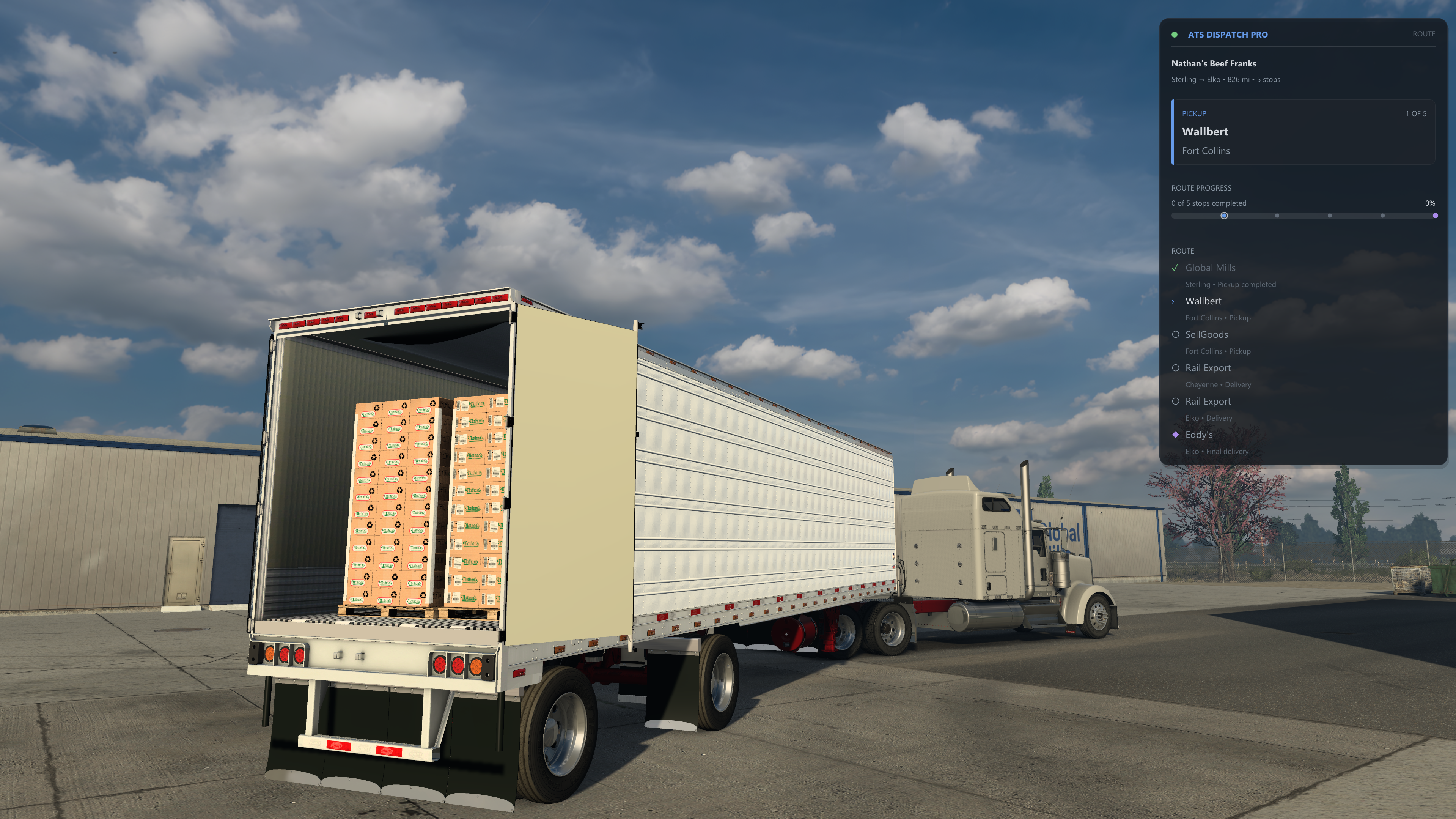
Here's what I've been building: a real in-game HUD for ATS Dispatch Pro.
Not a window sitting on top of the game — an overlay drawn inside the game's own frame, the way overlays are meant to work. It runs in exclusive fullscreen, updates every single frame, and puts your dispatch route right there over the windshield: cargo, current stop, progress, the whole stop list.
The desktop app stays the brain — it plans routes, tracks your job, talks to the website, plays your dispatcher's voice. The HUD is the part that rides in the cab with you. It's working in development builds now, and it's coming in an upcoming update. Here's the tour.
The Four Modes
The HUD has four layouts, from "barely there" to "everything," and one key cycles them.
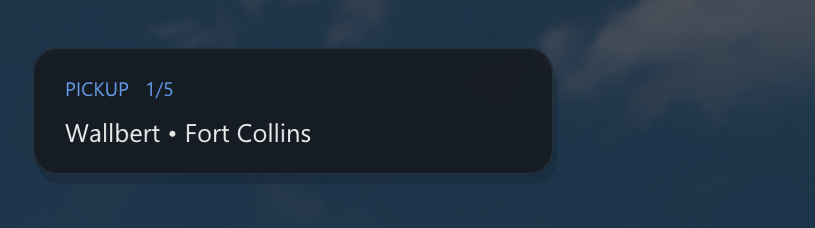
Minimal — for drivers who want almost nothing on screen. One small card: your next required action, the company and city, the distance, and which stop you're on. The panel even sizes itself to the company name, so it's never wider than it needs to be.
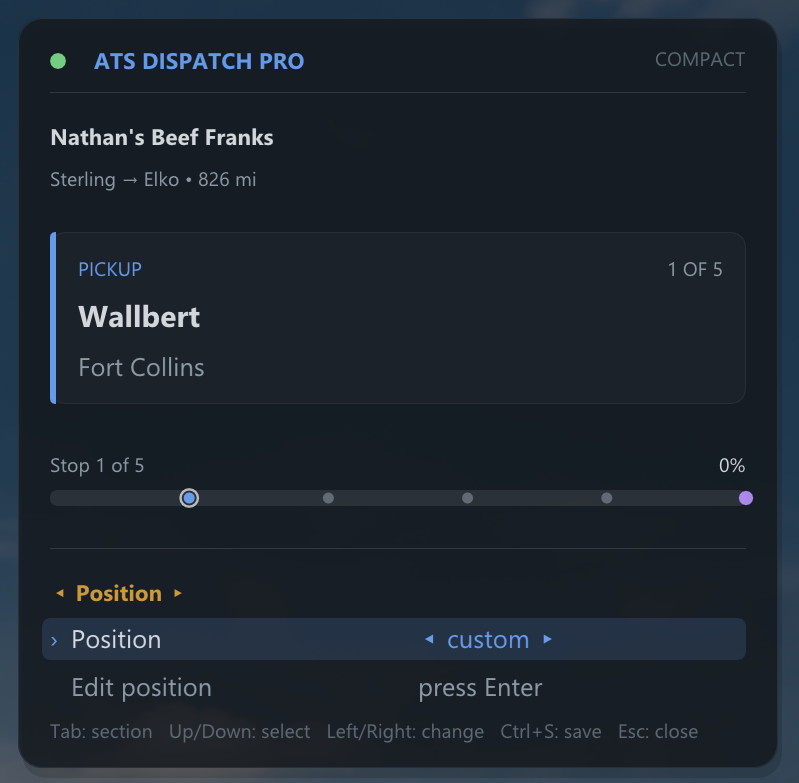
Compact — the default. Header, your cargo line ("Nathan's Beef Franks — Sterling → Elko • 826 mi • 5 stops"), the active-stop card with its "1 OF 5" counter, and a slim progress bar with a dot for every stop: green for completed, ringed blue for where you are, purple for the final delivery.
Route — adds the full stop list. Completed stops get green checkmarks and fade back, the active stop stands out, upcoming stops wait in gray, and the final delivery carries a purple diamond. On a long multi-drop the list is smart about space: it centers on your active stop — a couple of completed ones above for context, the next ones below — and says plainly when more rows sit outside the window.
Expanded — Route plus the deep info: connection details, link latency, when the last update arrived, whether voice cues are on, and live telemetry basics like speed and RPM.
Driving it from the keyboard
The HUD is keyboard-only, on purpose — more on that in a moment. Four keys run the whole thing:
F8 — show or hide the overlay
Shift+F8 — overlay controls on/off
Ctrl+F8 — cycle Minimal → Compact → Route → Expanded
Alt+F8 — quick settings
Tap Shift+F8 and a banner confirms the overlay has the keys. Arrows move a highlight through your pending stops. Enter on one asks the app to replace it — the same swap as the desktop's Replace button, without ever alt-tabbing out of the cab. PgUp/PgDn scroll a long list, Home jumps back to your current stop, Tab hops into settings, Esc always backs you out. Leave controls mode and every key goes straight back to the game.
Everything tunable, in-cab
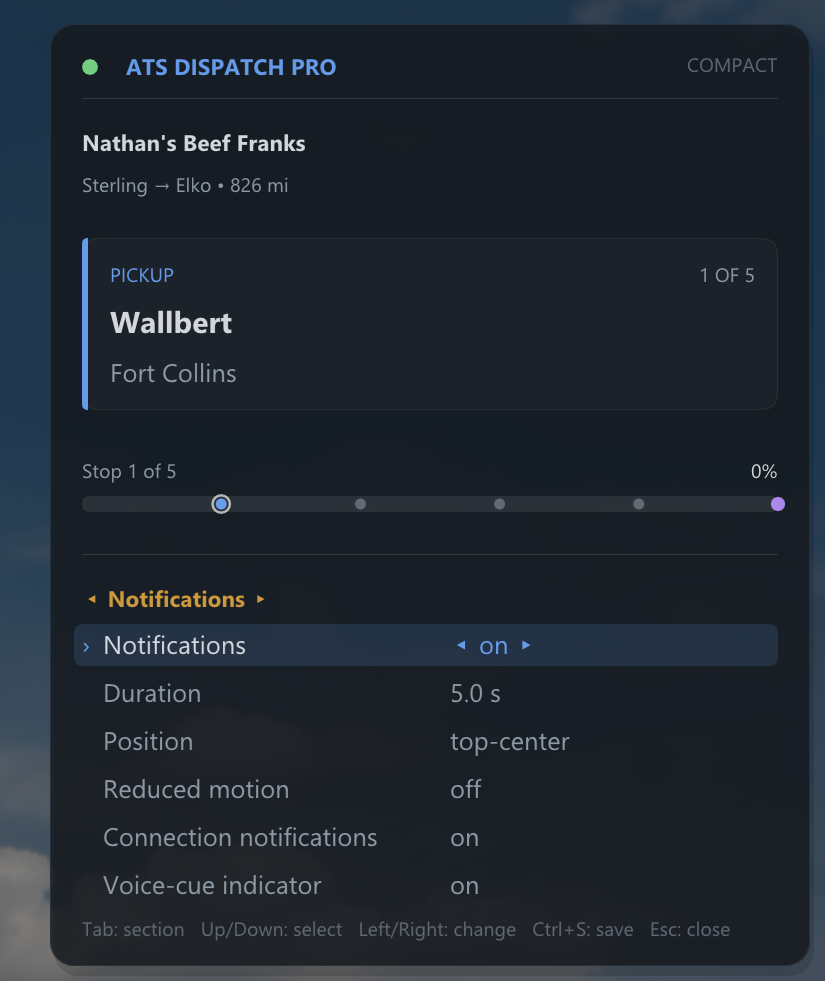
Alt+F8 opens a settings panel you drive with the keyboard — Tab switches sections, arrows change values, and it saves on its own. Seven sections' worth:
Display — mode, UI and font scale, panel width and height, miles or km, auto-hide, hide while paused.
Position — eight screen presets you flip through live, or free placement: arrows nudge the panel, Shift moves faster, Ctrl moves one pixel at a time, with a live X/Y readout. It can never end up stranded off-screen.
Appearance — overall opacity plus a separate background opacity, so the panel can fade into the scene while the text stays crisp. Corner radius, border, shadow, high-contrast mode, larger active-stop text.
Route — what each row shows, how many rows are visible, whether the list follows your active stop, and a hide-completed toggle.
Notifications — duration, position, reduced motion, connection alerts.
Hotkeys — rebind all four keys in-game, from a set chosen to never fight the game's own controls. Put two actions on one key and it warns you before saving.
Actions — refresh the route, reconnect, or reset every setting to defaults.
Two honest notes
It takes no mouse input, by design. ATS owns the mouse completely for camera control, and after a lot of experimentation the conclusion was firm: an overlay that fights the game for the pointer breaks the game's own mouse. So this one never touches it — every click and every camera flick goes straight through, always. The keyboard controls aren't a fallback; they're the design.
It can't jam your controls. The overlay only ever consumes its own handful of keys, and it's built so the game always sees a key released if it saw it pressed. No stuck throttle, no eaten steering, even if you alt-tab at the worst possible moment.
Files