Home
Home

 Creators
 Search
 Recent
 Random
 Posts
Posts
 DMs
DMs
 Tags
Tags
 Random
 Importer
 Import
 FAQ
FAQ
 Account
 Register
 Login
Login
 Favorites
 Keys
Keys
 Logout
 Telegram

a day at the space station - map making process & some insights [warning: fast speed video] (Patreon)
Content
Heya everyone!
For the space station map I actually remembered (almost) in time to record my map making session. Unfortunately I didn't record how I created the sketches.
But not only do I want to share the video with you, but I thought I'd take the opportunity to share a little more in-depth look at my approach to map making. I totally get that everyone has their own way of doing things, and mine might not be the best fit for everyone- it's just my own way. But maybe there's something here that could help you out with your own maps.I hope it will be interesting and of use for some of you!.
Some notes on the Video:
All music used in the Video is released by Lennart Hassels. "musica immortalium 1& 2" via the free music archive, under the CC BY 4.0 licence: https://freemusicarchive.org/music/lennart-hassels/discography
& "Post Apocalypse Music Pack" with friendly permission from the author: https://hasselsaudio.itch.io/post-apocalypse-music-pack
Soooo - I'm definitely not a video editing pro but I tried to cut 32 hours of video material together somehow so that it's not too fast, not too long and still somehow informative (not so easy) but still doesn't take me days to do it. So I hope that I have somehow succeeded with my goals.
Thats why I've cut out quite a lot of things, especially repetitive things as most things are repeated over the levels and it wouldn't be too exciting to see it all. So don't be surprised if there are a few strange jumps. I've tried to show a few things in a more coherent way so that you can understand my approach a little better from these examples. I hope it remains reasonably comprehensible and that I have caught the most "exciting" things.
I left a few "trial and error" parts in it, as it is surely part of the process, but I also left out maaaany parts where I just trying some stuff that didn´t work in the end or didnt feel right later on (you may notice that I had the round elevators at first but that they "magically" become the square ones for example ^^) or just searched for ages for the right objects, paths or so on (sadly didnt catch all of those parts, irgh).
In the video, you'll see that I don’t always follow my own steps 1:1 - mostly it´s done in a way that feels best in the moment. However, I’ve found that if I stick to this order, it definitely runs more smoothly and I generate less extra work.
If you have any questions feel free to ask! :)
.
My personal MAP MAKING STEPS:
I will explain my approach here using the space station as an example, but I generally try to apply the general steps to all my maps.
STEP 1 - General idea & research
Before I start with anything, I think about what my theme is, what I want to achieve and what important key elements or simply cool things are that I want to implement. These serve as a kind of "guide" through my sketches so I always know what my main goals are.This is possibly a bit different for me then to you since I try to create maps that fit many different scenarios and settings. So for personal maps that would include probably a few more things and information that might be essential to transport the mission goals and objectives.
.
STEP 2 - Sketch away
Step 2.1: Sketching Phase 1 - Rough shapes and general structure
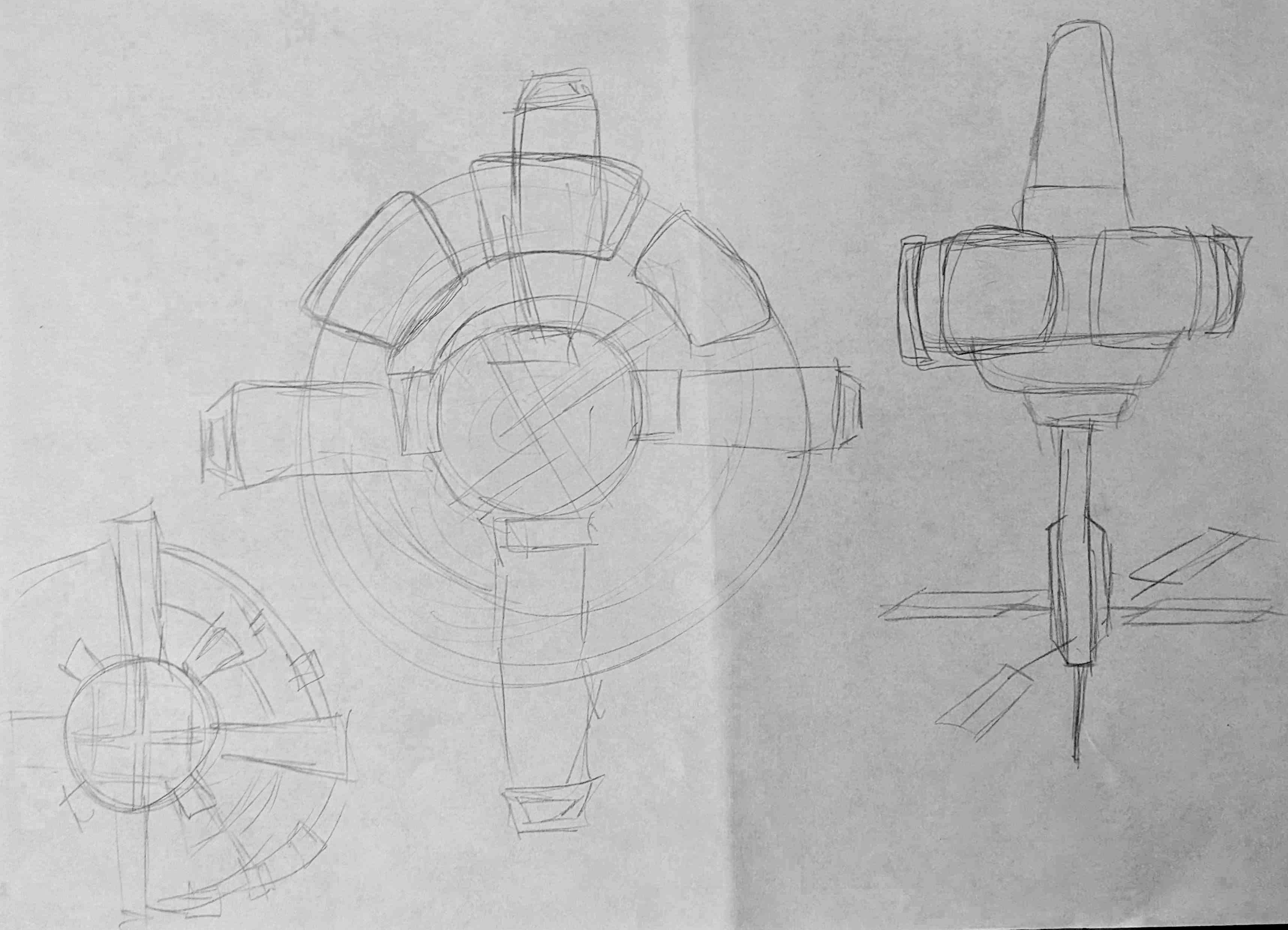
In the beginning I actually wanted to create a rotating, round station and did some research on how this gravity system actually works. In this phase, I usually work analog so that I'm not tempted to go into too much detail and get a feel for the general design and concept.
Here are a few sketches :
(sorry for the bad quality of the scans!)
Well, after a few sketches I decided, that the round version won´t really work for me, since the gravitational pull would be into the center and I haven´t really found a solution to map that out in a way that I was satisfied with it.
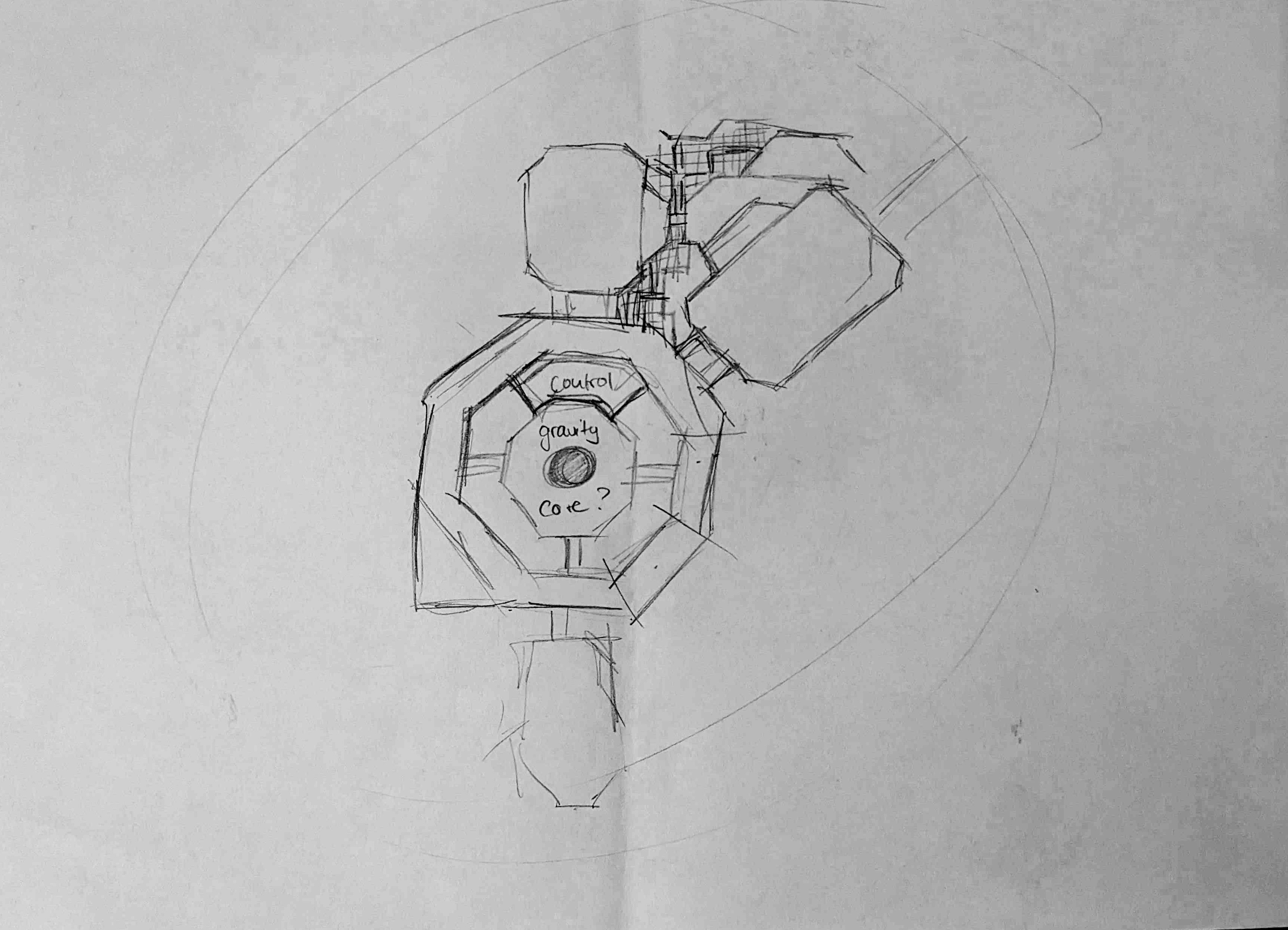
So, I came up with a little bit more unrealistic (but I hope creative) solution: The gravity core:
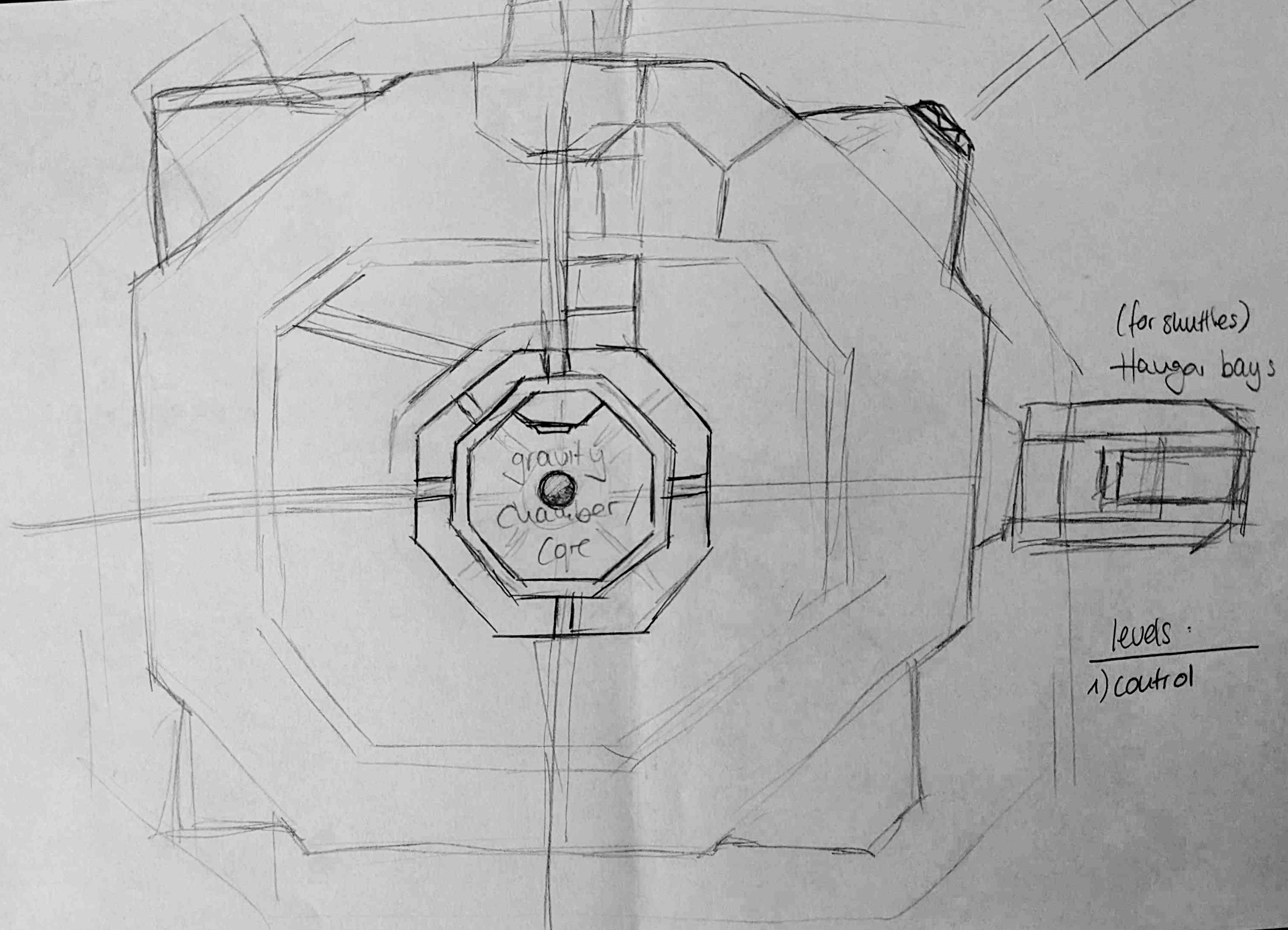
And after a few more sketches and ideas I came up with this one that would eventually serve me as base for my further detailled, digital, sketches:
.
Step 2.2: Sketching Phase 2 - The more detailled approach
After I had a sketch and idea I was somewhat happy with I scanned this one and went to Affinity photo to sketch out that idea in more detail. Since it was only a rough idea I went level for level and saw what rooms I want to integrate, what reasonable room sizes for those would be and what interieur would go where in a roughly manner. (This also includes which of my modular rooms I want / can integrate into the map.)
In this step I also look at: What content is on top of each other on the different floors, what would be interesting gameplay mechanisms - i.e. where are open rooms / where are choke points, where does it make sense to implement several entrances so that there are several ways to enter or escape, but where do I also want it to be a dead end? Where are points that I want to include cover? What content is important to encourage certain interactions and what equipment do I need for that in these spaces? Also what rooms are essential for the level / map / building to make it somewhat realistic? That´s for one things like toilets, but also storage rooms, mechanical and maintenance rooms and decontanimation rooms adjacent to labs and changing rooms.
I find a good way to test if the concept works is to put myself in the shoes of a person who works or lives there. What does my daily routine look like in this space, and what would I need and use to fulfill my tasks and needs?
For many areas, like here, the question often arises: How many people work here? How many should be assigned to each area, and how many accommodations need to be implemented to ensure there are for example enough sleeping quarters and space in the dining hall? This often leads to other considerations, like how many bathrooms are needed on-site, how big the kitchen should be, and how much storage capacity is required, etc.
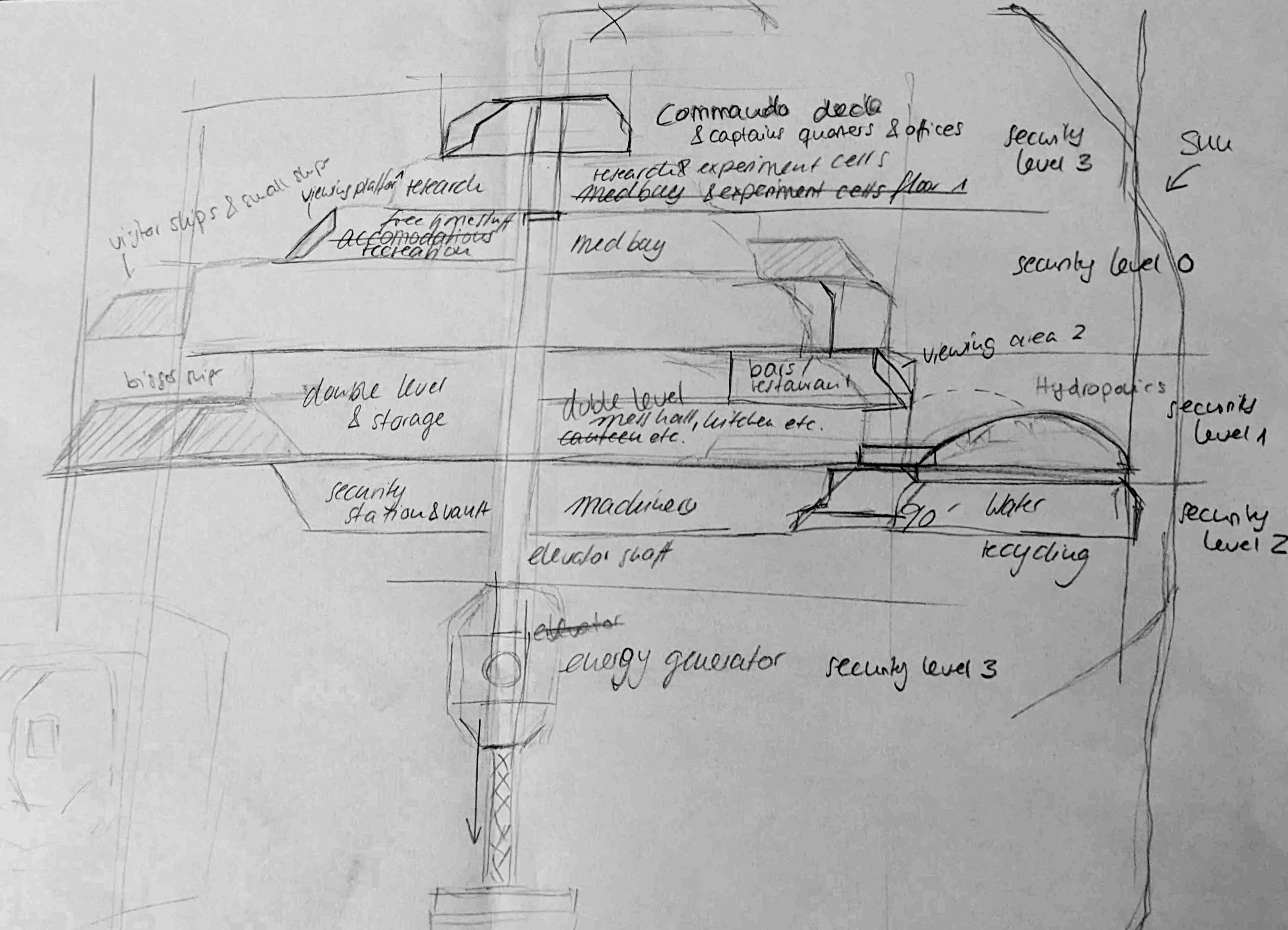
I draw on a 100ppi scale and use a grid starting at that point so I know how it will translate into the future map. I hand draw the sketches but you can easily just take simple shapes and forms in a program of your choice to accomplish that.
Here is an example of one of the finished sketches:
You can see there are many details missing (and that a few things actually turned out differently in the final map) but I am trying to implement as much information as possible to help me put the map quicker together in Dungeondraft later on.
.
STEP 3 - Mapping it out (in Dungeondraft)
Step 3.1: Map Size, Level & importing the sketches
The sketch usually gives me the grid size of the map, which I use as the basis for the dungeon draft map, so I can later use my exported sketches perfectly as a background for the “Trace Image” tool.
To be able to switch between different layers more quickly later, I also create all the levels I know I will need in advance.
.
Step 3.2: Walls
After importing the sketches, I start tracing the walls level by level. Keep in mind that for my workflow, having a fairly detailed sketch is essential, as I wouldn't be able to work as methodically otherwise. So this step isn't complicated, but it does require some tedious work.
.
Step 3.3: Modular Rooms
After finishing all the walls, I integrate my modular rooms. (If you're not using modular rooms, you can of course skip this step.) Since I already accounted for which rooms should be included in my sketch, I can now simply fit them in like puzzle pieces. Sometimes, I have to adjust a few walls because things don’t fit as well as I initially thought, but overall, the process is quite straightforward. I also try to place the same room types across different levels first so that I don’t have to constantly search and switch back and forth.
.
Step 3.4: Shadows
Now that I know where the rooms with pre-integrated shadows are, I can start adding shadows to the remaining areas. For this, I use the shadow paths from my Shadow Pack. Basically, I use two different types of shadows for this. A stronger "core shadow" which I place on the 4th layer, and a softer shadow that adds a bit more spatial depth (on the 2nd layer). If it's a level without a background, it really helps at this step to set a simple background so you can better see where to place the paths.
(I’ve shared a guide on which ones I use and how in the #tips-and-tricks channel on my Discord server if you’d like more info on this.)
.
Step 3.5: Details - rough
A: DoorsOnce I've done this for all the levels, I place the doors. I make sure that the door openings don’t go into the room, but that the door opens towards a wall or similar. Since here most of the doors are automatic sliding doors, it was a bit easier to just place the doors without having to worry about which way the door handle is facing. ^^
B: Furniture
As you might notice, I try to add the textures with the patterns as late as possible, so I can keep seeing my sketch for as long as possible. This allows me to place the most important furnishings now, just as I planned in the sketch. In this step, I try to distribute objects with the same or related tags across the floor or the entire map if I already know where they should go. This helps me save some time and avoid constantly switching back and forth between different tags.
.
Step 3.6: Finetuning - patterns, clutter, shadows & "dirt"
Now I start adding the floor textures. This usually helps a lot in making a room feel "more finished." But now, I can also see clearly where details are missing to make the room feel "complete".
This includes clutter to make it feel livelier, small details that help tell a little story, and everything that makes it feel a bit more vibrant.I didn’t focus on this too much in this pack, but usually, when I think about desks, for example, I ask myself: Who works here?
Let’s take "Bob" as an example - Bob can’t go long without coffee, so there’s usually (at least one) coffee cup on his desk - and maybe even some coffee stains. He’s also constantly cold, so he always has a small blanket draped over his chair so he can grab it when needed. And of course, the photo of his cat can’t be missing...That’s how I think about a few simple personalities that don’t go too deep but help make things like desks feel a bit more personal.
Once I feel that the room is finally furnished and I don’t want to make any more changes, I start adding the shadows (I don’t always stick to this and it’s definitely more time-consuming to move things around when the shadows are already in place ^^). For "simple" shapes, I usually use my shadow assets, and for more complex furnishings, I use the shadow paths.
(I haven’t tried the Drop Shadow Tool addon yet, unfortunately, and I’d really like to, but on one hand, I’m a bit hesitant because I’m worried it could cause complications with larger maps like mine. On the other hand, I try to keep the maps as "vanilla" as possible so that I can easily share the map files later on.)
Once I’ve checked everything and am sure that I’m happy with the rooms, I finally take my colorable "Dirt Overlays," set them to a darkish gray color with low transparency, and distribute them across the map. This helps break up the repetitive patterns especially in big open areas and gives the room a bit more of a "lived-in" feel, and transports a feeling as if the space actually is used in some way.
.
Step 3.7: Lightning
And then, as the final step, comes the lighting. I usually save this step for last because, on one hand, it’s quite memory-intensive, and the file can become very slow with too many lights. (But if you still need to make adjustments and notice that it’s taking forever to move from point A to B on the map, you can press L on your keyboard to turn off the lights.)On the other hand, I just love how the lighting adds that extra bit of atmosphere to an otherwise finished map. It’s like a little cherry on top for me, and it usually helps me feel at least somewhat satisfied with the map in the end. ^^
.
STEP 4 - Export
Finally, I export the individual levels as 300ppi PNG files to ensure the transparencies are preserved. Once I have these base files, I layer them in Affinity Photo because this way, I can stack more than just two levels on top of each other. It also allows me to display the lighting without it being distorted by the global light, keeping the colors accurate.
.
And that’s it!
The next step for me is often to take these maps and transform them into an "abandoned" version. From here on, though, I didn’t record anymore because I already had so many hours of video footage. Also, I actually do these variants much more in the text file, swapping out assets there because it's way more efficient (and it kind of feels like I’m "hacking" my map, which is pretty fun). If you're interested in my process for this, feel free to let me know, and I can share some more details about this as well sometime in the future.
Then, I take the maps and create the floorplans from them. Basically, I just delete everything except for the walls and portals, replace them, and then the floorplan is done. I also replace the walls and such in a text file, and I’ll be sharing a small guide on this in my tips and tricks channel on Discord soon(ish).
.
I hope this was somewhat informative. Of course, there’s a lot more that can be done in detail, but I hope this gives you a good overall idea!As always, if you have any questions or suggestions, feel free to leave a comment here or on the a day at Discord server!
I wish you all a wonderful Friday and upcming weekend!Greetings from Ana :)
Files