Home
Home

 Creators
 Search
 Recent
 Random
 Posts
Posts
 DMs
DMs
 Tags
Tags
 Random
 Importer
 Import
 FAQ
FAQ
 Account
 Register
 Login
Login
 Favorites
 Keys
Keys
 Logout
 Telegram

Tutorial 02: Move Controller By Mikke (Patreon)
Content
Whether you want to create your own poses or if you want to modify an existing pose to fit your character or scene, the move controller is the most convenient way to do it (outside of VR). This plugin comes preinstalled with BetterRepack and can also be downloaded from Mikke's blog. This is an admittedly very beginner level tutorial, but for those who have not explored this plugin, it should prove helpful.
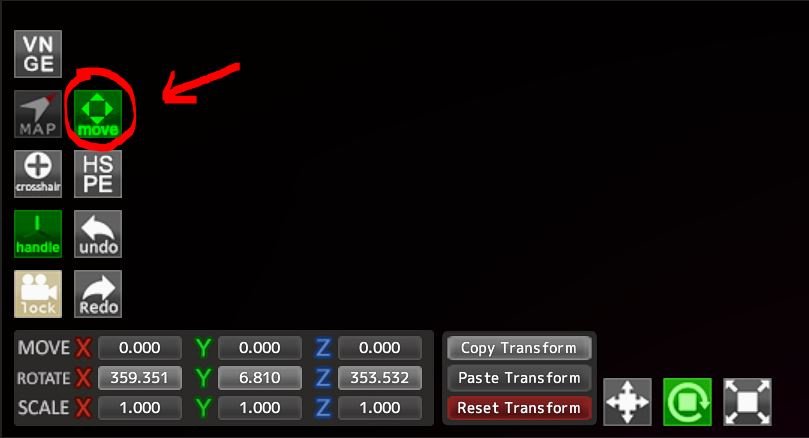
The move controller is available for HS, HS2, and Koi. It can be found at the bottom left corner of your studio UI:
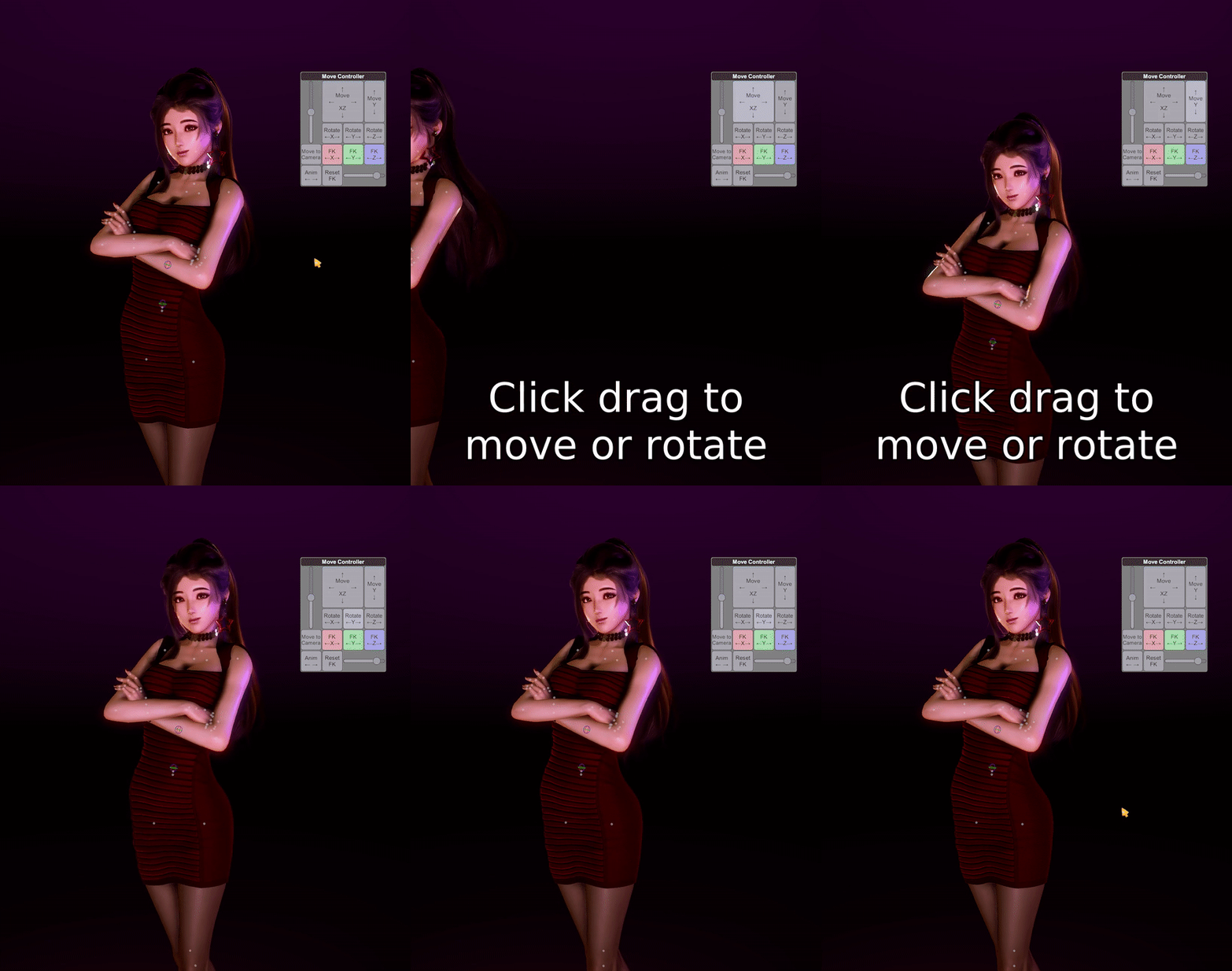
The grey move and rotate boxes will move and rotate your entire selected character. The vertical slider on the side determines the speed/sensitivity:
**Gifs might not animate on mobile, sorry!**
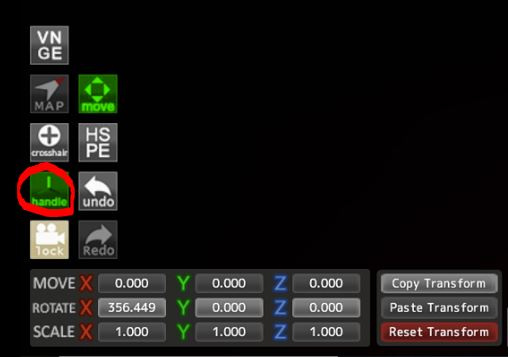
However, the move controller's true utility lies in its ability to quickly modify FK nodes! To modify FK poses you first have to ensure that your character is in FK mode. To do this, select your character, navigate the top left hand menu through anim>kinematics>FK and activate FK. Next, you will need to have "Handles" on:
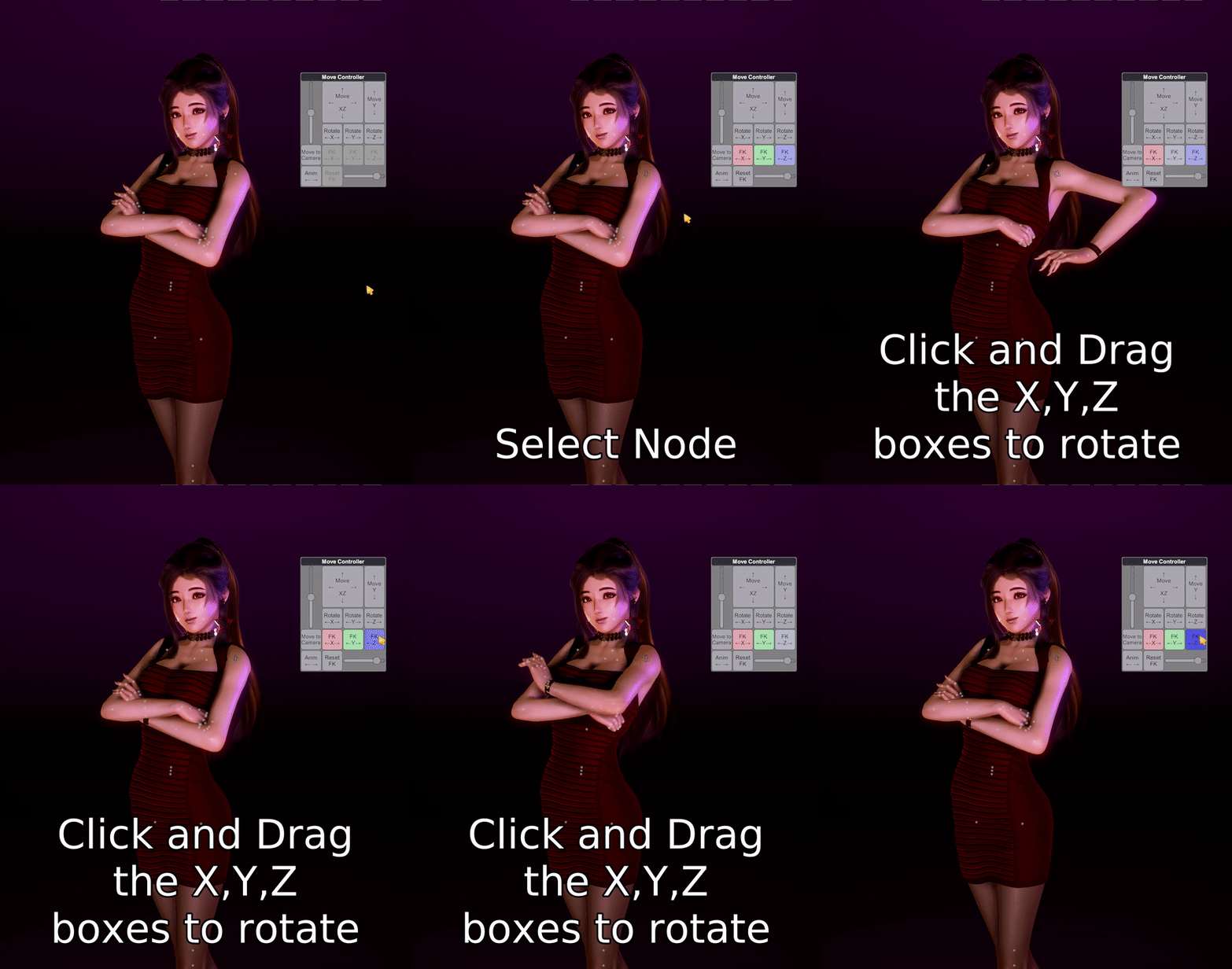
With FK mode active and handles on, little dots will show up in your character's figure. These are nodes that correspond to your character's joints, and their relative angles to each other is what makes up an FK pose. You can select the node that you want to rotate and then rotate it using the move controller's "FK X,Y,Z" buttons.
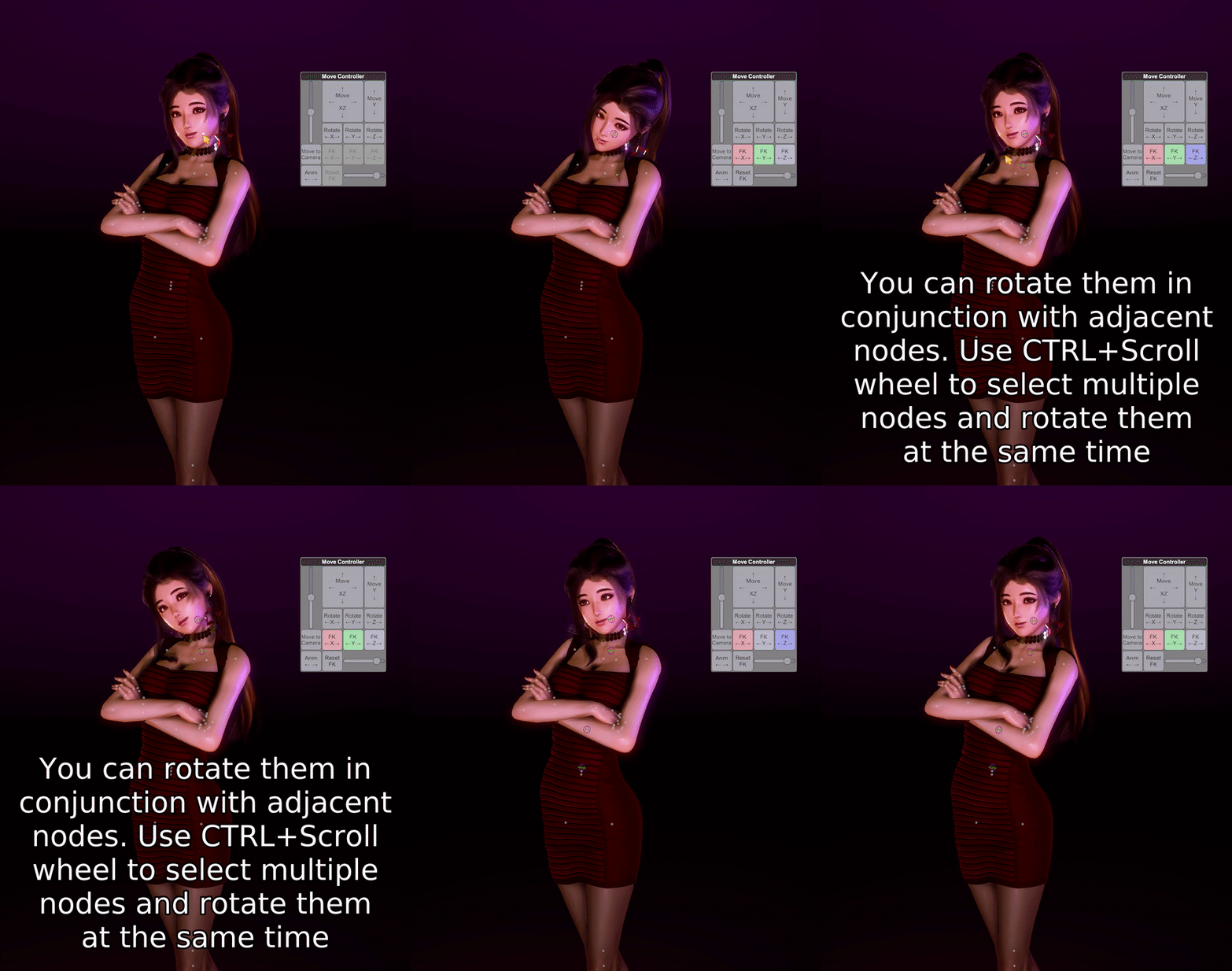
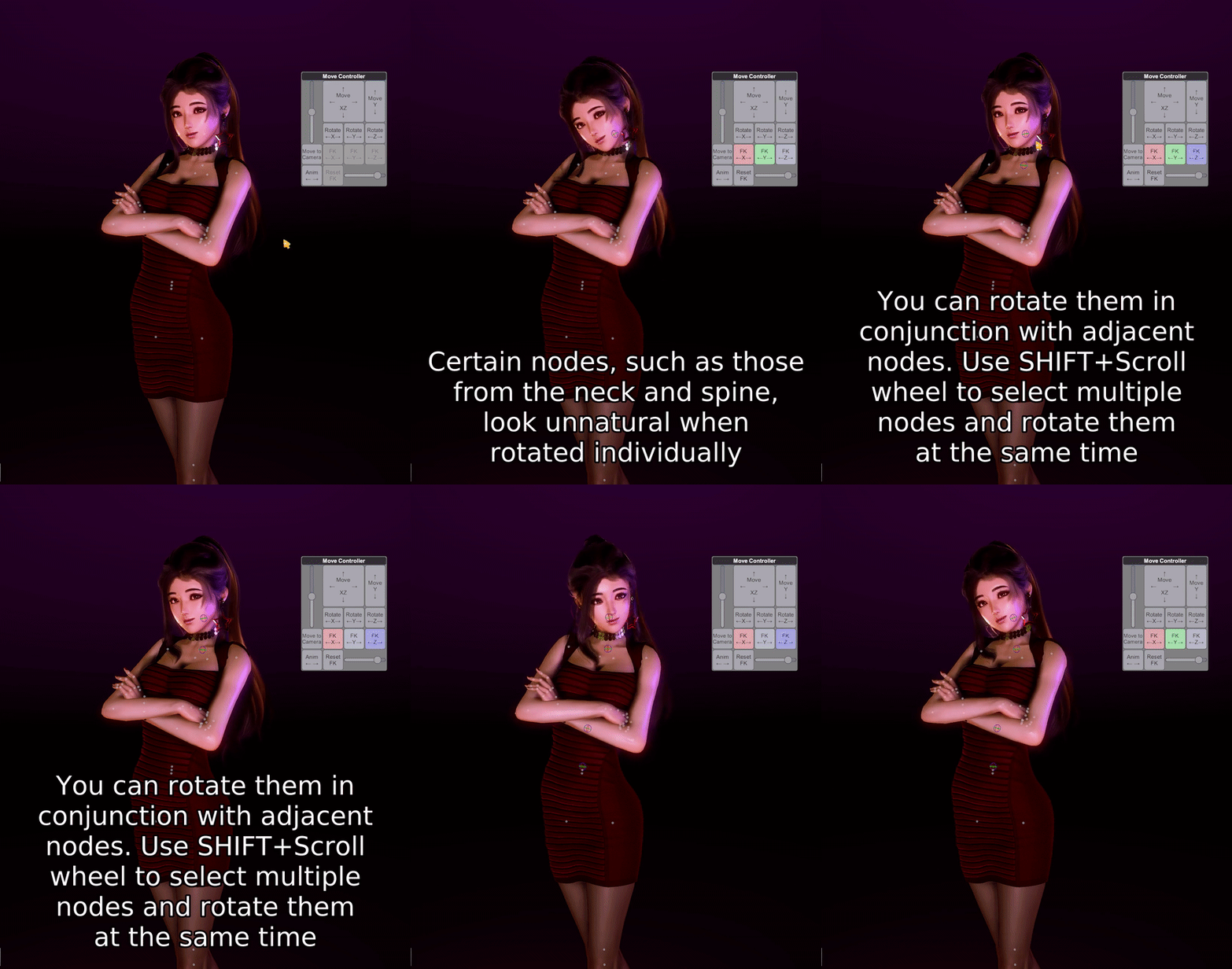
Now here comes the two most important bits: With your mouse cursor on these "FK X,Y,Z" buttons, you can jump to adjacent nodes using your scroll wheel, instead of going to click the individual node. Also, if you hold shift while doing this, you can select multiple adjacent nodes. These two tips combined allow for quicker and more realistic posing:
And there you have it, with the move controller and the knowledge of these essential functions, you are able to modify and create any pose that you can imagine.
Sincerest thanks to Mikke, for this essential mod, without which, my posing process would take twice as long.
Featured character: Type4-1 for HS1
Files