Home
Home

 Creators
 Search
 Recent
 Random
 Posts
Posts
 DMs
DMs
 Tags
Tags
 Random
 Importer
 Import
 FAQ
FAQ
 Account
 Register
 Login
Login
 Favorites
 Keys
Keys
 Logout
 Telegram

Any PC with Windows 11 can become a next-gen Xbox (or Steam Machine) now (Patreon)
Content
NOTE:
All of this is meant to replicate a "Console Experience" with any PC and using a Controller.
If you have a multi-monitor setup DO NOT use Xbox Mode as it may not work properly.
Stick with Desktop mode in that case.
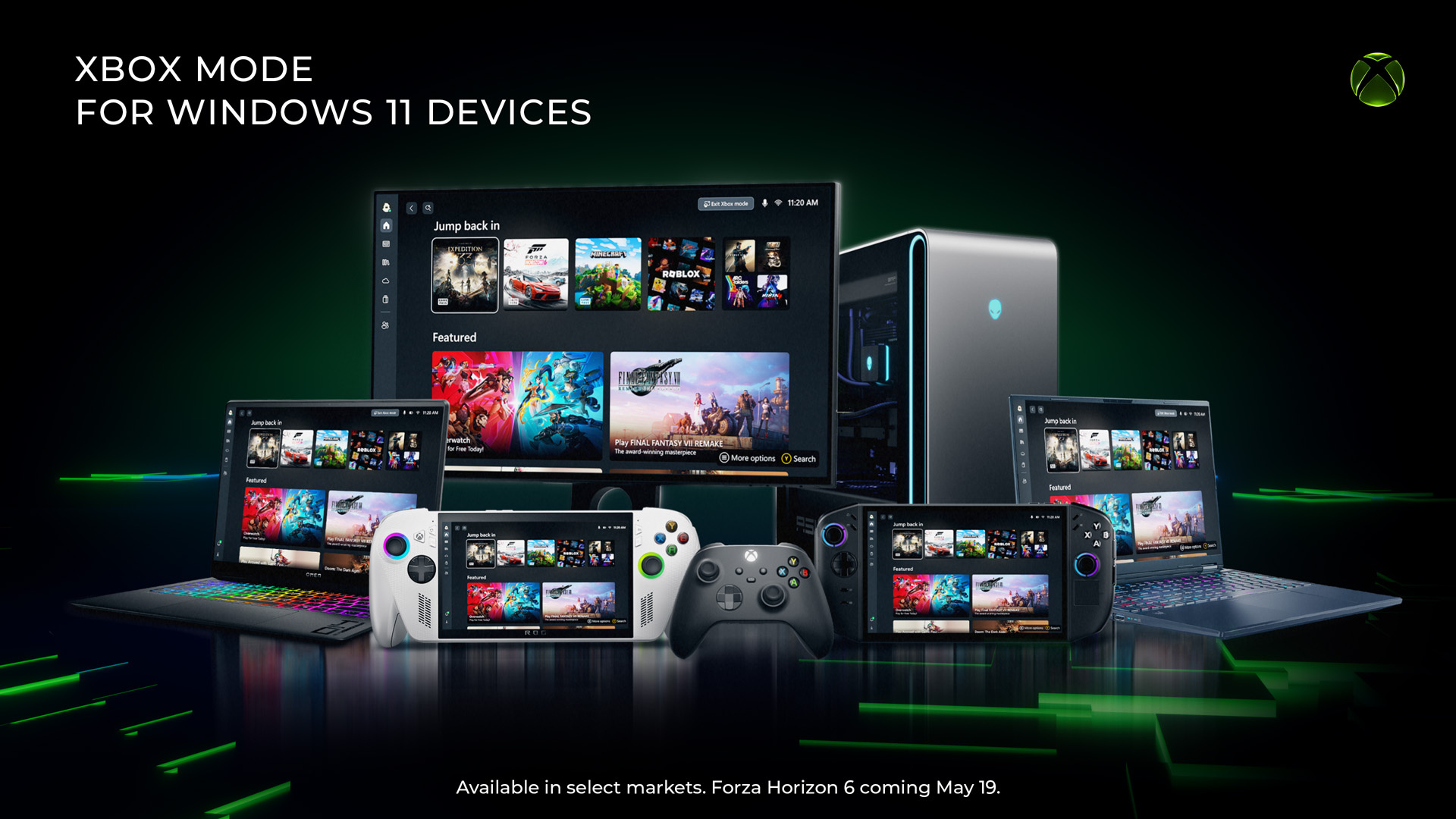
Starting with Windows 11 build 26100.8328 (24H2) or 26200.8328 (25H2) which you can manually download as an update here , Microsoft officially ported the new "Xbox Mode" to all PCs, so it's not only a previously exclusive feature of ROG Xbox Ally and other handheld devices.
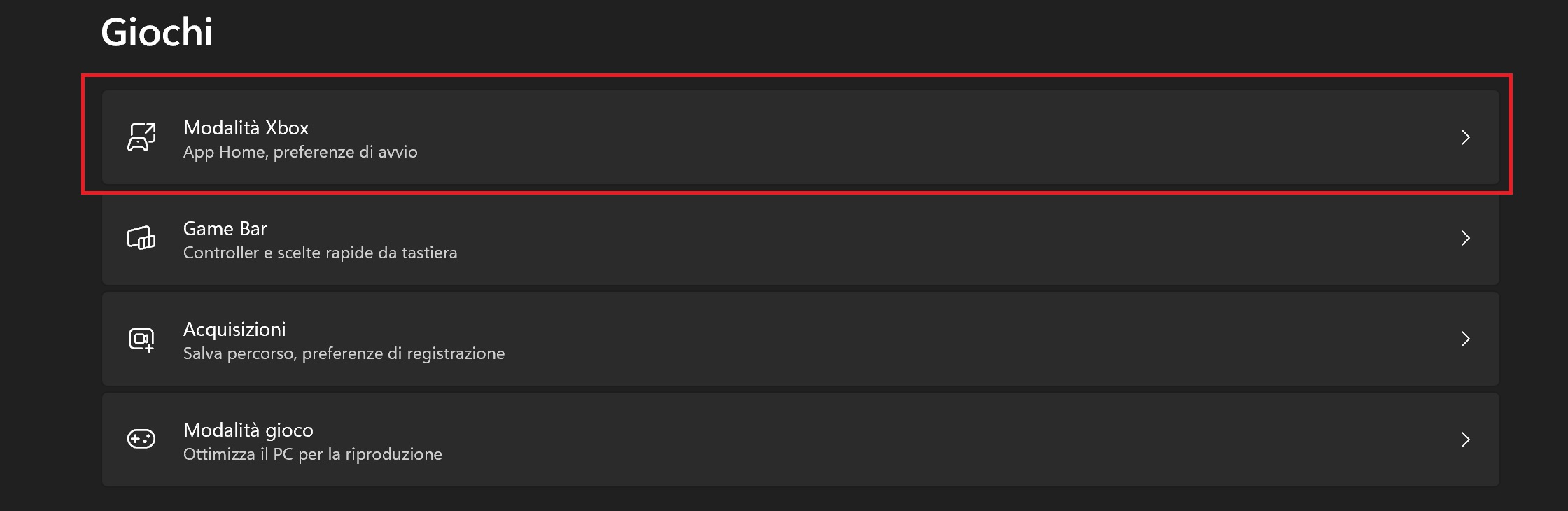
If you are still not seeing it popping up in Settings -> Gaming -> Xbox Mode section, you can download this app from MS Store, open it and just enter this Feature ID number, click Enable and reboot. If you still not see it appear, directly use the Xbox Mode Tool below in the guide.
What does "Xbox Mode" actually do?
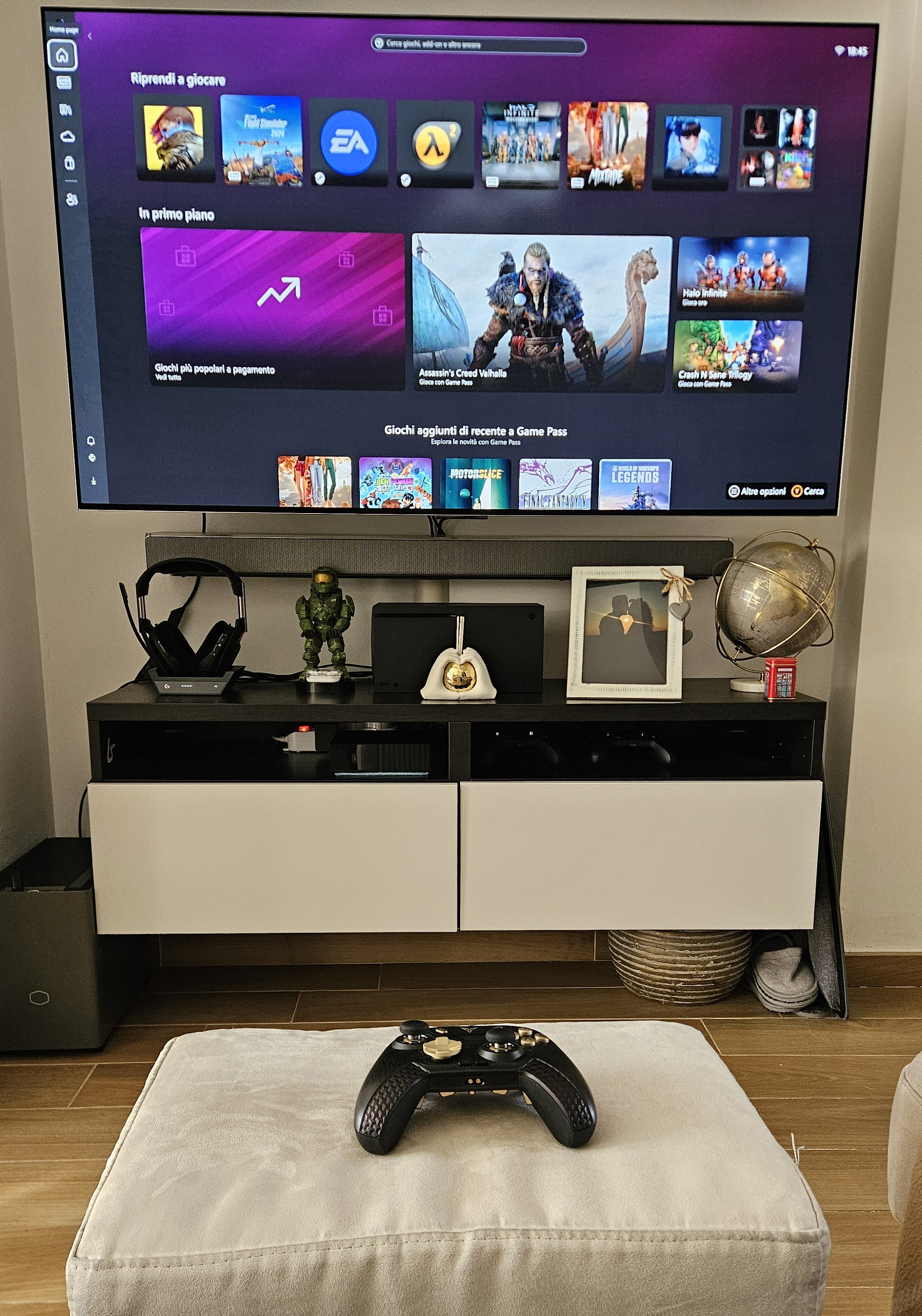
When manually enabled in Xbox app, it automatically replaces the Desktop with a full screen version of Xbox app which you can configure to not only launch games downloaded from Xbox/MS Store, but also from other stores as Steam or EGS or you can even manually add any installed program in your PC as a launchable shortcut directly from Xbox app itself (so no need to go back to Desktop)
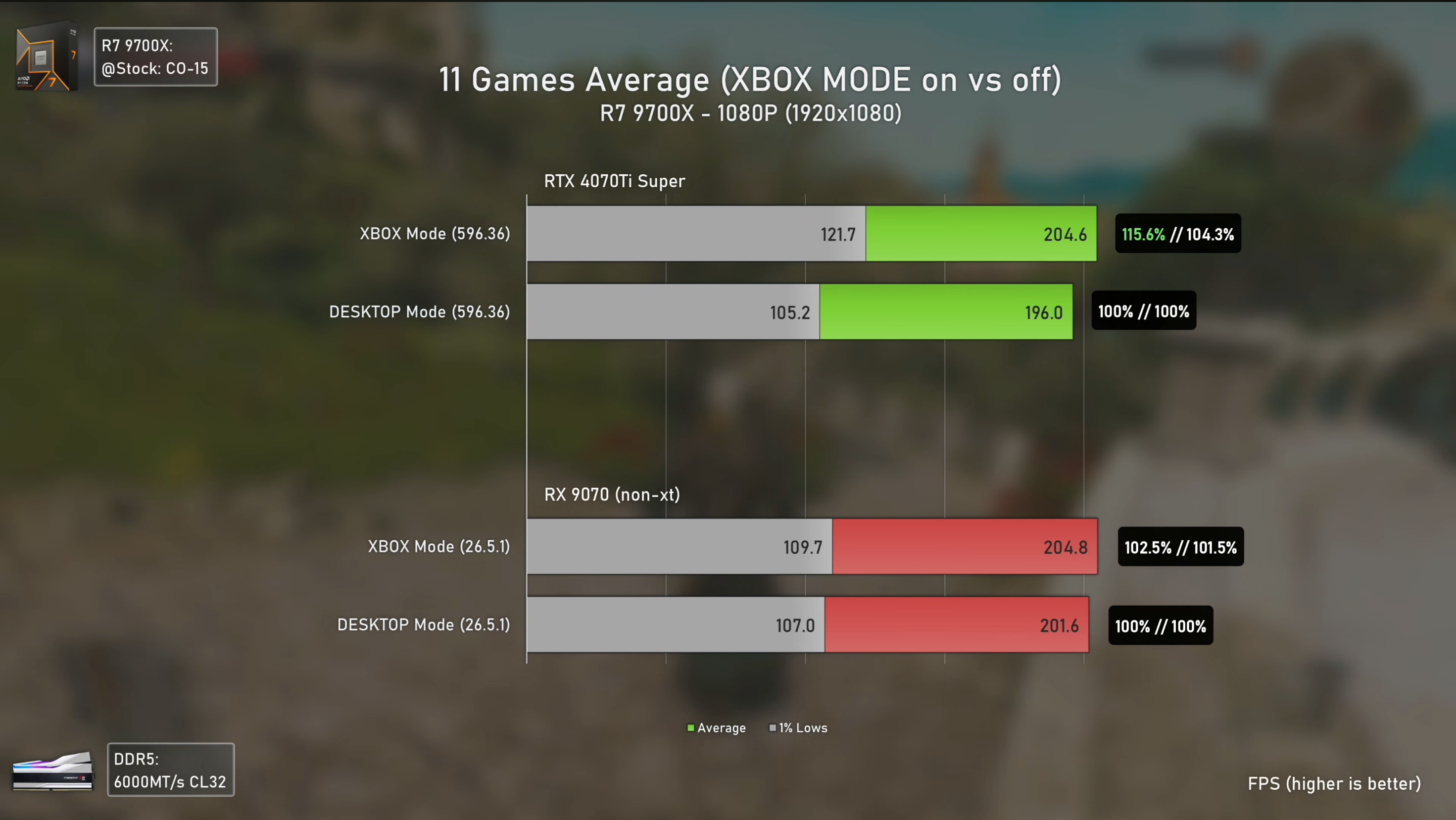
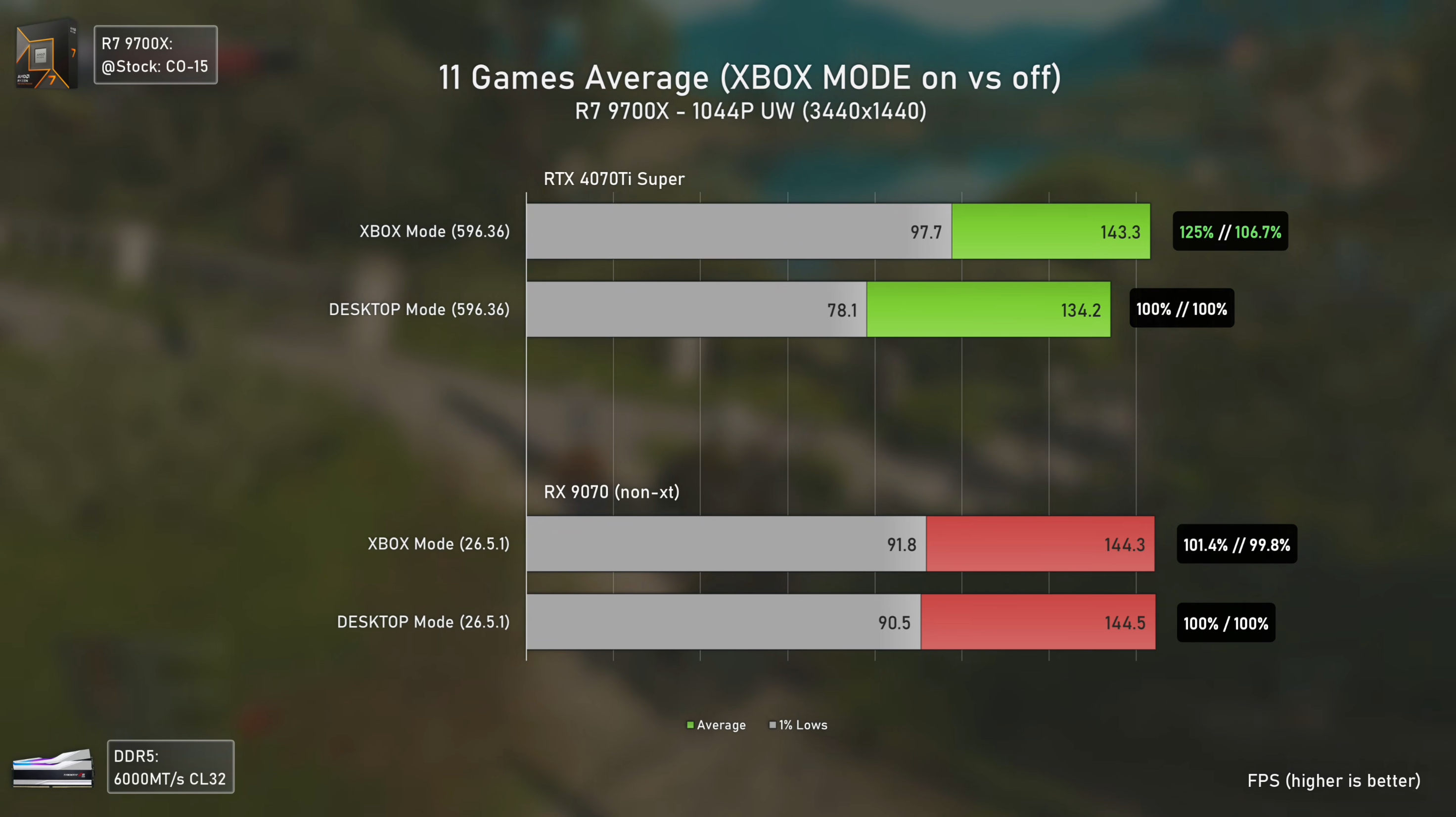
When enabled: it automatically "kills" the Desktop and other unnecessary Windows background services and processes in order to save up RAM and CPU usage and to focus resources on gaming only, improving performance and latency (but you can switch back to Desktop at any time)
It will optimize UI/UX for Xbox controllers or any controller connected with "XInput": no mouse & keyboard required. In worse case scenario (like old games or programs) where mouse is necessary, you can now enable an option in Xbox Game Bar (in Compact Mode) to control the mouse directly with the controller
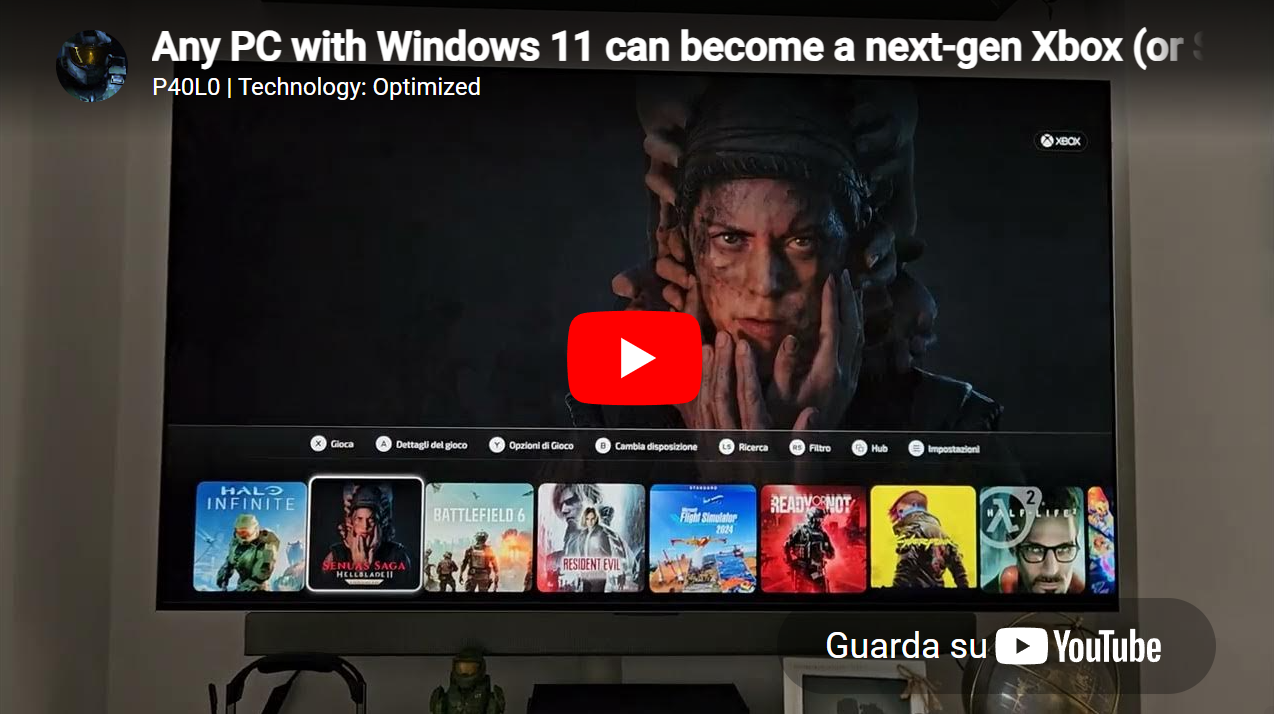
More info in the video comparison here
I personally tried 12 games on my already very optimized PC (with a 7800X3D, RTX 4080, 32GB RAM DDR5 and 2TB NVMe Gen 4) and while I didn't have those stark differences, I still had a small Average fps improvement, a moderate 1% Low fps improvement and a big improvement in game pad input latency overall.
It also fixed some apparently unfixable random stuttering in (CPU bound) games like RE9 and Flight Sim 2024.
What "Xbox Mode" does NOT officially do at the moment?
It cannot be setup to automatically launch and replace the Desktop on boot (unlike ROG Xbox Ally)
If you have a Lockscreen with PIN, this can't be entered using a controller (unlike ROG Xbox Ally)
You cannot choose what to automatically launch in Xbox Mode and what to launch when entering in regular Desktop mode (unlike ROG Xbox Ally)
You cannot auto launch other Stores in full screen mode (like Steam Big Picture Mode) on boot
But you know what?
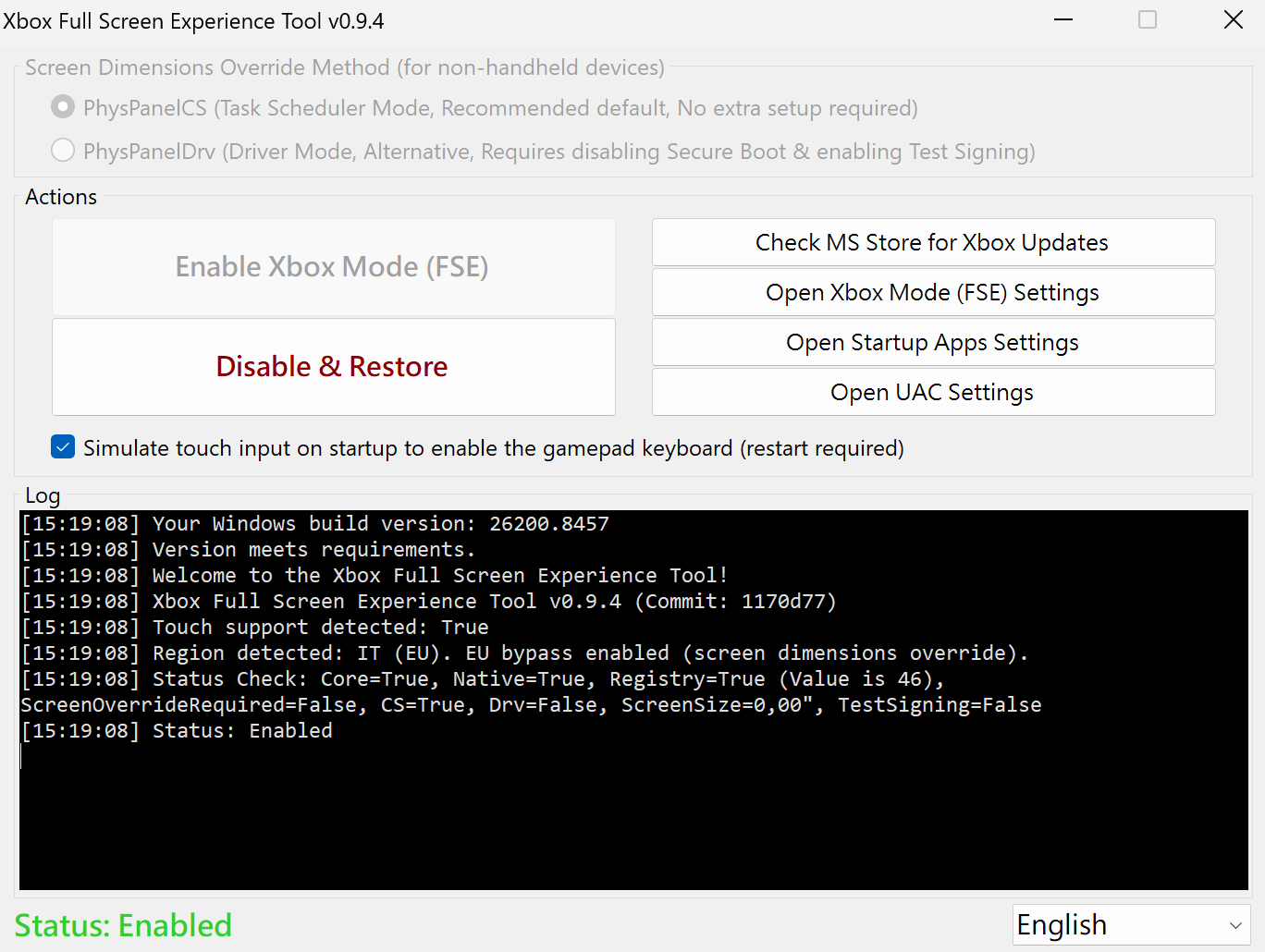
All these 4 limitations were already bypassed natively using:Xbox Full Screen Experience Tool (Xbox Mode) v0.9.4 or newer :)
Basically all you have to do (after installing latest Windows Update and enabling Xbox Mode) is to download this tool from GitHub, open it like the screen above, make sure the "Simulate touch input" checkbox is ticked and then click "Enable Xbox Mode (FSE)".
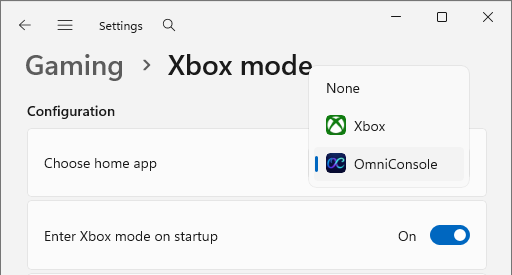
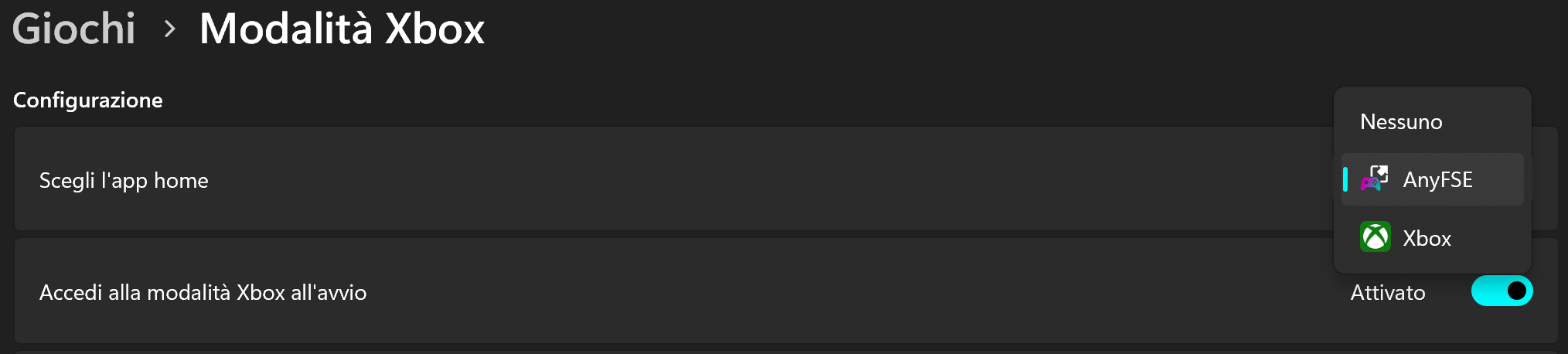
The system will reboot and now you can enter your PIN with a Controller (!) plus if you go again in Windows 11 System -> Gaming -> Xbox Mode, you can choose the Home launcher for your PC (between Xbox Mode and None/Desktop)...
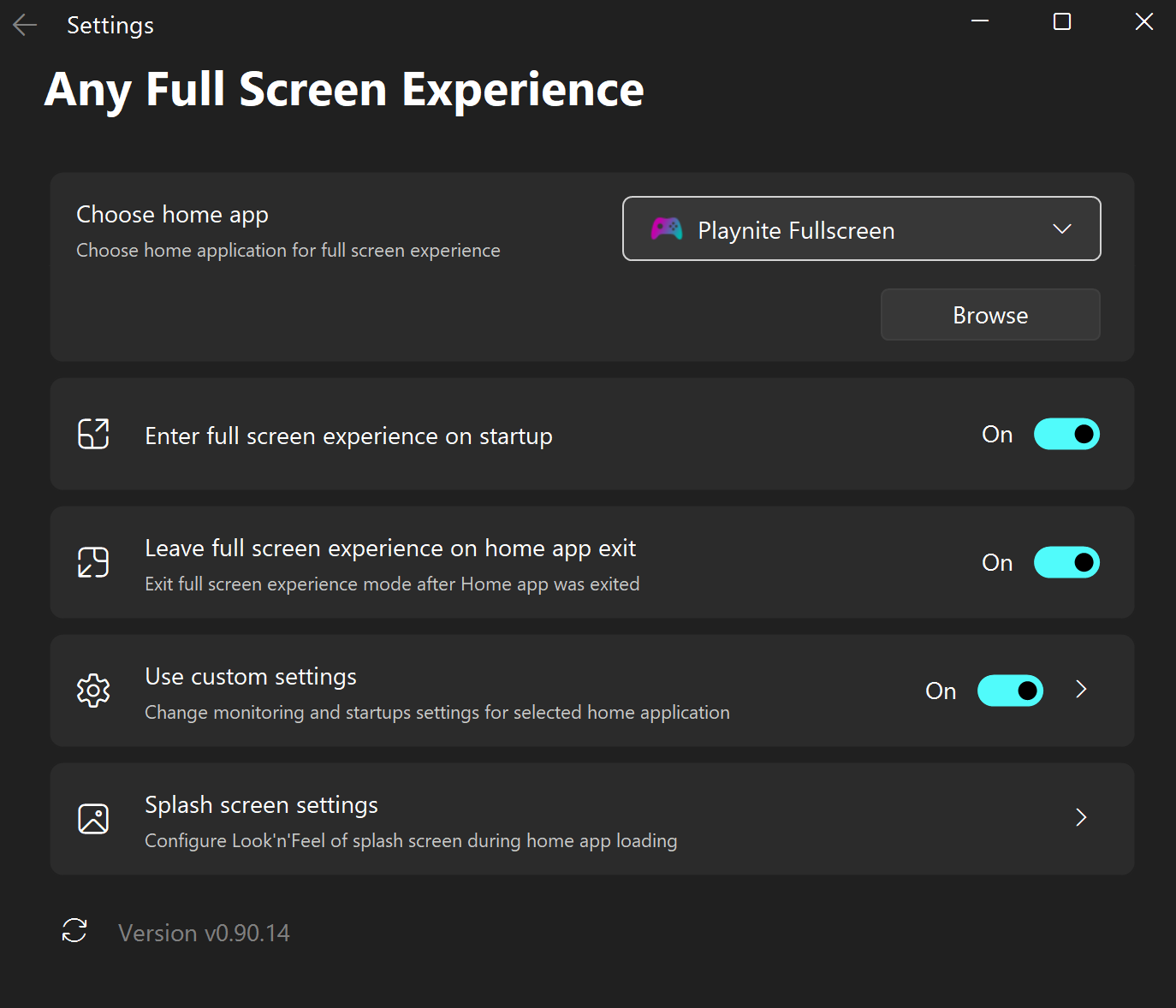
...or OmniConsole or AnyFSE (for more customizations) which are other optional/complementary software you can install if you want to auto-launch Steam in Big Picture Mode on boot instead, basically replicating a similar experience of SteamOS on any PC, or even try launching EGS o even better Playnite on boot instead! (which is what I recommend, even if it's a bit more difficult to initially setup)
Personally I will stick with my customized Playnite + AnyFSE combo for achieving the best and most "Console-like" experience while preserving the new Xbox Mode optimizations (see the video above!)
If you already applied my guides as:
PC Gaming: Optimized - The Ultimate Guide (including NVIDIA/AMD CP + G-Sync/Freesync + HDR Best Settings) and/orPC Gaming: Ultimate Anti-Stutter Guide (incl. Unreal Engine Universal Tweaks)I can confirm that all of this will be compatible and will work perfectly fine ON TOP of my guides :)
Enjoy your "home made", next-gen Xbox PC or Steam Machine! ;)
-P
Files