Home
Home

 Creators
 Search
 Recent
 Random
 Posts
Posts
 DMs
DMs
 Tags
Tags
 Random
 Importer
 Import
 FAQ
FAQ
 Account
 Register
 Login
Login
 Favorites
 Keys
Keys
 Logout
 Telegram

Windows 10/11 - Safely reclaim your Privacy (while also making everything a bit snappier) (Patreon)
Content
After explaining how to Clean up your PC without external (scammy) software , it's time to talk about how much Windows itself "spies" on you and how to limit this as much as possible without noticeable negative effects.
First thing first: Windows 10/11 actually collects a lot of telemetry data from your PC such as:
Which exact hardware you're using and how Windows performs on it;
How long does an app take to be opened;
What apps or services hang up and crashes, reconstructing what was your behavior before this happened;
What are your OS and browser settings;
What is your browser history, saved passwords, stored credit cards;
How you type on both physical and touch keyboard, what errors you make, what new words you save etc. ;
What you search on Start;
Why certain Windows Updates were not able to install;
and much more data, which is constantly logged whatever thing you do;
Now with Copilot and Recall the OS can also record what you write and literally take continuous screenshots of your PC to train their AI model!
That said, most of this data is collected in "anonymous" format while personal data is linked to your Microsoft Account only and safely stored in the cloud for future retrieval (e.g. when you change PC or reformat yours).
The aim of all this is to have enough "big data" for Microsoft to better understand what to fix and improve in future version of Windows, Microsoft apps and their AI...along with targeted Ads within Microsoft Store and Store apps, but if this still sounds a bit too "invasive" for you, read below.
There is a very quick, effective and pretty safe way to limit as much as possible this constant data collection without breaking anything or even make these changes noticeable from an user experience point of view.
DISCLAIMER: I'm not affiliated/partner with O&O Software or Microsoft in any way.
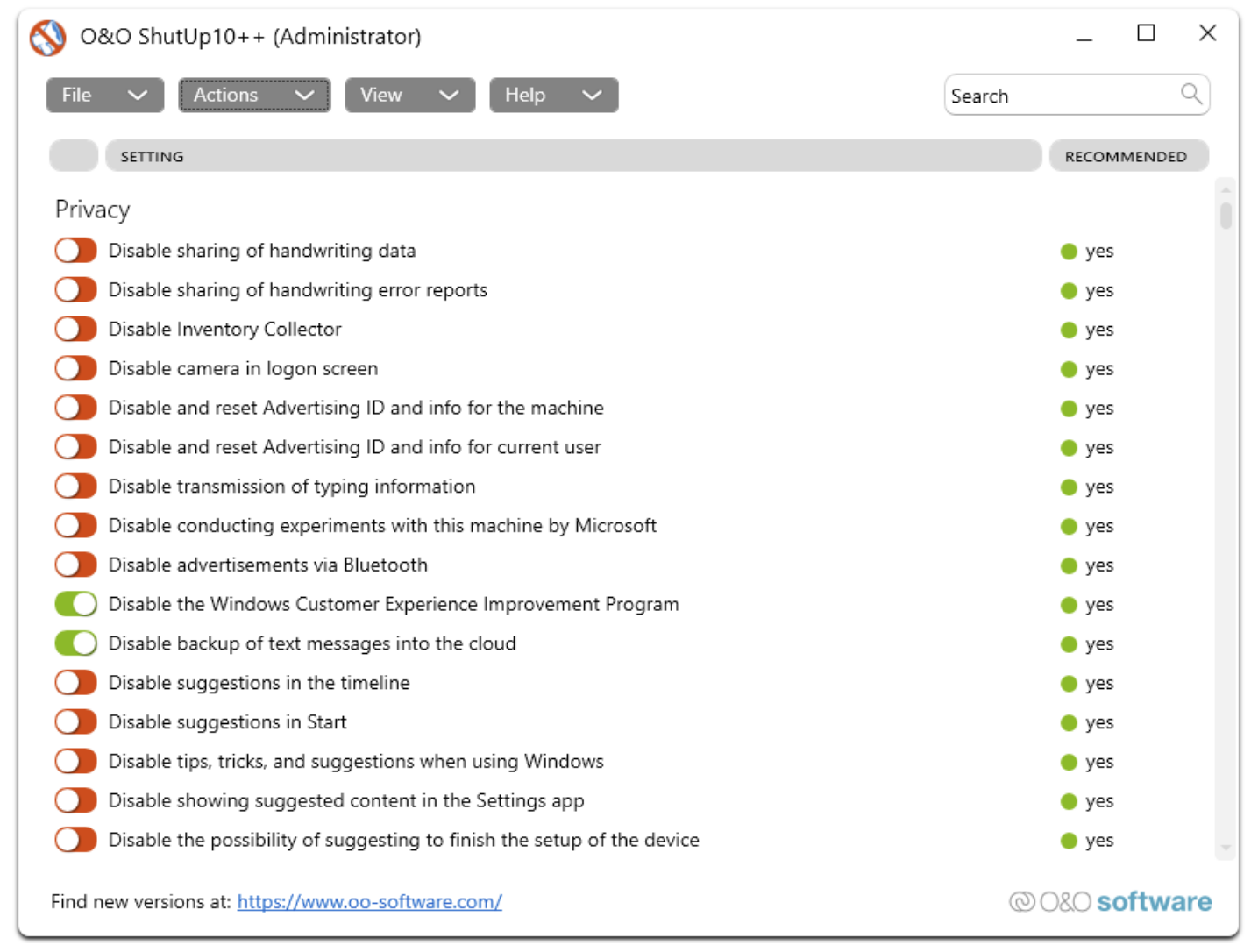
But I still highly recommend O&O ShutUp10++ freeware utility for this work.
Why?
O&O is "Microsoft Gold Partner", this means that all their software has been tested/approved by Microsoft itself for Windows safety;
It supports both Windows 10 and 11;
It's free (again) for personal use;
It's portable: no installation required;
It only works through Windows Group Policy Editor and all changes could be easily and safely reverted;
It's tested by millions user which clustered each change in "safe/recommended", "not so recommended" and "don't recommended" categories;
Settings/Changes through the app can be exported/imported.
So first of all download it and open it.
Considering I'm personally using/testing this tool for a while, I settled with these O&O ShutUp10++ Optimized Settings for you to Download/Save -> Import inside the Tool and apply also for your PC.
When applying my settings the tool will ask you to "Create a system restore" first -> Do it (just in case). Then it will ask to reboot your PC.
My settings will just:
Disable/limit all "safe/recommended" privacy settings, geared toward an optimized and efficient gaming PC
Some changes, even if considered "safe/recommended", won't be applied for not altering the User Experience too much (e.g. Browser's URLs and Forms auto-fill, browser search/google suggestions and others will be preserved)
Improve boot-up time and making all operations a bit snappier overall
Improve games' 1% Low FPS and Frametime consistency
That said, you can re-open O&O ShutUp10++ whenever you want to exactly see how your PC is setup and choose to apply/undo specific changes or go back to your previous Backup/Default state with ease.
Let me know how it goes for you ;)
Cheers,
-P
Files