Home
Home

 Creators
 Search
 Recent
 Random
 Posts
Posts
 DMs
DMs
 Tags
Tags
 Random
 Importer
 Import
 FAQ
FAQ
 Account
 Register
 Login
Login
 Favorites
 Keys
Keys
 Logout
 Telegram

Avatar: Frontiers of Pandora - HDR Optimized Settings (Patreon)
Content
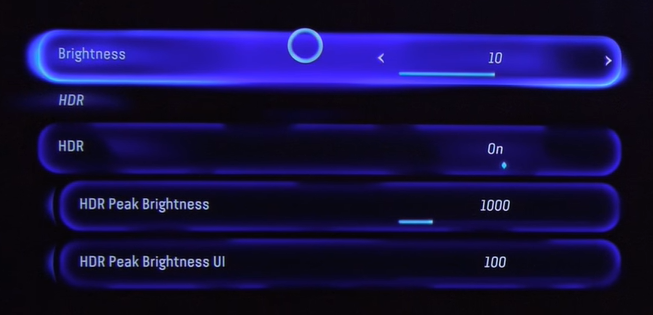
The game is NOT using/applying Xbox/Playstation/PC HDR Calibration app settings.The game has a good HDR implementation by offering precise in-game Peak HDR Luminance control up to 5.000 nits along with a general Brightness/Gamma and UI Luminance sliders.Initially the game suffered from black level raise but it got fixed with later patches and my suggestions needed to be changed after Title Update 3.2 (Game Version 1.04).If you have an LG OLED and:> you're using Dynamic Tone Mapping or Dynamic Contrast:
Leave Brightness slider to: 20;
Set HDR Peak Brightness slider to: 4.000 (nits)
Set HDR Peak Brightness UI slider to: 100 (nits).
> you're using HGIG:
Leave Brightness slider to: 20;
Set HDR Peak Brightness slider to: 800 (nits) or 1.000 (for G2) or 1.500 (for G3);
Set HDR Peak Brightness UI slider to: 100 (nits).
If you don't have an LG OLED and:> you don't have an HGIG option:
Leave Brightness slider to: 20;
Set HDR Peak Brightness slider to: 1.000 (nits);
Set HDR Peak Brightness UI slider to: 100 (nits).
> you're using HGIG:
Leave Brightness slider to: 20;
Set HDR Peak Brightness slider to the corresponding real Peak HDR Luminance of your TV in "nits";
Set HDR Peak Brightness UI slider to: 100 (nits).
BONUS:
If you have a 120hz display, use the new 40fps Graphics mode on Xbox Series X and PS5: in order to have the best visuals and performance balance;
If you have a 60hz display, use the "Prioritize Performance" 60fps graphics mode instead;
Enable VRR on Console/PC level to smooth out small dips in the framerate.
Files