Home
Home

 Creators
 Search
 Recent
 Random
 Posts
Posts
 DMs
DMs
 Tags
Tags
 Random
 Importer
 Import
 FAQ
FAQ
 Account
 Register
 Login
Login
 Favorites
 Keys
Keys
 Logout
 Telegram

The new NVIDIA RTX HDR and NVIDIA App: a literal Game Changer for HDR on PC (Patreon)
Content
After over 15 years since the launch of current NVIDIA Control Panel, which was enriched with options but has not changed at all from an UI/UX perspective (still resulting in a very slow, clunky and outdated experience), NVIDIA finally decided to completely overhaul its "Front-End" application to control all graphics settings and features within a single NVIDIA App, which is also merging GeForce Experience functionalities with no more need to log-in.
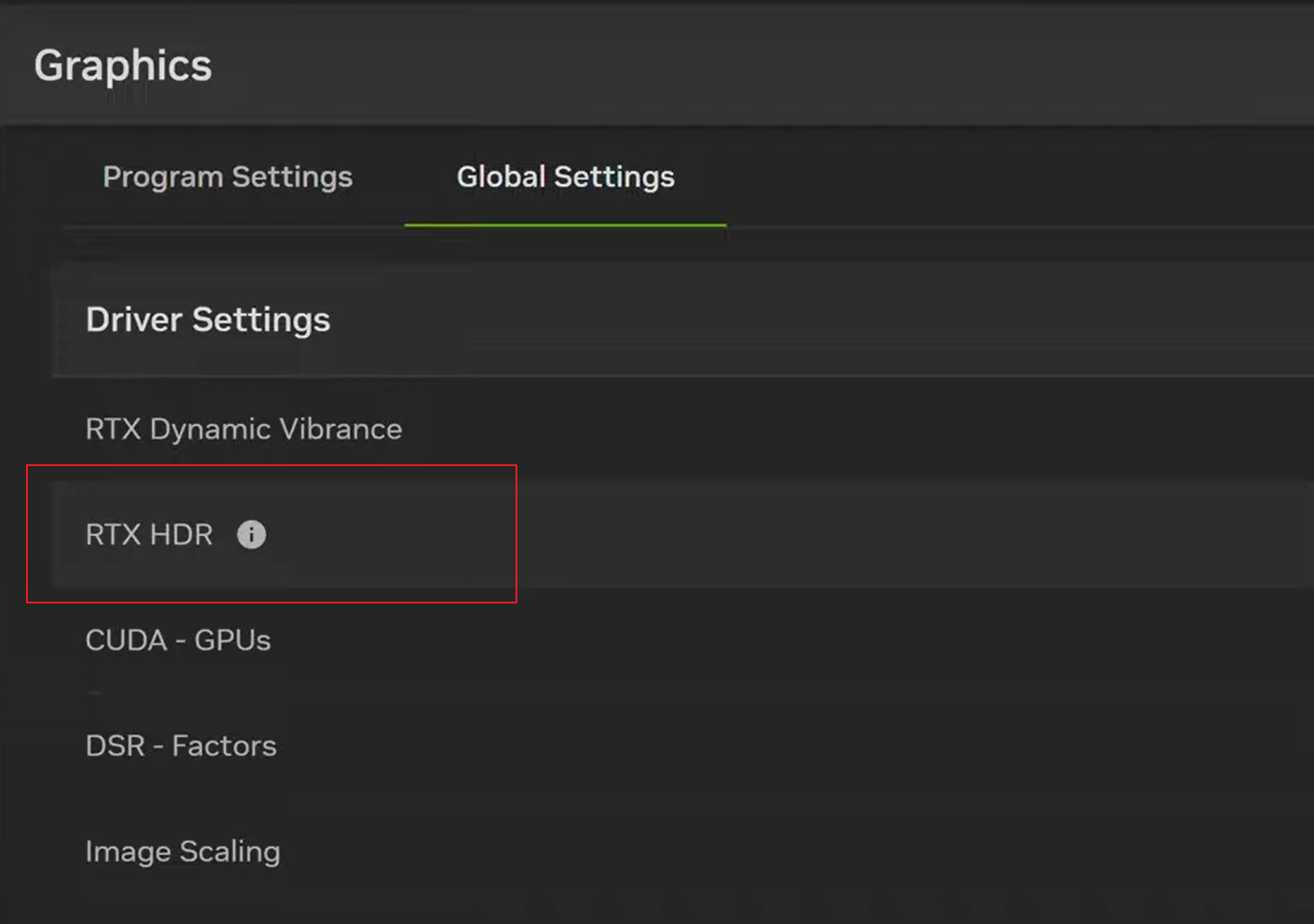
While the new app is a very welcome refresh for managing the same Global and per-game settings (which are still tied to the same options/values at a driver level and currently not all of them are changeable from the new app) in a much faster and in a much more pleasant way, along with providing a streamlined way to manage drivers updates, overlays, filters and find other NVIDIA apps...the real news is the addition of the new RTX HDR for Games as a new Global Setting which is de-facto a MUCH better replacement of the current Windows 11 AutoHDR feature.
NVIDIA already provided an RTX HDR Upscale + Upconversion for all SDR video reproduced in web browsers, streaming apps and even specific offline clients like VLC, but now the feature expanded also for all SDR games with the following benefits over AutoHDR:
No more black level raise
Much less color banding (as RTX HDR includes a de-banding filter)
Higher Peak Luminance
Better contrast
Much wider compatibility: it will basically work on ALL DX9 to DX12 SDR games + possibility to also convert OpenGL/Vulkan games when using the DXGI model for them (in NVCP). With some mods, even very old DX7-DX8 games can be processed!
It will only apply to SDR games (ignoring native HDR10 ones) but you can also try/prefer it over (bad) native HDR10 titles by just disabling their HDR in-game and re-start them in SDR
(AutoHDR on the left; RTX HDR on the right)Too good to be true?Are there any drawbacks in this?Only two: Performance and Colors Oversaturation (re-ntroduced after drivers 560.xx)RTX HDR currently hits average FPS by around -8% by just enabling it as is, but you know me: I've already found a way to optimize it globally with one click... :)
To also fix the oversaturation issue, continue reading.First, in order to enable RTX HDR for Games you need:
An NVIDIA RTX GPU (2000 series or newer)
Windows 11 22H2 or newer
NVIDIA Drivers 551.61 or newer
A single HDR display (for multiple HDR displays you need driver 565.90+ and latest NVIDIA App)
AutoHDR must be DISABLED in Windows 11 (you can also turn off Notifications for it)
HDR must be ENABLED system-wide in Windows 11
DSR/DLDSR and Image Scaling must be disabled in NVCP
The game must launch in SDR mode
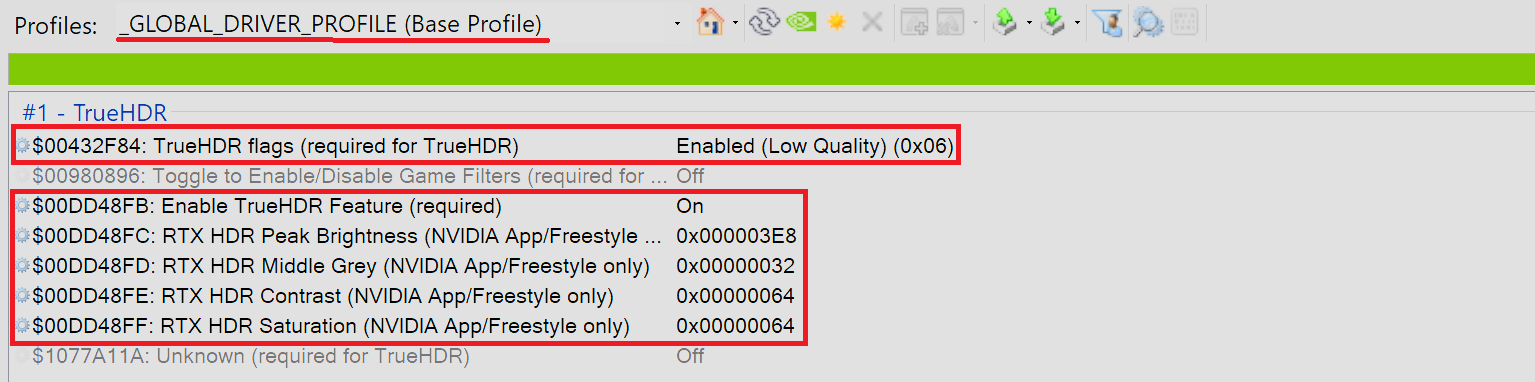
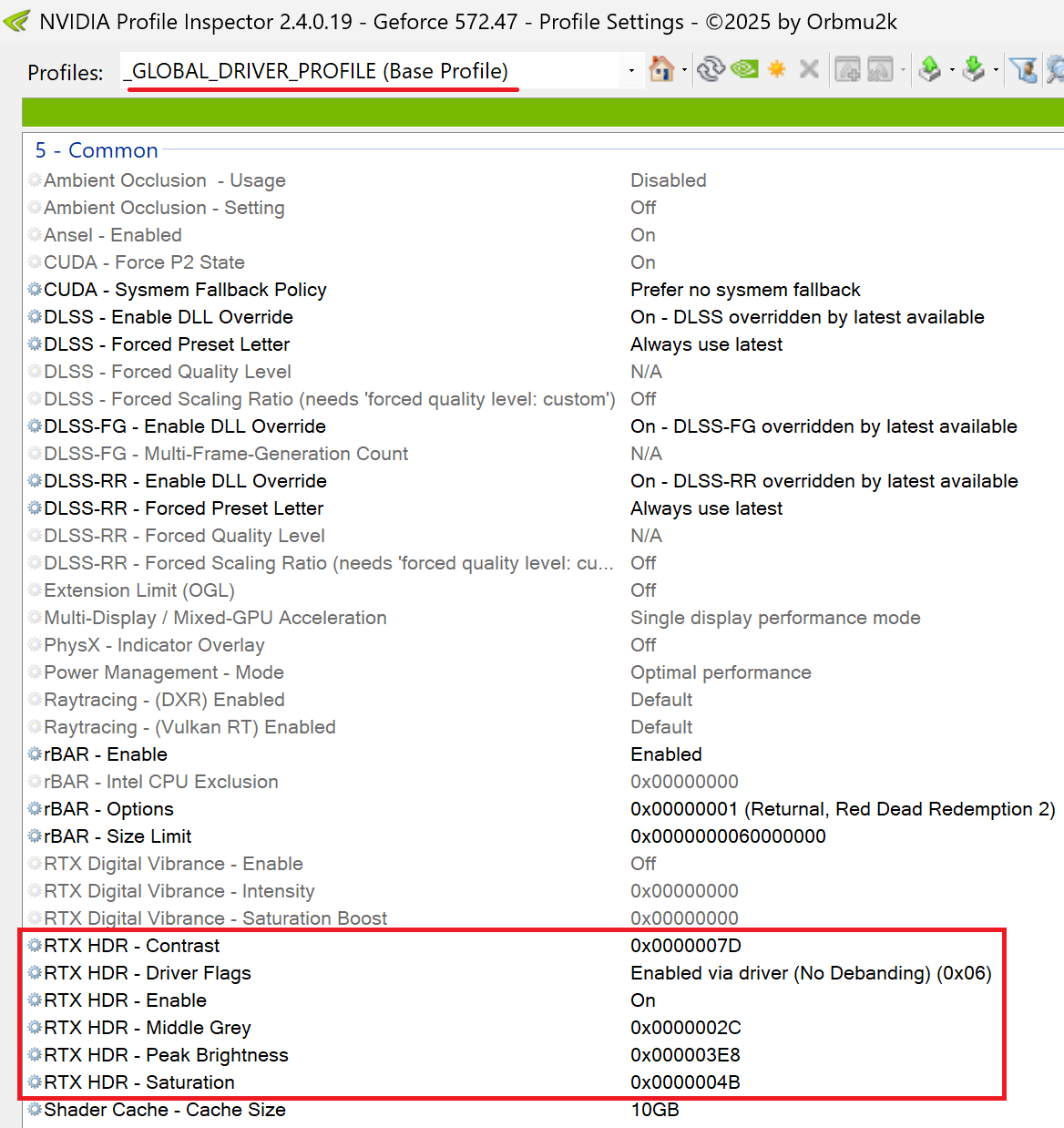
Then you could install the new NVIDIA App and enable it globally from there...but actually you don't need to do it as there is a better method without the need to install the new app at all.Even better you can set RTX HDR globally as shown below:
(for LG G3/G4/G5 OLEDs use -> these)
You can in fact just use latest NVIDIA Profile Inspector with the settings above (which will also fix the color oversaturation issue and Gamma 2.2 tracking) , click "Apply changes" and reboot. Activating the feature flag "No Debanding (0x06)" the cost for it will lower from around -8% to around -3% your average FPS with no visible differences compared to default and, trust me, it is definitely worth it.If some of your native HDR10 games will have washed out colors after the change, set "RTX HDR - Enable" flag to Off only for them (through NVIDIA Profile Inspector or disable RTX HDR only for them in NVIDIA App).The other good news is in fact that the new NVIDIA App is just a new "Front-End" for all these settings and won't disrupt/change anything set through classic Control Panel or NVIDIA Profile Inspector. My final advice is in fact to setup everything as suggested in my full, always updated PC Gaming Optimization Guide and then use the "Export" function of NVIDIA Profile Inspector to save your "Base" (Global) profile which will include all Control Panel Global settings + additional tweaks (as RTX HDR settings, DLSS Preset E, ReBar enabled globally etc.) in a safe place and then "Import" it and apply it again after each drivers upgrade:
Quick and painless.Let me know if that worked for you and what do you think about RTX HDR over Windows 11 AutoHDR. Enjoy :)-P
Files