Home
Home

 Creators
 Search
 Recent
 Random
 Posts
Posts
 DMs
DMs
 Tags
Tags
 Random
 Importer
 Import
 FAQ
FAQ
 Account
 Register
 Login
Login
 Favorites
 Keys
Keys
 Logout
 Telegram

[ Wriolette ] Office AU HD (+ process + PSD) (Patreon)
Downloads
Content
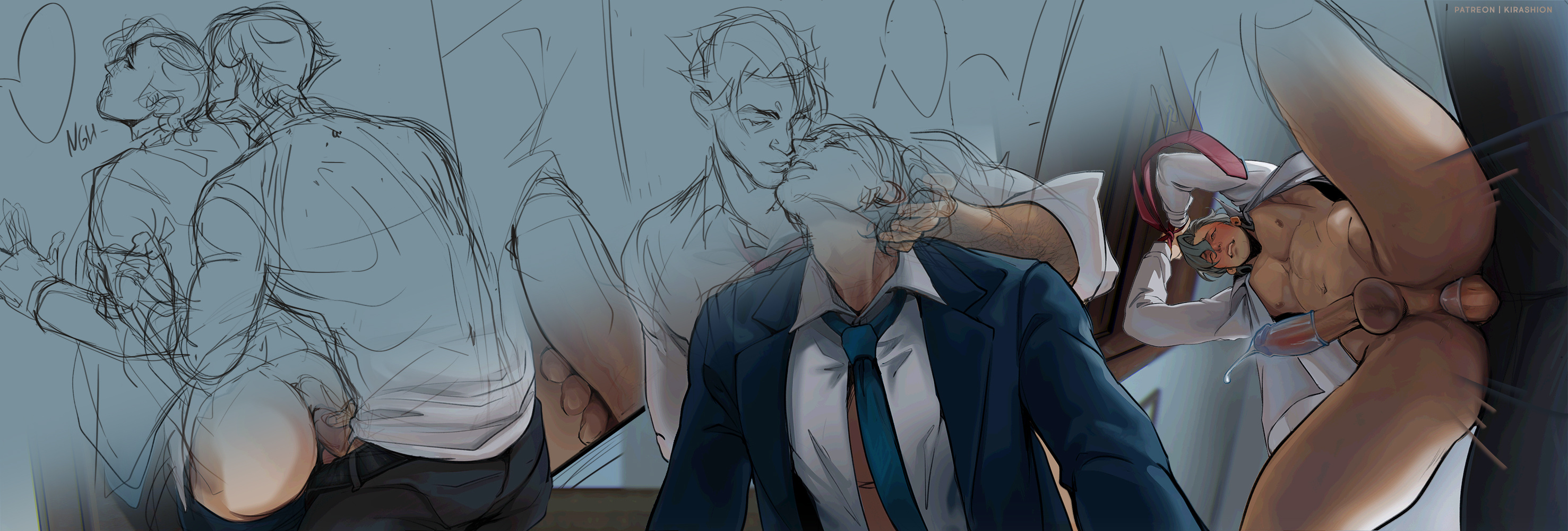
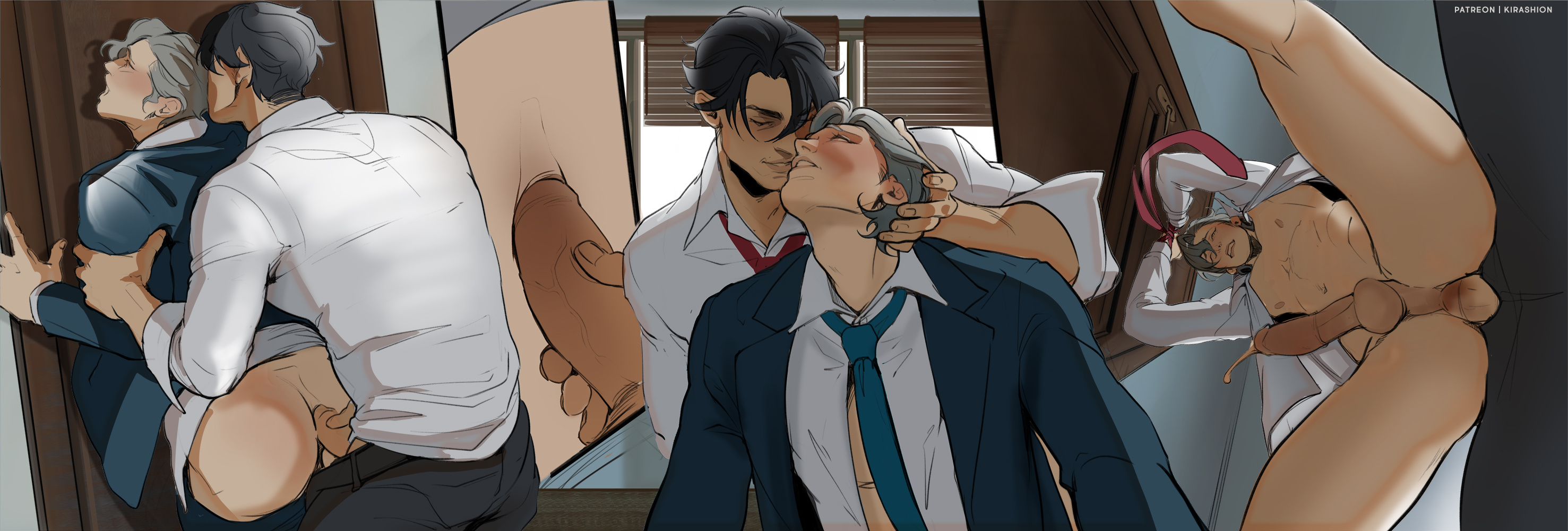
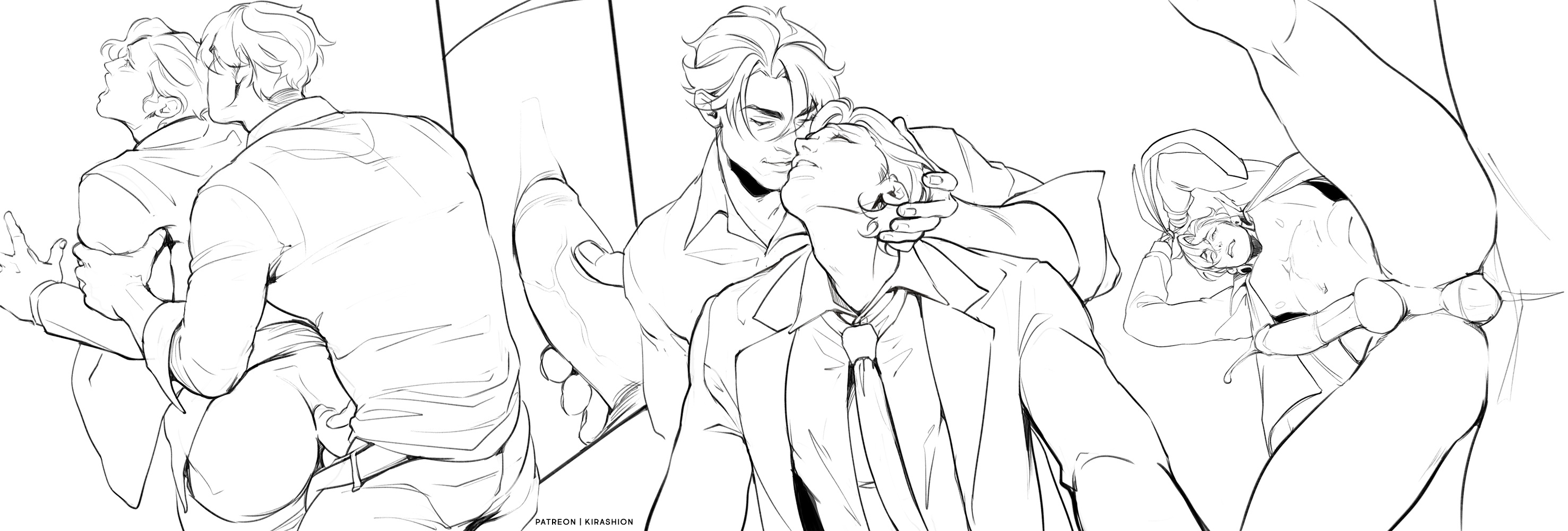
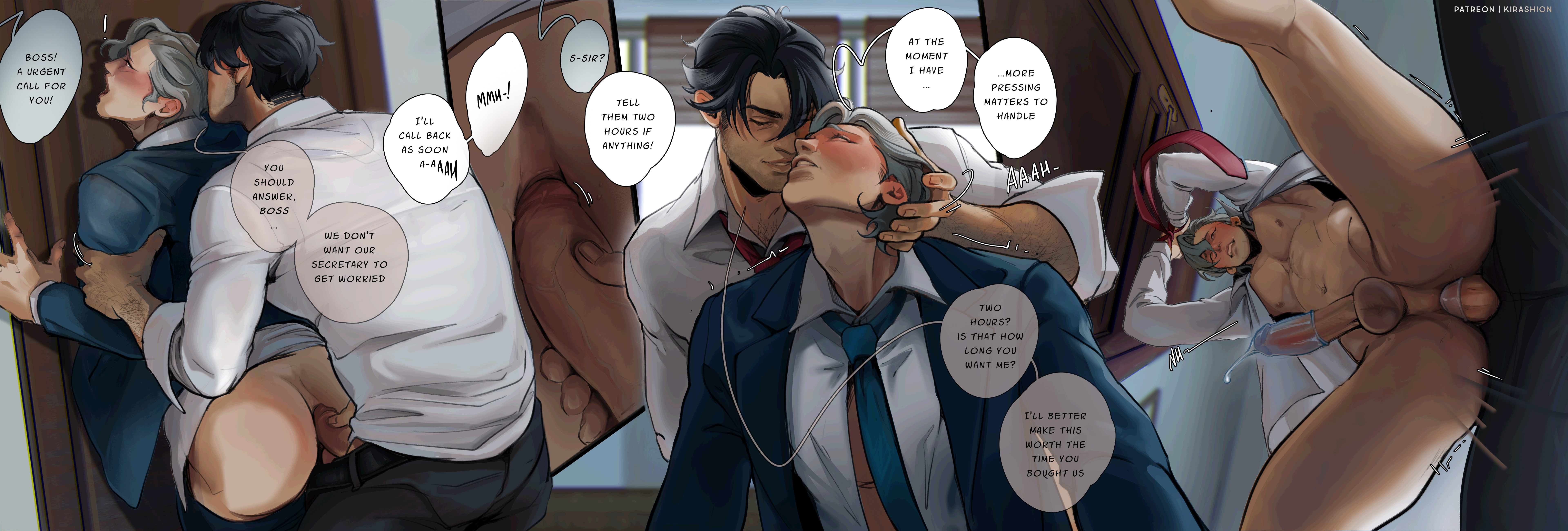
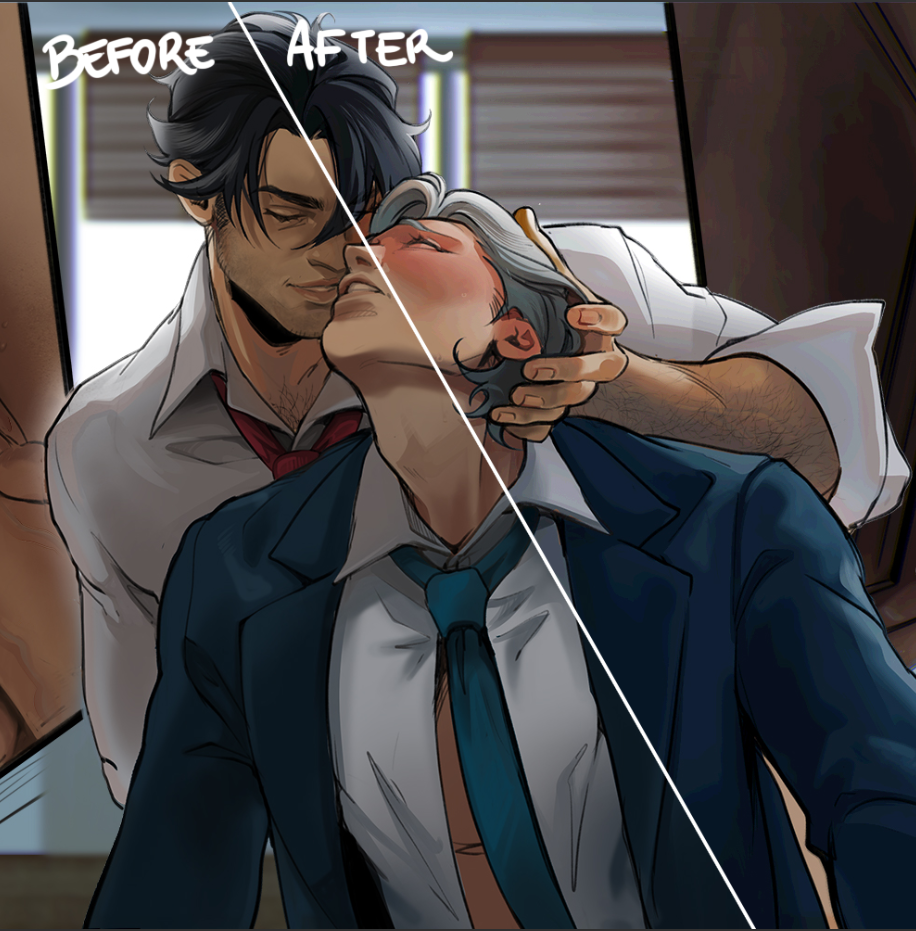
I got completely lost in the process of coloring this, so I didn't save many process images and I thought on this post I could focus on explaining how I used Adjustments to go from the "finished rendering" stage to the "final"!
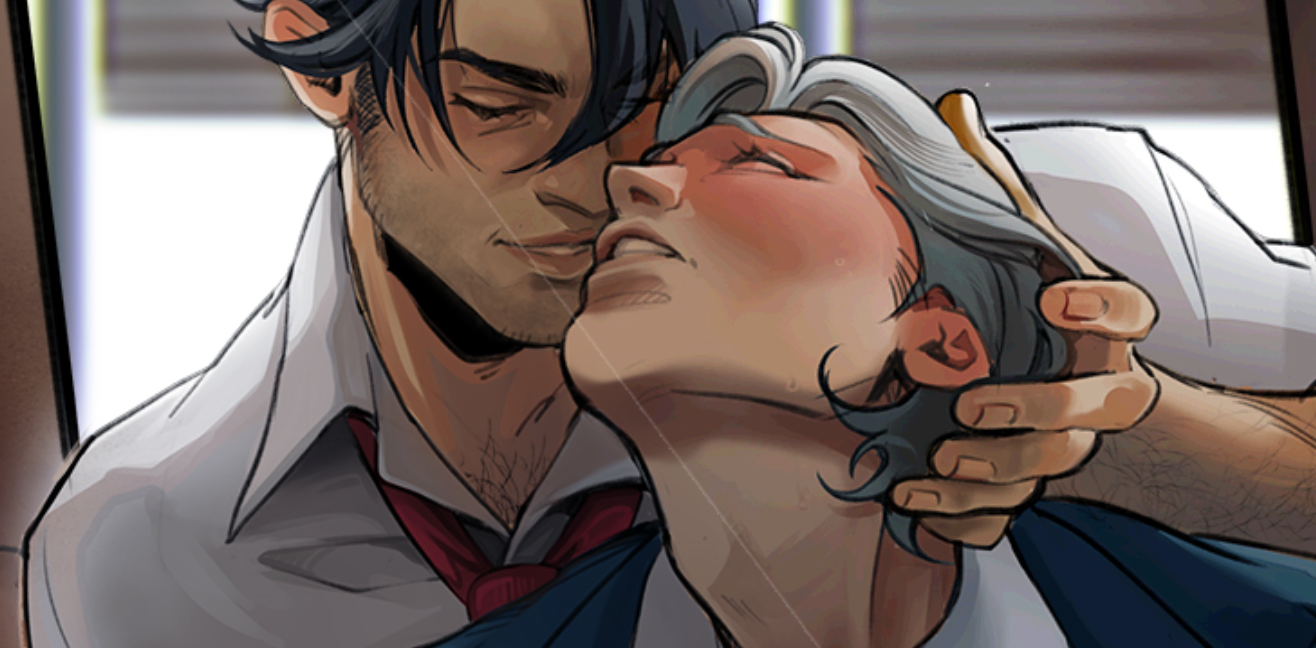
Looking at this Before/After you may think "but Kira it's the same picture", but I promise that, browsing the gallery, you'll notice the differences between one image and the other!! 😂
(I recommend opening the PSD and toggling the visibility of the layers in the yellow ADJ folder to better understand how I work with Adjustments! The layers below 1-6 are numbered from the bottom to the top of that folder)
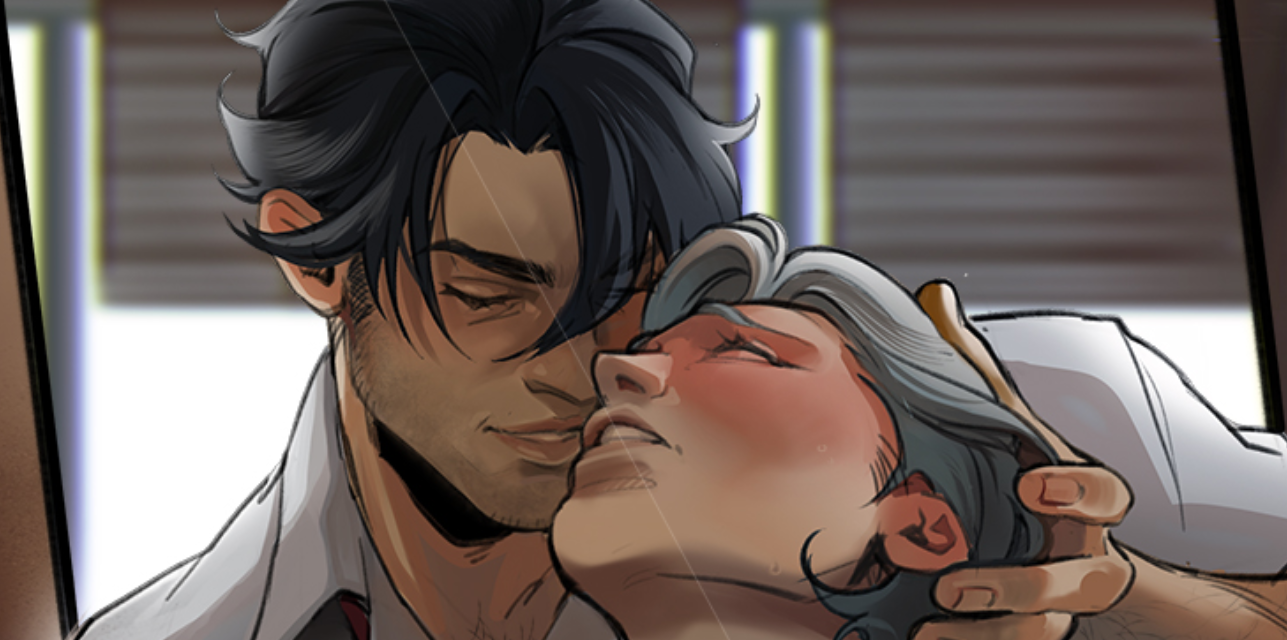
1️⃣ Color Lookup 3Strip.look (Normal, 100% Fill)
This makes colors more vivid and saturated; I often use this Adjustment to enhance the red blush on a flustered character's cheeks and ears!
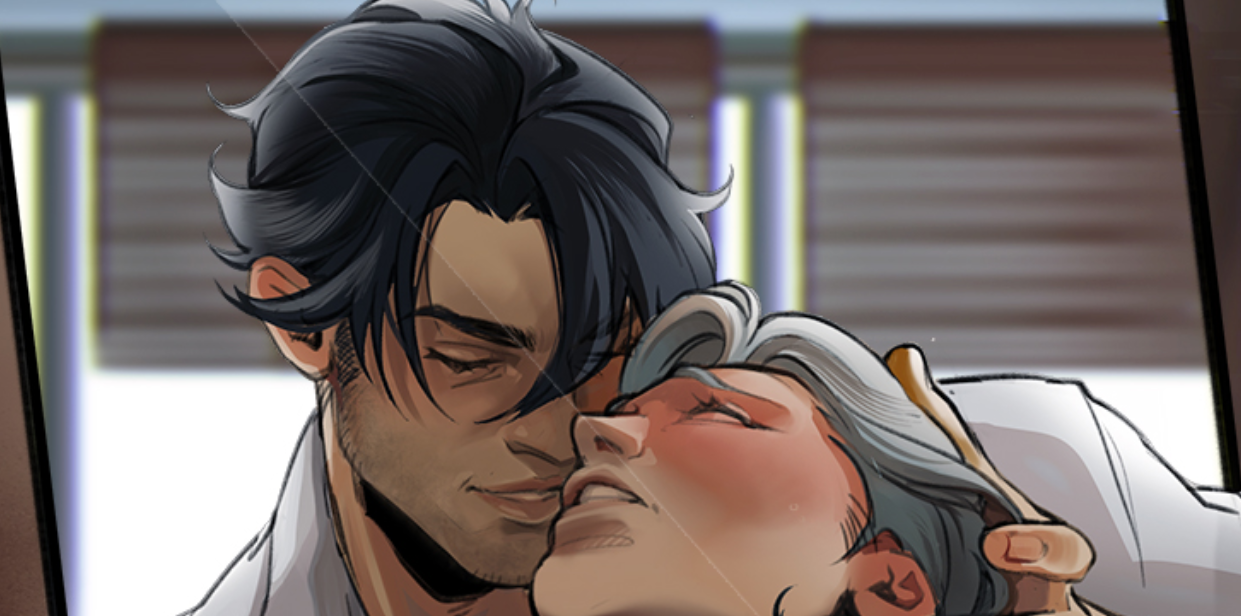
Before ←||→ After(Notice the difference on Neuvillette's cheek around the white line)
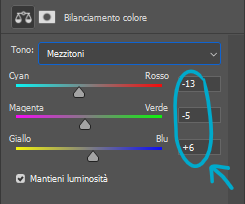
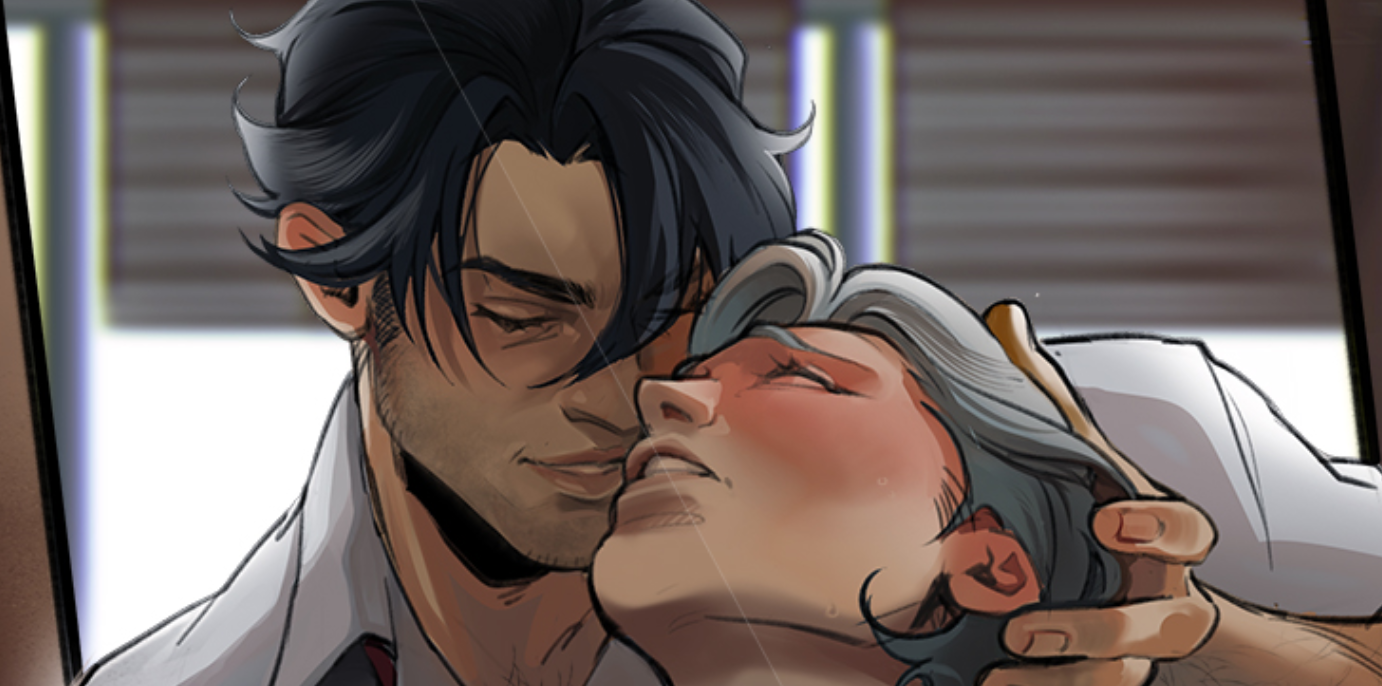
2️⃣ Color Balance (Normal, 64% Fill)
Since the beginning I had in mind a cold atmosphere for this piece, but I ended up using tonws warmer than I had evisioned. With the Color Balance layer, I shifted midtones towards cyan and blue:
Before ←||→ After(Notice the difference in their skin tones around the white line)
3️⃣ Color Lookup Crisp_Warm.look (Screen, 10% Fill)
At this point I wanted to have overall brighter colors. There are many Adjustments you can use to achieve this goal and the most efficient are Levels and Curves, which I commonly use...
Altough, this time I happened to use something unusual and counter-intuitive but... it worked 😂Testing out atmosphere variations before settling on the cool atmosphere I initially had in mind, I had activated the Crisp_Warm.look Color Lookup Adjustment so I used it to achieve brighter colors by setting it to SCREEN Blending Mode and lowering the layer's fill down to 10%
Before ←||→ After(Notice the difference no their skin around the white line)
4️⃣ Color Lookup NightFromDay.CUBE (Normal, 21% Fill)
I often need to increase contrast in my illustrations as well as introduce more color variation in the shadow areas; in these cases I find the NightFromDay.CUBE Color Lookup Adjustment the most handy because it darkens the illustration as well as adding a blue-ish hue.
Before ←||→ After(I only apply it in the darkest areas; notice the difference on their shirt collars around the white line)
5️⃣Curves (Normal, 100% Fill)
I wasn't happy with only darkening the shadowy areas, I also wanted to increase contrast by beightening the areas most affected by the light! As I previously mentioned, Curves is a great Adjustment layer to use to modify brightness and saturation so it was my choice this time; this is how my curve looks like:
I often edit my curve in two stages:⇾ I set Anchor Point 1 around the middle of the graph's line; it makes the canvas BRIGHTER if dragged up (this case) or darker if dragged down compared to its original position.⇾ Ancor Point 2 (set below Anchor Point 1) is used to simultaneously INCREASE/decreases Contrast and Saturation. To increase them, bring the Anchor Point down (this case) otherwise up. (If you set Ancor Point 2 above 1, it'll work the other way: up for increased contrast and saturation, down to decrease them)
Before ←||→ After(I only apply it in the brightest areas; notice the difference on the characters as well as in the background around the white line)
6️⃣Posterize (Normal, 100%)
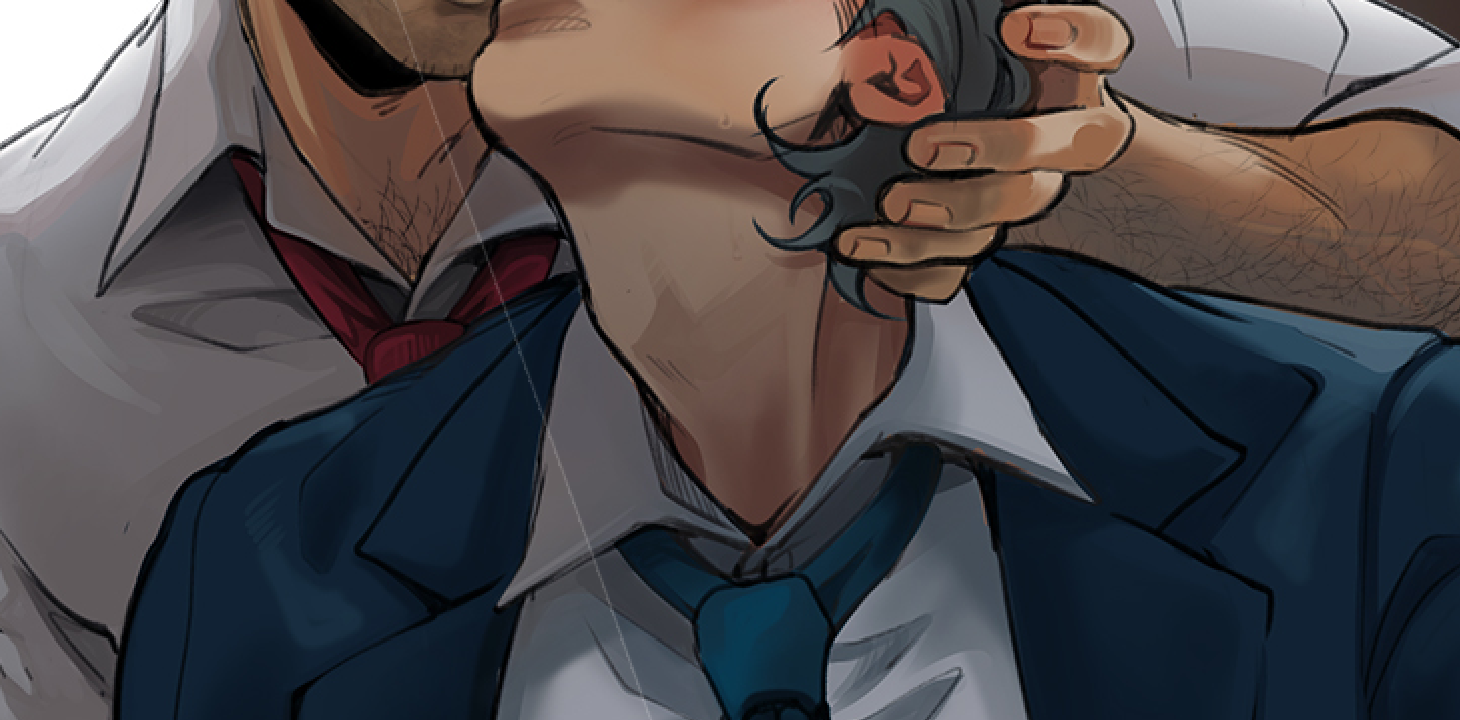
Posterize is one of my favorite Adjustments, for it instantly increases Contrast and Saturation as well as automatically creating extra gradients between colors! Sometimes I even apply it before rendering to pick from those gradients extra colors to make the illustration more interesting!I suggest you to have fun playing with this Adjustment's values and find the perfect balance, which can vary a lot from an artwork to another (I usually stay in a range between 25-45).
Before ←||→ After(Notice the extra gradient lines on Neuvi's neck aroud the white line and around his mouth)
Another, probably clearer, example of the impact of Posterize below. You can notice how instead of a soft shadows the filter created a series of gradients in cell-shading style. It's definitely a style choice whether you want this effect or not; while I prefer softer shadows, I really love the extra colors it adds!
I hope you find this short explanation useful! Please let me know if you have questions 💜
💌 HD in attachments!
PSD is too heavy for Patreon, you can download it from my GDrive!
If your software doesn't read my PSD correctly and you do not have Photoshop, you can open my files on the free online tool https://www.photopea.com !!
Files