Home
Home

 Creators
 Search
 Recent
 Random
 Posts
Posts
 DMs
DMs
 Tags
Tags
 Random
 Importer
 Import
 FAQ
FAQ
 Account
 Register
 Login
Login
 Favorites
 Keys
Keys
 Logout
 Telegram

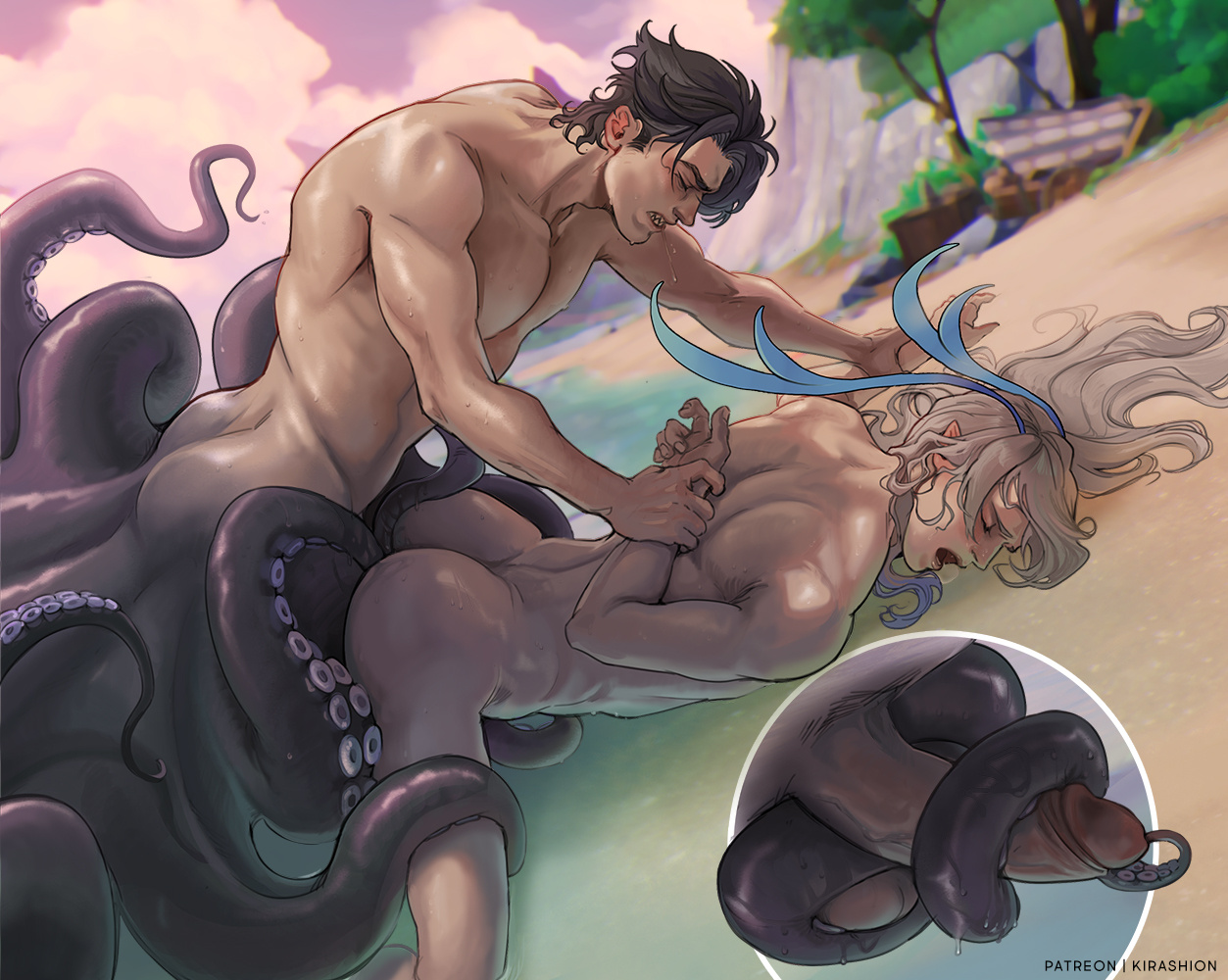
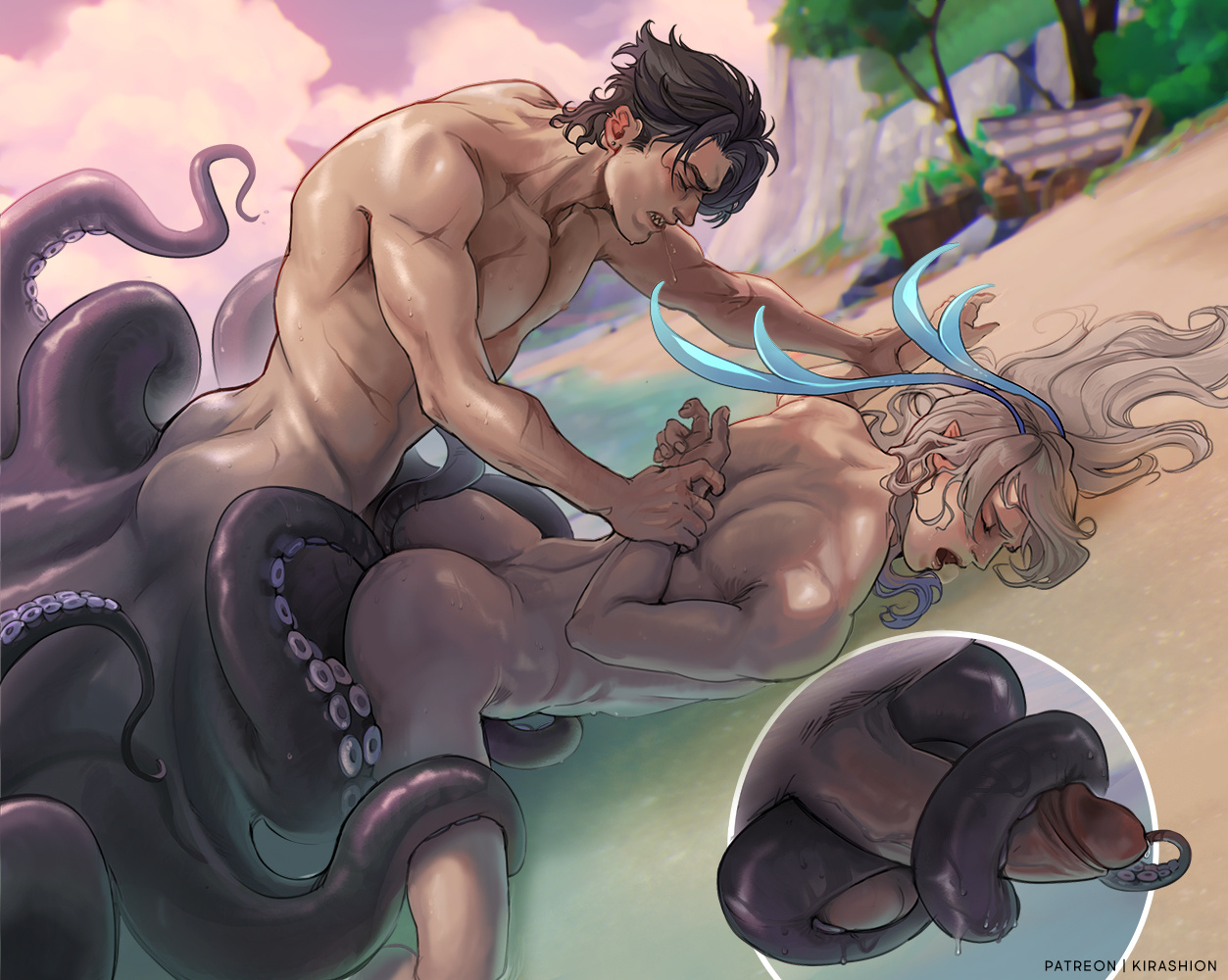
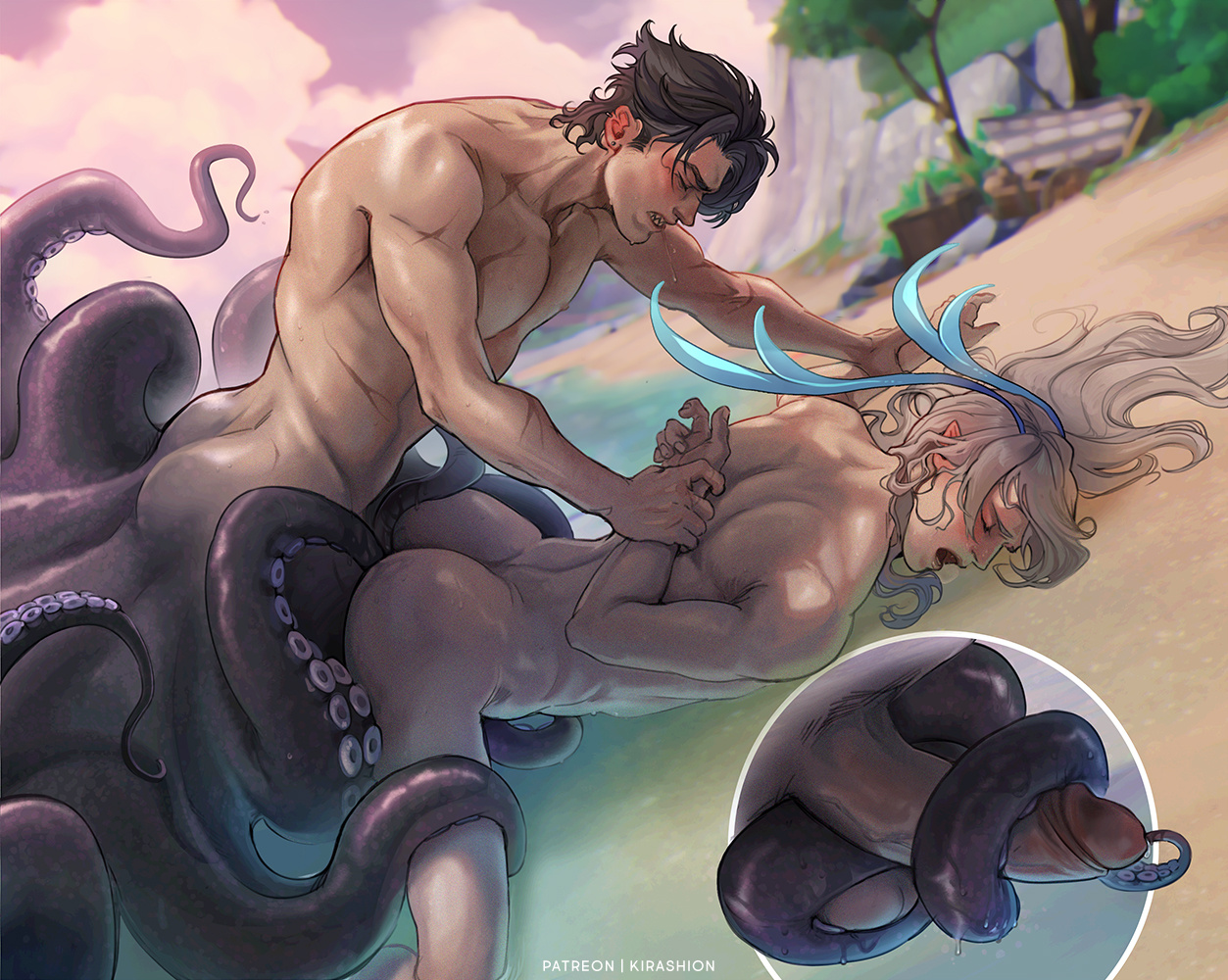
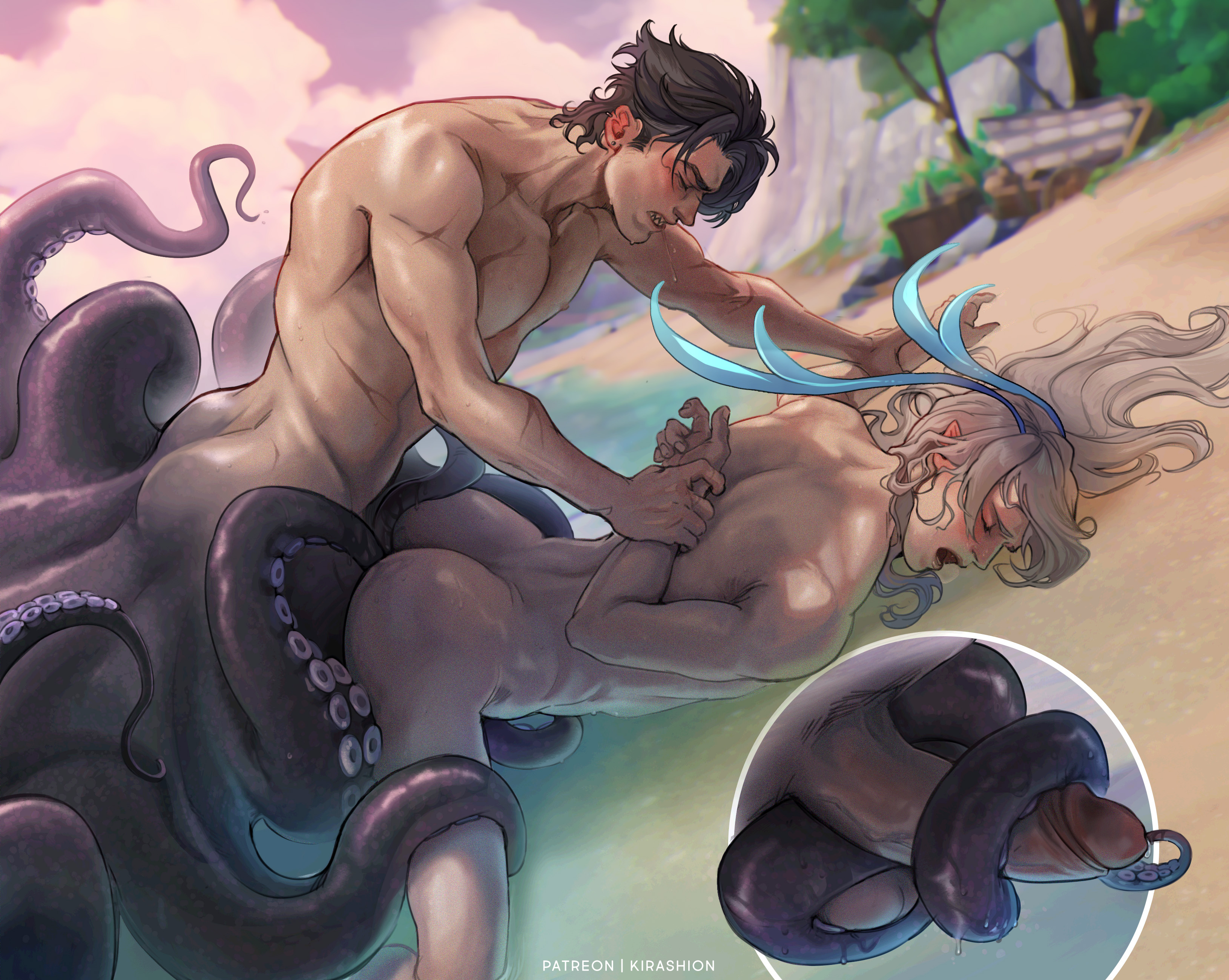
[ Wriolette ] By The Sea 🐙 Step-by-step TUTORIAL (+ HD + process + PSD) (Patreon)
Downloads
Content
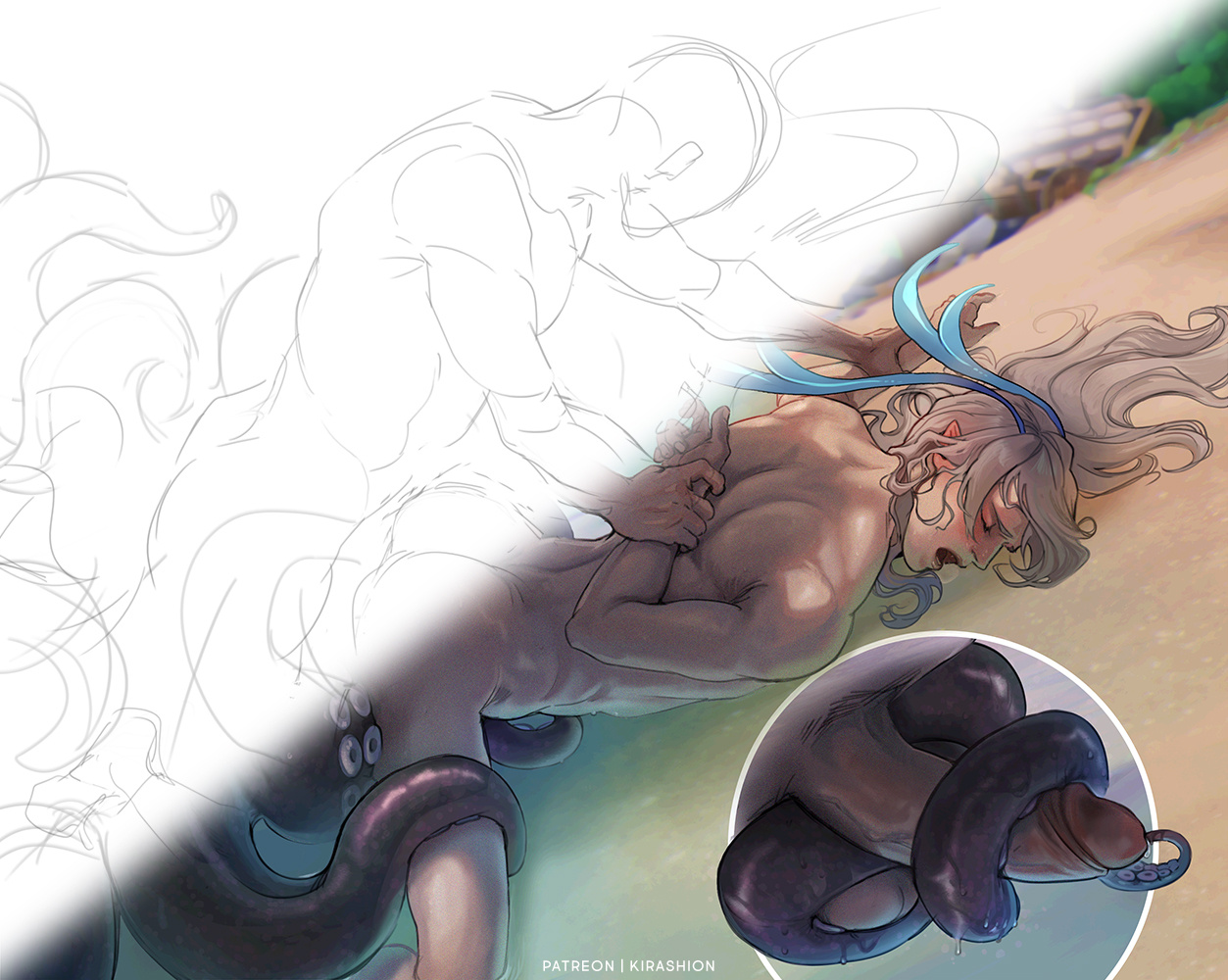
Making a process analysis of this one too, because I think it can be interesting to showcase a slightly different approach from the one I explained in these posts: [ SethoScara ] Secret Treatment and [ CaeHengday ] Welcome on board 🚂
The main difference is the color setup method. In the posts linked above, it was done following these steps:1️⃣ Flat colors2️⃣ Shadows: Multiply layer w/ Inner Glow effect 3️⃣ Extra splashes of color4️⃣ Rendering
In the process I'm about to explain (you can see it in action in this time-lapse video [ HaiKaveh ] How You Like It), the steps above are done differently, therefore in different order:1️⃣ Skin color + shadows color gradient2️⃣ Shadows: Lasso tool → Hue/Saturation palette (CTRL+U) 3️⃣ Extra splashed of color painted within the shadows area 4️⃣ Other colors: Lasso tool → Hue/Saturation palette (CTRL+U) 5️⃣ Rendering
It may seem confusing, but I promise it'll be clearer after this post! \( ̄︶ ̄*\))As usual, here's a recap of the steps I'm going to cover:0️⃣ Background1️⃣ Colors setup2️⃣ Rendering #13️⃣ Rendering #24️⃣Adjustments5️⃣FINAL!
-
MY SUGGESTION BEFORE PROCEEDING 💜More images of intermediate steps + caption can be found in the post's gallery; I suggest you have a look at them to better compare the changes for each step! In addition, you can explore the layers of the artwork's Photoshop document (attached at the end of this post)
-
0️⃣ Preparation
You won't find this step in the PSD, because until step 3️⃣ Rendering #2 I work on the same layers!
My first step is always positioning the background, usually an in-game screenshot, unless... I don't have one (e.g. [ Zhongzhu ] Breathtaking, [ Wriolette ] Office AU), in which case I start by splashing the background layers with colors reflecting the atmosphere I have in mind for the piece!
1️⃣ Colors setup
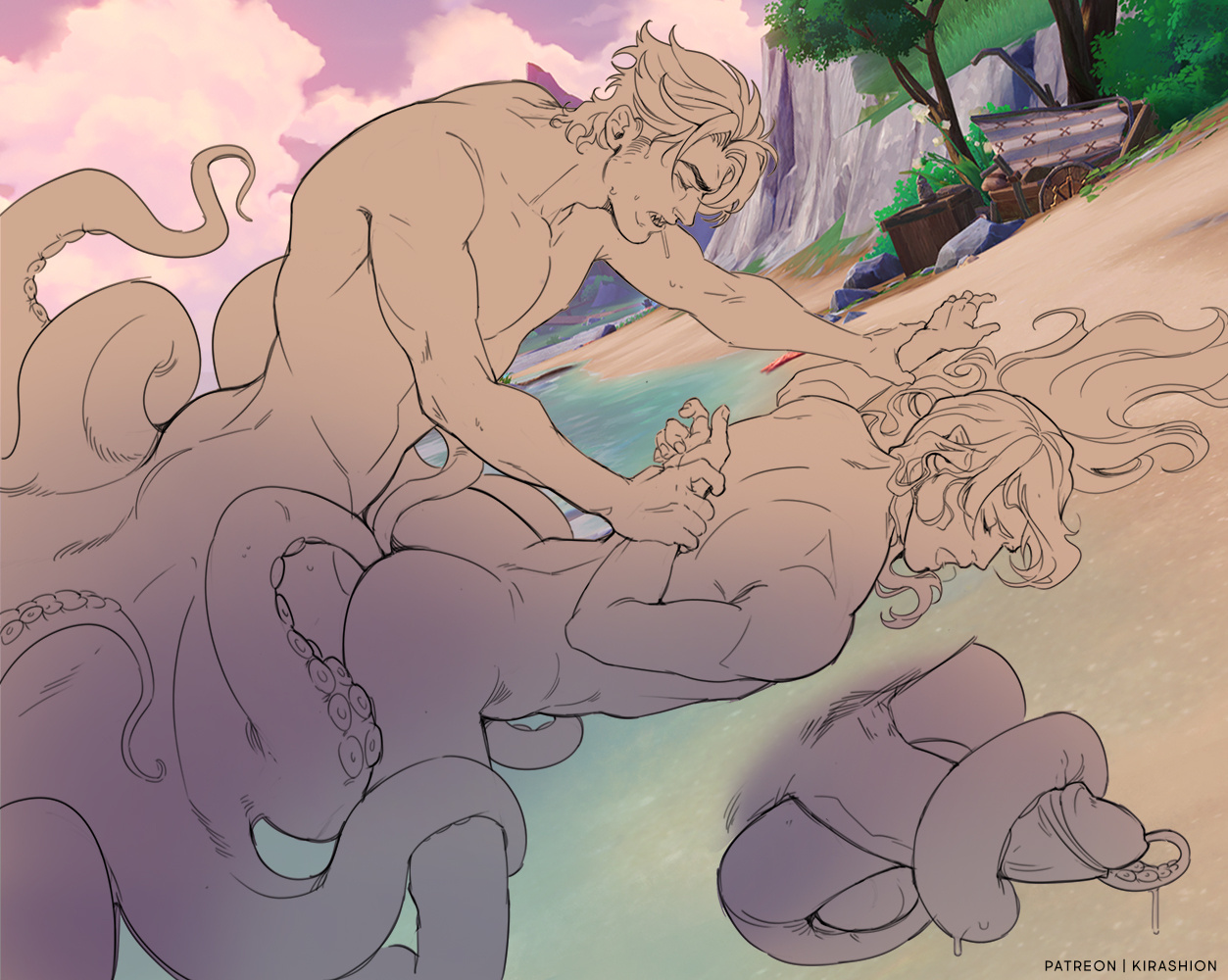
STEP 1.1 // I choose a suitable skin color and filled the previously gray area. The question at this point is "how is the skin color going to change based on the surrounding?" and you only answer very loosely at this point - so I painted the bottom half purple (main shadows color) with a hint of light blue (sea color) where Neuvi's body meets the water...
STEP 1.2 // I selected the shadows area with the lasso tool, then opened the Hue/Saturation palette (CTRL+U)...
Hue/Saturation palette
► HUE: move the value slighly towards the shadows' color. In my case, right, towards blue/purple;► SATURATION: shadows are less saturated than lights, lower the value;► LIGHTNESS: obviously, lower the value!
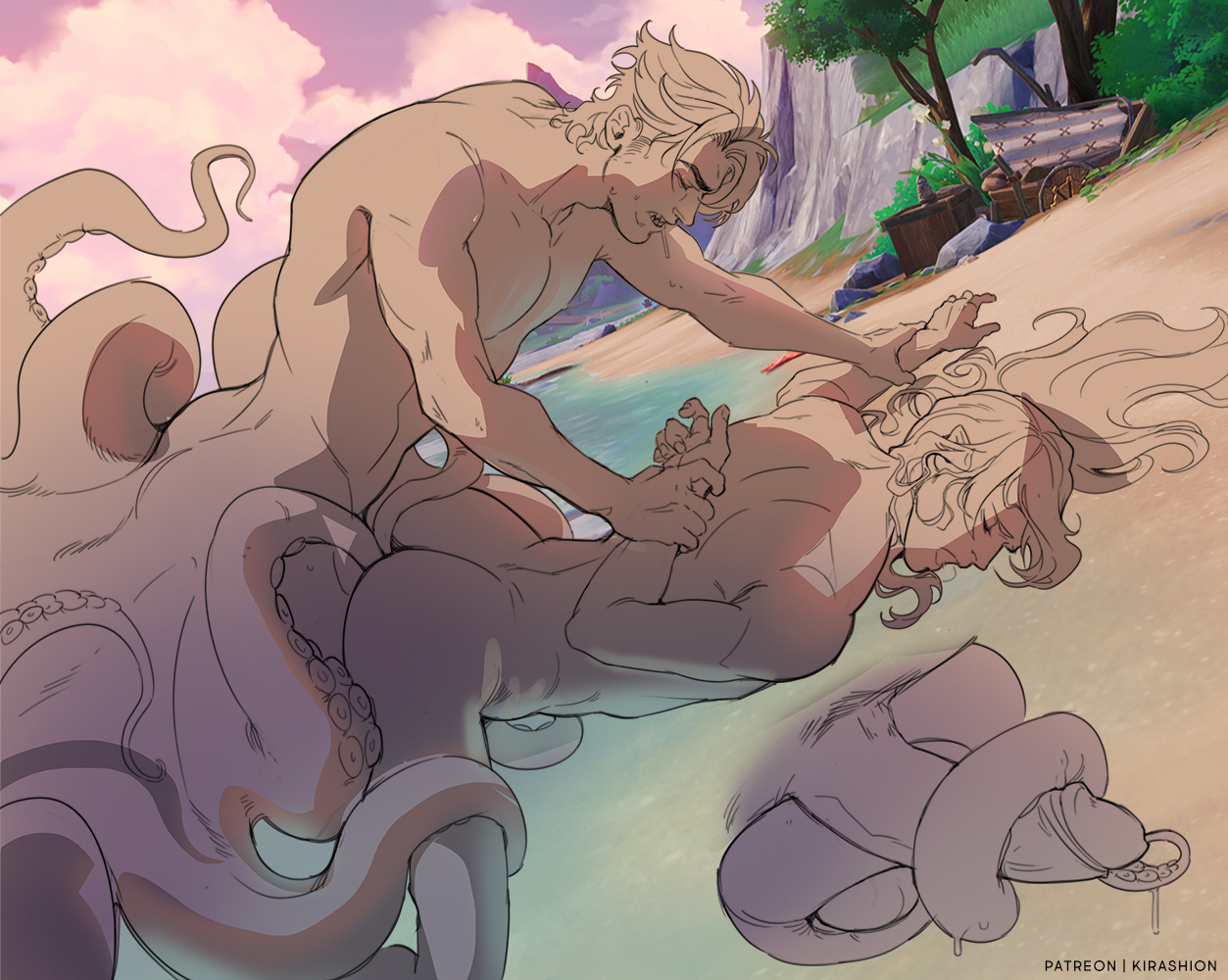
After this step, I ask myself again "how is the skin color going to change based on the surrounding?"... and paint, within the shadows area, accordingly. Here, I added a pink/orange tint around the outlines to create the subsurface scattering effect and defined the light blue reflect of the water on Neuvi's body and Wrio's tentacles.
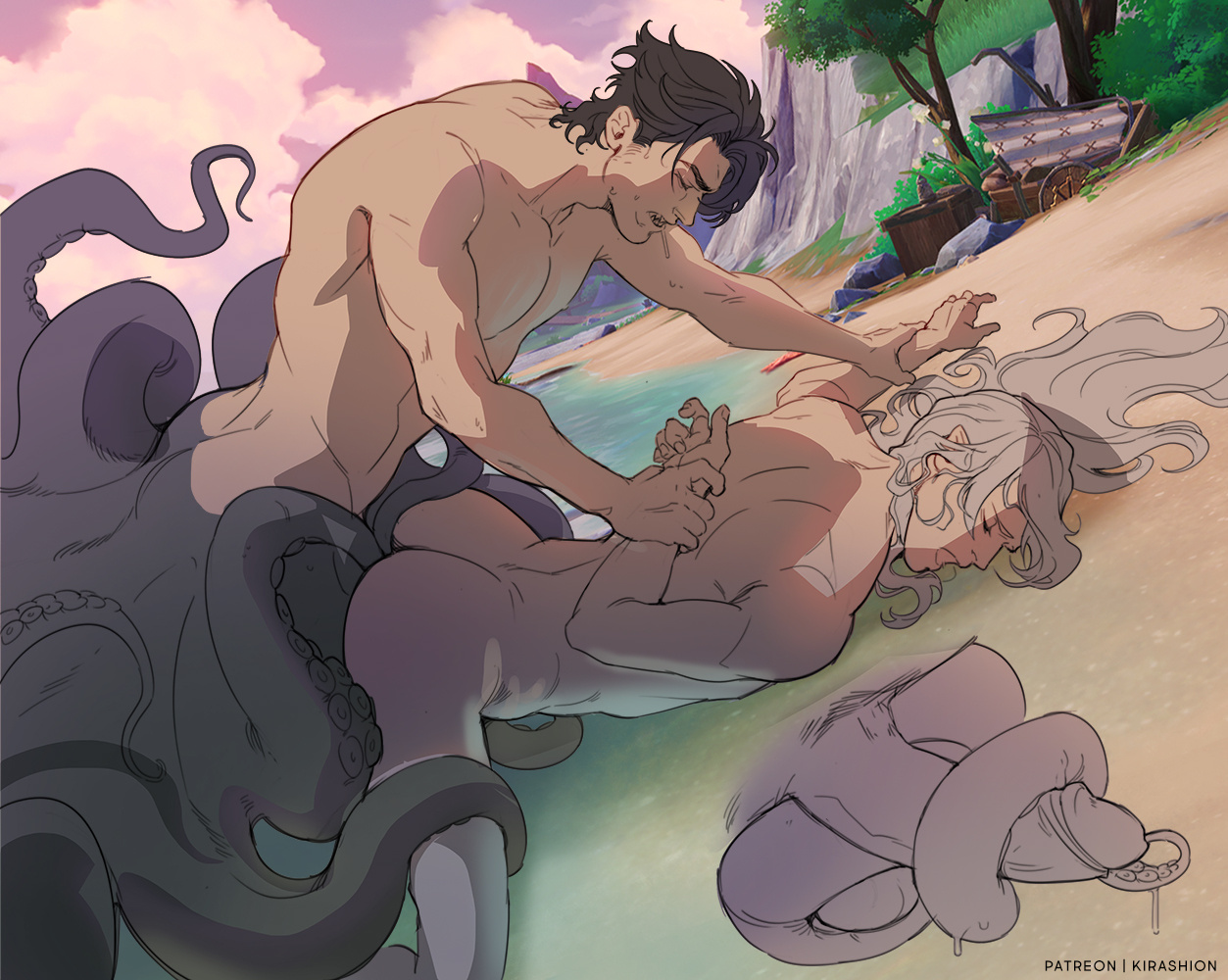
STEP 1.3 // Now is time to fix the color of other elements: hair and tentacles. The process is once again lassoing the areas and opening the Hue/Saturation palette (CTRL+U)... this time, I move on the Hue bar the most, with minor changes for Saturation and Lightness when necessary.
What I have at this point is a selection of colors (midtones and shadows, I usually add highlights after rendering) I'm going to blend and detail during the next phase. I'm ready to proceed with the rendering!
2️⃣ Rendering #1
PSD folder: WIP_1
My first round of rendering is always below the lineart and, in this type of process, I paint on the very same layers I used from the start.
My aim here is defining shapes and giving them three-dimensionality by darkening or blending the shadows. At this stage I don't consider highlights; flat colors are my midtones and I work within the shadows area (the one I initially selected with the lasso tool in step 1.2), darkening some areas and refedining/blending the outlines.
3️⃣ Rendering #2
PSD folder: WIP_2
STEP 3.1 // Time to detail above the lineart. I usually duplicate and merge all the layers I used up to this point and just paint over it, so I can redefine outlines and fluidify with ease! At this stage I tend to entirely paint over some lines, especially to smoothen the skin and define hair (you'll notice the changes more easily if you compare before-after in the gallery at the top of this post)
STEP 3.2 // Highlights! I usually paint them on a different layer because I happen to be quite insecure on the placing and intensity, this allows me to have more control if I need to edit them later. Together with highlights, I paint sweat drops and other bodily fluids 💦
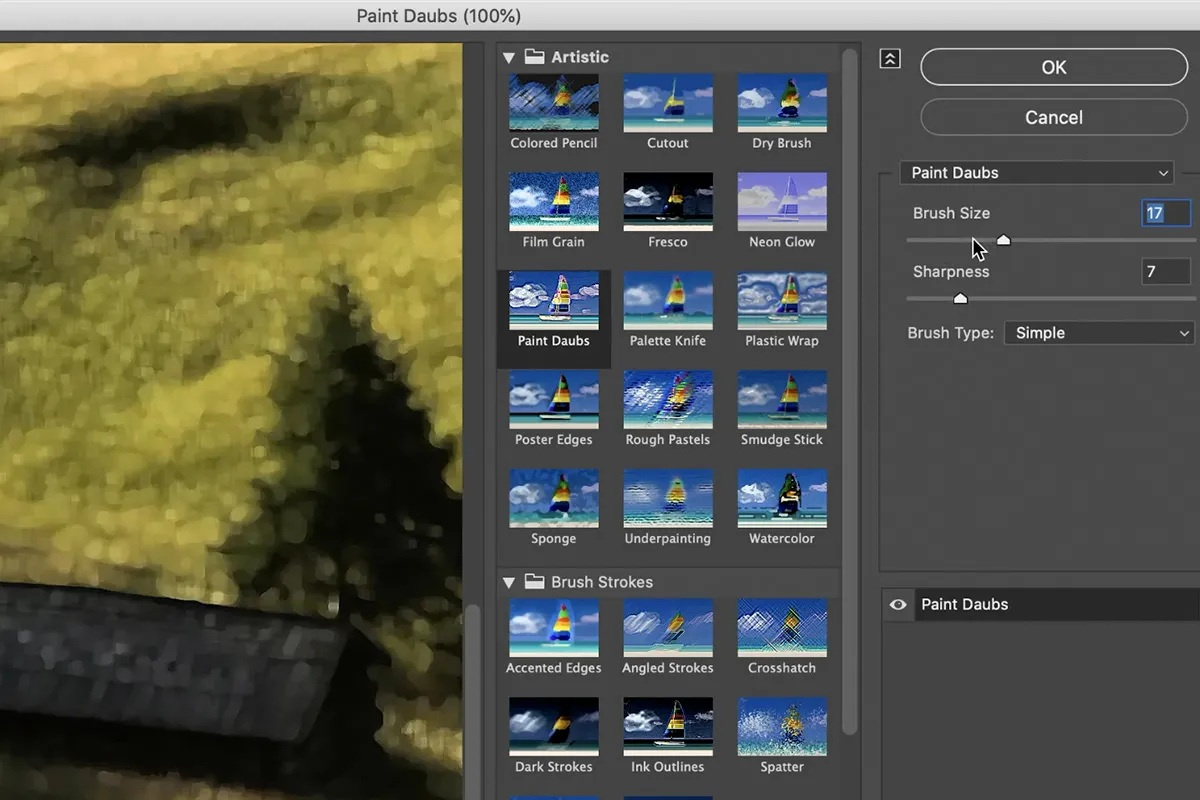
STEP 3.3 // At this point, only te background needs some work. My favorite filter to use can be found in Filters > Filter Gallery > Paint Daubs
Paint Daubs filter
My settings (for this illustration only, I change them from case to case!):► BRUSH SIZE: 23► SHARPNESS: 1► BRUSH TYPE: Simple
In addition to the above, I use blur on the farthest areas and add chromatic aberration (the latter was explained step-by-step in [ CaeHengday ] Welcome on board 🚂, step 4️⃣ Rendering #1)
4️⃣Adjustments
PSD folder: WIP_2 > Adjustments
I use a variety of Adjustments to enhance contrast and add the final touches... Here's a list of those I used (you can browse them one by one in the gallery and notice the difference they make!)
Levels, to brighten the characters
Color Lookup, NightFromDay.cube (12%), to slightly darken some areas and increse contrast;
Color Lookup, Crisp_Winter.look (100%) to increase the blue of the water and its reflection on characters:
Color Lookup, 3Strip.look (100%), to enhance the blush and increase saturation around highlights;
Posterize, value: 37, to further enhance colors and contrast!
5️⃣FINAL
PSD layer: FINAL
At this point you'd think I was done, but there's always something I remember or notice last minute, so here's a list of the edits I did directly on the Final Layer (the layer I obtain by duplicating and merging all of the ones below)
Gaussian Noise, value: 5, on the characters skin to blend the posterize effect a little and create the skin's pore effect;
Repainted Wrio's left shoulder and Neuvi's back;
Added a dotted texture to Wrio's tentacles ispired to some octopus' skin I was using as reference. The texture was painted with a "snow" brush, then I added "Stroke" (Layer Style) to increase the dots size and quickly edit the color, from white to pink!
-
As usual, I'm available for questions if you have any! 💜
💌 HD + PSD in attachments!
If your software doesn't read my PSD correctly and you do not have Photoshop, you can open my files on the free online tool https://www.photopea.com !!
Files